
Editor settings
The Editor settings menu (open the editor toolbar’s ⋯ menu, top right, and choose Editor settings) lets you tailor the workspace to the text you’re working on and to your own comfort. Changes apply immediately.
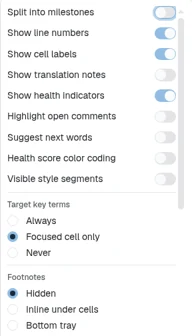
What you can adjust
Section titled “What you can adjust”- Split into milestones: “Show only the cells in the current division. Use the arrows to move to the next one.” Off (the default), the editor is one continuous list of every cell in the file; on, it shows one segment at a time (a chapter, slide, story, or section) and the milestone navigator pages between them.
- Show line numbers: show or hide line numbers down the side of the editor.
- Show cell labels: show or hide each cell’s label (for example its canonical
reference like
GEN 1:1). - Show translation notes: show imported notes beside the matching cells.
- Footnotes: hidden, inline under their cells, or in a bottom tray.
- Text direction: set Auto, LTR (left to right) or RTL (right to left) independently for the source and target sides. This is essential when your source and target languages run in different directions (Aquilla even nudges you here when it detects a right-to-left language).
- Font size: enlarge or shrink the source and target sides independently. Each side follows the app font size you set in Preferences until you change it here. Under the two sizes, “Default from Preferences: {size}px” says what an untouched file shows, and once you’ve changed either side, Reset to default puts both back on it.
- Target key terms: subtly highlight approved terminology renderings in the target text. Choose Always, Focused cell only (just the cell you’re editing, the default), or Never.
- Show health indicators: turn off the per-row decay markers, rule checks, and the confidence overlay for this browser. On by default; turning it off can lighten the editor on very large files.
- Highlight open comments: mark every row that still has an unresolved comment thread with a strong accent on its leading edge, so a reviewer can scan for them. Off by default, for this device; the small comment marker on a row shows either way.
- Health score color coding: colour the words of AI drafts green where they match the examples the AI was shown and orange where it guessed. Off by default, for this browser only. See Which words came from examples.
- Suggest next words: while you type, show the next word or two in grey after the cursor. Off by default, for this browser only, until you turn it on. See Next-word suggestions.
- Visible style segments: in InDesign (IDML) files, show the styled pieces of a cell’s text. Off by default. While it is on, you can drag either edge of a bold or italic piece to move whole words in or out of it (the edge can also stop between a word and its punctuation), and releasing the drag saves the change. A cell whose text is already in styled pieces doesn’t open for typing while the switch is on, so the edges are easy to grab; turn it off to edit the text normally.
- Low-memory mode: Auto, On, or Off, at the bottom of the Editor settings menu. It is a device setting, so it stays available even with no file open. It switches the editor to a lighter display for low-spec devices: the editor draws only the cells near the screen, drops the per-cell “someone else is here” overlay, and starts with health indicators off. Auto (the default) turns it on only when the device reports very little memory; On and Off override that guess. It changes only how things are displayed, never what is saved. If you turned health indicators on or off yourself, that choice is kept either way.
Where your settings live
Section titled “Where your settings live”Editor settings are stored per account, in your browser (local storage): they take effect instantly and stay put on this device, but they don’t sync to other computers (set them once per device), and they’re independent of the project, so they follow you, not the text. Target key terms is the exception: it’s saved per project, so you can turn it on for a project where you want the reminder and leave it off elsewhere.
Device preferences
Section titled “Device preferences”Editor settings live with the text you’re translating. A separate Preferences area (open it from the account switcher) holds settings that follow you across every project on this device:
- Theme: System, Light, or Dark.
- Workspace: show the sidebar’s tab strip as a left rail or a top bar, and Confirm before replacing a translation: ask for confirmation when AI Generate is about to replace a cell that already has a translation. Validated cells always confirm regardless of this setting.
- App font size: how big menus, sidebars, settings, and untouched editor text look everywhere on this device, from Small to Extra large.
- Share usage data: whether usage analytics are shared.
- Recording: the recorder and timeline settings, which follow your account while you’re signed in. See Recording.
Preferences also holds your translator profile (context the AI copilot uses to tailor its answers) and your personal AI-provider keys. Like editor settings, these are stored per device.
Help assistant
AI answers from the Aquilla docs — may make mistakes.