
Using the AI agent
Aquilla’s AI agent works inside a project the way a fast, tireless teammate would, but it never edits in place. The empty-state message it opens with says it plainly:
Ask the agent to draft, check, or explain — it proposes changes you review and apply.
Every draft, every imported changeset, every note it wants to remember about your project shows up first as something you decide on. This page covers starting a conversation, what a run looks like while it’s working, and how to review what comes out of it.
Opening the agent
Section titled “Opening the agent”The agent lives in the left dock, under the Agent tab (look for the Bot icon). It opens as a panel alongside your editor, headed Conversations: a list of the team chat and each run, with the Bot icon’s panel holding the shortcuts described below.
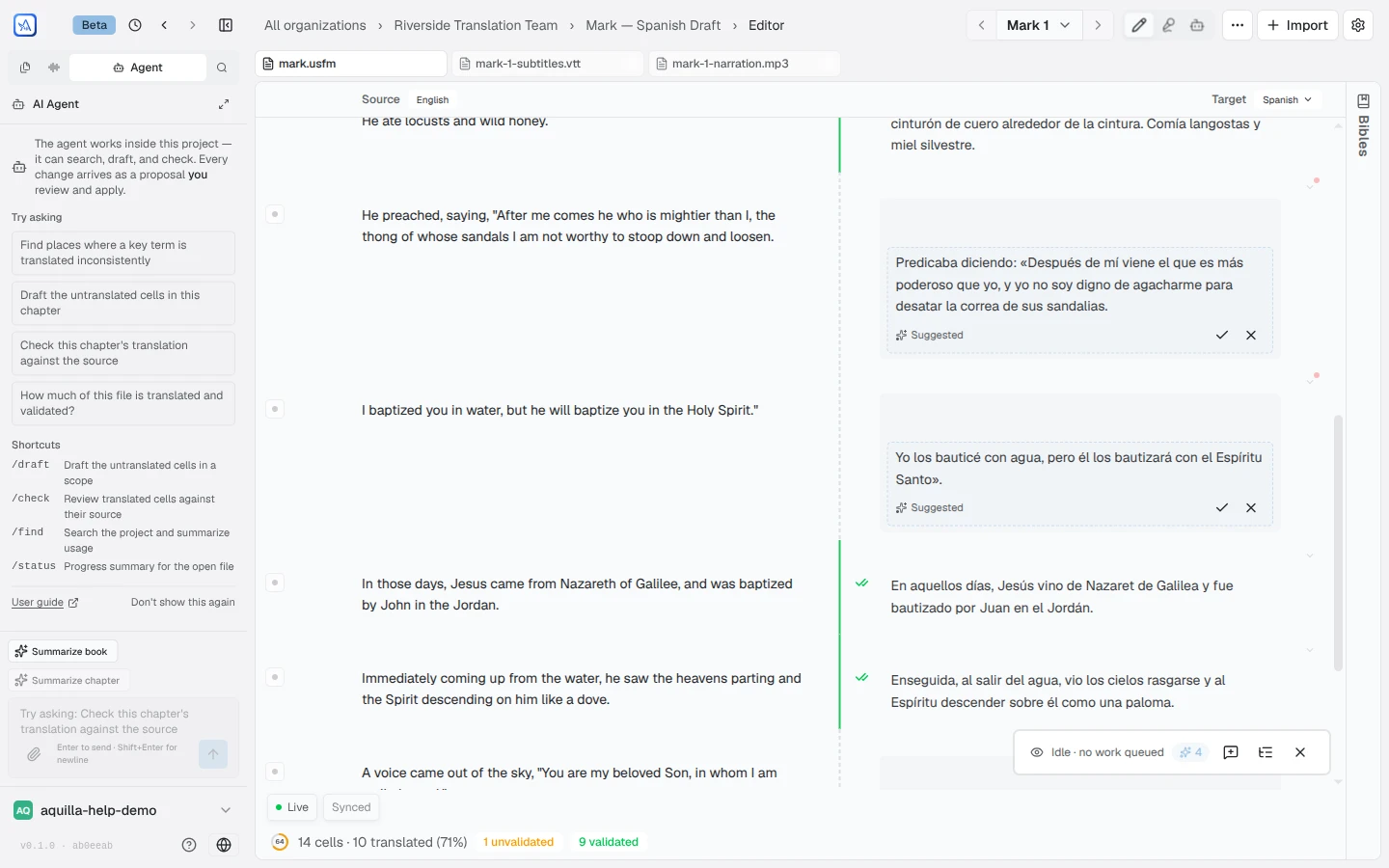
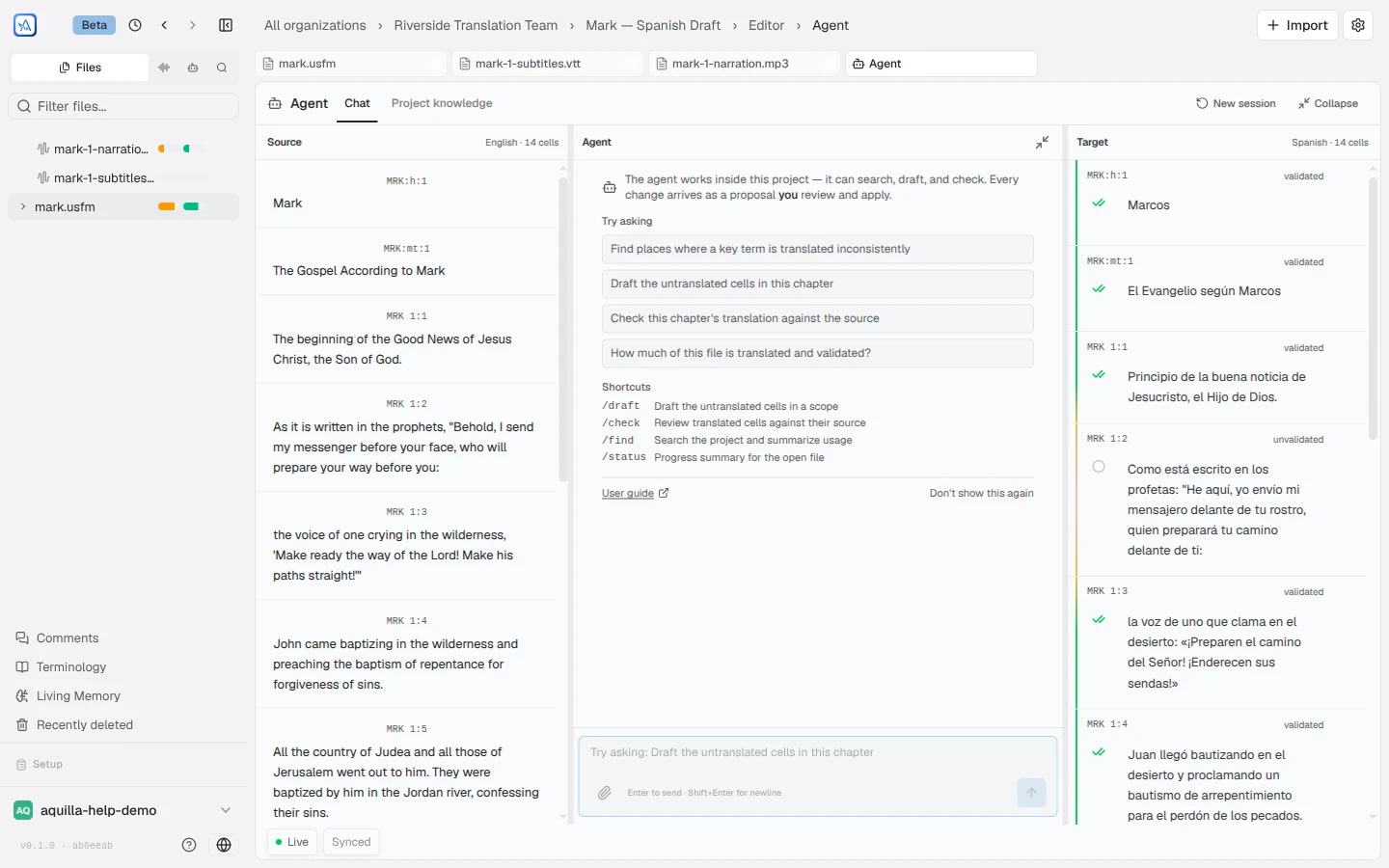
For more room, click Open agent in editor tab: the agent opens as an Agent tab in the editor’s tab strip, alongside your files. This workbench follows the file open in the editor, and a page reload keeps it where you were. Its tabs:
- Conversation: the chat itself. Always shown.
- Document: the file’s cells beside the conversation. It appears in the team chat.
- Files changed: the drafts a run proposed. It appears when you open a run’s conversation. In the team chat the same tab is called Review drafts and shows only when there is staged work to review.
- Checks: the findings from a run’s checks. It appears in a run’s conversation.
- Project knowledge: what the agent has learned about the project (see Agent memory & the project brief). Always shown.
Its header adds live progress while a run is in flight, a Stop button, and icon buttons for New session and Minimize to sidebar. The dock panel and the editor tab share the same conversation, so you can pop between them without losing anything.
Starting a conversation
Section titled “Starting a conversation”Type into the composer. Placeholder text reminds you of the shortcuts: “Ask the agent… (/draft, /check, /find, /status)”. Enter sends your message; Shift+Enter adds a newline instead.
When you ask for something that needs a file and several could fit, the agent lists your project’s files as buttons under Choose a file:. Click one and Aquilla sends Use “file name” for you. Choose file in the workbench shows the Files panel, or, when that panel is already open, puts the cursor in its “Filter files…” box.
If you type while the agent is mid-run, your message doesn’t interrupt it: it queues, with a note like “1 message queued — sends when the current run finishes.”
A few slash commands give the agent a clear, scoped job:
- /draft [MRK 4]: draft the untranslated cells in a scope, like a chapter or a range.
- /check [MRK 4]: review translated cells against the source and flag anything worth a second look.
- /find <text>: search the project and summarize where and how something is used.
- /status: a progress summary for the file you have open.
The composer can also start from the text itself. Selecting source text and choosing Ask AI drops a context chip into the composer so the agent knows exactly what you mean. On scripture files, Summarize book and Summarize chapter are one-tap shortcuts for a quick overview.
What a run shows
Section titled “What a run shows”While the agent is working, the conversation streams in pieces so you can follow along:
- Prose: the agent’s running commentary, streamed as it thinks.
- Tool chips: collapsed by default, expandable if you want to see exactly what the agent did (searched the project, read a file, and so on).
- Code-activity blocks: the agent can run code in a sandbox to check its own work (for example, counting occurrences); expand a block to see its stdout/stderr.
- Proposal cards and changeset cards: see below.
- Memory and brief notices: when the agent wants to remember something about the project. See Agent memory & the project brief.
- A usage ring beside the chat composer (see Tracking AI use below). Replies carry no usage line of their own. Every run also has its own cap: when a run reaches it, it stops and an inline notice appears in the chat. A run that hits its limit ends capped: “Run hit its step/token cap — results may be partial.” You can ask the agent to continue if it stopped short.
Working with the team
Section titled “Working with the team”The team chat is the agent workbench’s default conversation. Its composer reads “Message the team…”, and the dock’s Conversations list opens each run as its own conversation (New conversation starts another). The team posts its work in Team chat, shows who is on the project under Your translation team, and flags questions for you under Needs your expertise. Staged drafts wait under Review drafts.
Starting a new chat and reopening old ones
Section titled “Starting a new chat and reopening old ones”In the agent workbench, New chat is a button on the toolbar, labelled with those words. It starts a fresh conversation and does not delete the one you were in: that chat is saved and listed under Previous chats, a menu beside the button, so you can open it again later. On the small floating chat, a Chat options menu holds both New chat and Previous chats instead. The list shows your own chats on this project; a chat with no first message of its own appears as Untitled chat, and if the list can’t load you see “Couldn’t load your chats.” A reopened chat shows its messages but not the proposal cards from the run that produced them. Choosing Ask AI on selected text also starts a new chat rather than adding to the last one.
A run’s conversation
Section titled “A run’s conversation”Open a run from the Conversations list and its header shows the file name, the run’s state, and your translation team. When drafts are waiting it reads “N drafts ready for your review”, with a Review N drafts button. If some drafts have findings, the header adds how many (“N with findings”, and “N need you” for the ones that need a person).
- Files changed lists every pending draft by cell reference, like the changed-files list of a pull request. Each draft shows its findings, or “No findings”. Approve N drafts without findings accepts every clean draft at once; drafts with findings stay for you to review one by one. Selecting a draft shows its Source context, the Saved translation, and the Proposed translation, with Edit before accepting if you want to change it first.
- Checks groups the findings by how much they matter: Needs you and Advisory. Findings read like “Meaning check disagreed”, “Naturalness check disagreed”, “Project rule: {rule}”, “Wording not found in the sources”, or “Redrafted after review”. When there are none, it says “No findings. Every pending draft passed its checks cleanly.”
- Each step the team took has View details, which opens Step detail beside the conversation, with the Situation note, Why, and Details for that step. Close step detail hides it.
- A conversation the team started because of your edits is marked “Started in response to your changes” in the list.
- On a run that has stopped, the composer reads “Message to start new work on this file — your note guides the fresh run.”
Agent mode and Next passage
Section titled “Agent mode and Next passage”In the team view, a small Agent mode control sits in the conversation header. It shows the current setting, and opens a panel with Presets: Autopilot, Reacting, QA only, Draft only, Manual, and Custom. Manual is the default: “Nothing starts unless you start it.” Below the presets, two switches, Initiative loop (“The team may pick up new passages on its own.”) and React loop (“The team watches the edits you commit and follows up on them.”), and a choice under What it may work on: Everything, Checks only, or Drafts only. At this release the server acts only on the React loop and the scope choice. Starting a run is still your decision. Only a project lead can change these; everyone else sees them greyed out with “Only a project lead can change the agent mode.” Anyone who can contribute can press Check for updates now to look for follow-up work right away.
On a run that is waiting for you, or that failed or was stopped, a Next passage button in the same header starts one more passage, then pauses again so you can review before more work happens. It needs Contributor access or above.
Whatever the mode, the team only proposes. Every draft still waits for your approval. These controls start work only while Autopilot is on for the project; see Autopilot.
Autopilot and the team
Section titled “Autopilot and the team”Team conversations, and the follow-up work the team starts on its own after you edit, follow the project’s Autopilot setting. If a project lead has switched Autopilot off, the team leaves that follow-up alone. See Autopilot for how to turn it on and what the team does with it.
Reviewing drafts in the working set
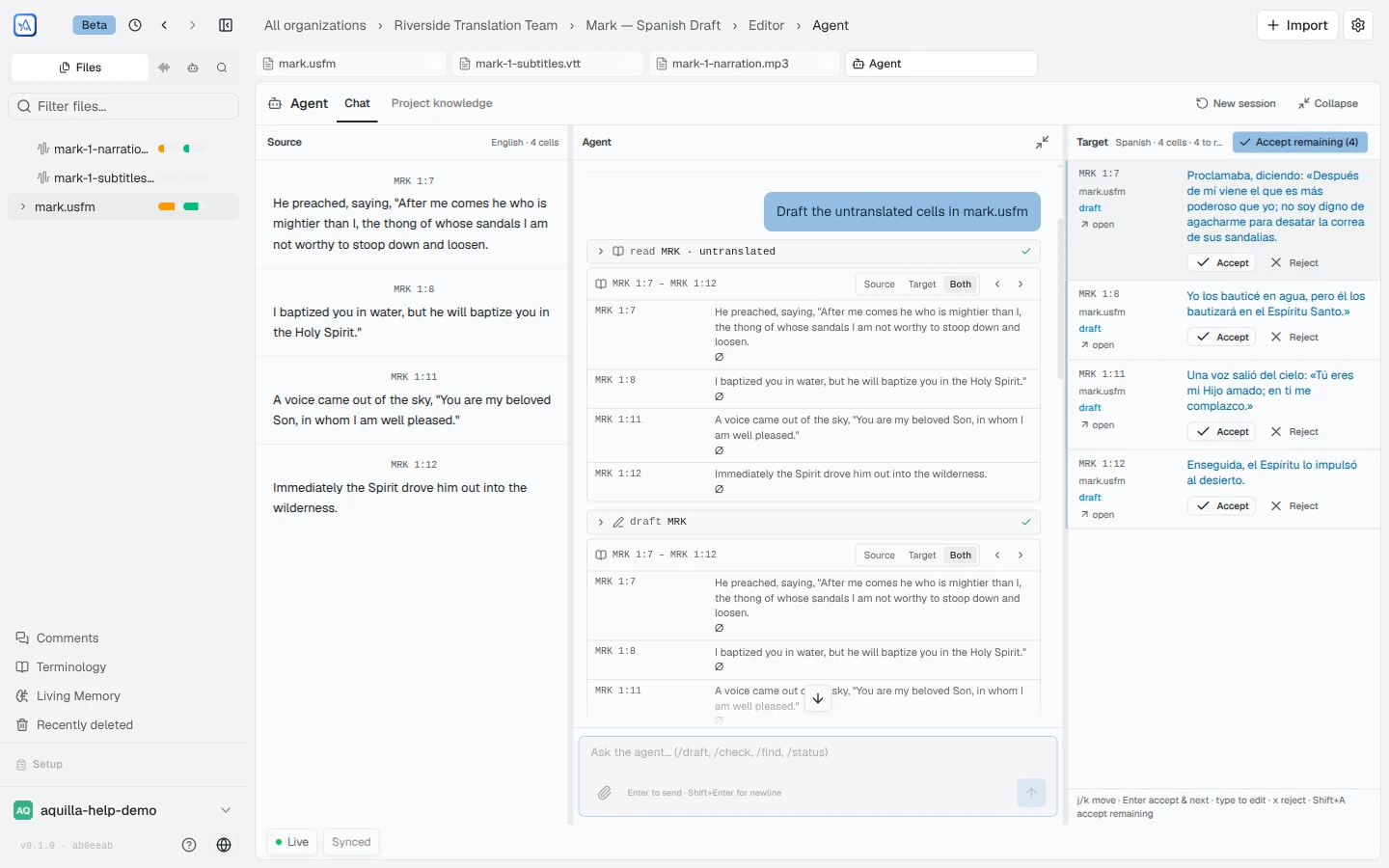
Section titled “Reviewing drafts in the working set”When the agent drafts translations, it doesn’t write them straight into your cells. It stages them as proposals, and the chat shows a receipt (“N drafts staged”) with each cell tagged accepted, edited & accepted, rejected, undone, or to review. Once you have decided every row of a proposal, its receipt shrinks to one line of outcome counts (such as “3 accepted” and “1 undone”) with an Undo applied button.
Most proposals edit a cell that already exists, but the agent can also propose a brand-new row: a New source row or New target row card, marked (new row) ahead of the proposed text. Applying a new source row needs Project lead access or above; a new target row needs Contributor access or above, the same roles the regular add-row controls require.
Click Review in working set to jump straight to the first undecided row. From there:
- Edit a proposed draft in place if it’s close but not quite right, then Accept it.
- Accept a draft as-is.
- Reject anything you don’t want.
- Validate or type a translation here and Aquilla fills repeated segments the same way the editor does.
- If you change your mind after accepting, Undo applied restores the cell’s pre-draft text, as a new, audited edit, not a deletion. Nothing the agent (or you) does is ever silently erased.
Approving staged imports
Section titled “Approving staged imports”Some agent work (a bulk import from an external source, or a settings change, for instance) comes back as a changeset rather than individual cell drafts. These show up as changeset cards right in the chat, with Approve & apply and Reject buttons: approving one both confirms and commits it on the spot, no separate page to visit. Some items in a changeset (like validating a cell) need their own confirmation checkbox ticked before Approve & apply turns on.
Once you approve, the card reports back what happened: how many changes applied, and how many were skipped as stale because the project moved on underneath them. A card’s status reads Pending review, Approved, Committed, Discarded, Stale, Expired, or Already done (someone made the same change by hand first, so there was nothing left to apply). A changeset can also be routed to a specific teammate to look at; routing only flags it for them; it still waits on a person to decide. When several changesets are queued, only a few show at once and a “N more held” note marks the rest, revealed as you clear the ones on screen.
Changesets that come from an external agent using the Agent API (rather than Aquilla’s in-app assistant) work differently: see Approving agent changes for that separate approval page.
Attaching files
Section titled “Attaching files”Click the paperclip (Attach file) in the composer to give the agent a file to work from. It uploads as a project artifact and rides along with the next run, handy for handing the agent a reference document or a list to work through.
Stopping and starting over
Section titled “Stopping and starting over”Click Stop at any point to halt a run early. New session drops the current conversation and starts fresh, useful when you want the agent to approach something without the context of an earlier, unrelated task.
Tracking AI use
Section titled “Tracking AI use”The small ring beside the chat composer shows, for everyone, how much of the organization’s AI for this week has been used, as a percentage (hover it for “{percent}% of this week’s AI used”). It never shows credits or amounts. Where the organization’s AI isn’t metered, it reads Not metered or Unlimited instead. Click the ring to open the full meter. Agent runs use much more of it than single drafts. If the figure can’t be loaded, the ring shows how much of the latest run’s own budget was used instead.
When the week’s AI is used up, new agent runs stop and a card above the composer says “This week’s AI is used up. AI actions are paused until {day}.”
Who can use it
Section titled “Who can use it”When a project has several target lanes, the agent’s tools stay inside the active lane: its drafts target that lane’s text, never another lane’s.
Any signed-in project member can start a conversation with the agent: what it’s able to change for you follows your own role, the same as if you made the edit yourself. Reviewing what the agent remembers about the project is more restricted; see Agent memory & the project brief for those roles.
Help assistant
AI answers from the Aquilla docs — may make mistakes.