
Files, cells & navigation
Inside a project, your text is organised into files and cells.
Files and cells
Section titled “Files and cells”- A file is a unit of content: typically one book or document section. A project can have many files.
- A cell is the atomic translation unit: one paired piece of source and target text (a verse, a heading, a footnote, or another canonical segment). Cells are what you actually edit.
Files are broken into sections so a long file stays readable; for scripture, a section is a chapter.
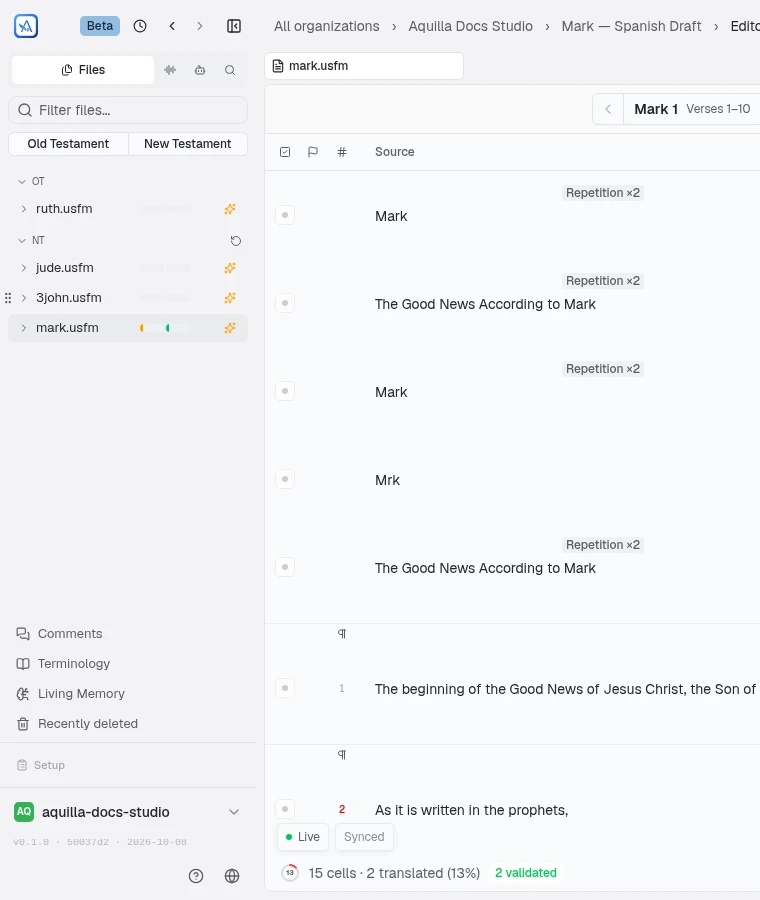
When a project has several files that don’t already carry their own grouping (a set of loose scripture files with no book-level markers, for example), Aquilla lists them in canonical order, Genesis through Revelation, in the sidebar and in file pickers, so scripture stays in a familiar sequence.
When the sidebar’s file list has both an Old Testament and a New Testament group, Old Testament and New Testament buttons appear above the list, next to its file-name search box: click one to expand its group if it’s collapsed and jump straight to its header, without touching the other group. A button is disabled if the current search has hidden that Testament’s group.
A file that holds several books, such as a whole Bible imported as one file, gets book headings in the chapter navigator, with each book’s chapters listed under it in canonical order instead of one long flat list. The sidebar groups such a file by book the same way, and you can fold a book shut; that choice is remembered across reloads. Files with one book, and files that aren’t scripture, keep the flat list.
When a project uses assignments and some files are assigned to you, the files
that are not yours are dimmed in the sidebar. Hover one and the tooltip reads
“{name} — not assigned to you. You can still open it.” with the file’s name
in place of {name}.
Putting files in your own order
Section titled “Putting files in your own order”Files in a group start in the order Aquilla picks. A Project Lead (or above) can place them by hand: drag the grip beside a file (“Reorder {name}”) to a new spot, or open the file’s ⋯ menu and choose Move up or Move down. To move a file into a different group, drag it onto that group and drop it at the slot you want, or use the ⋯ menu’s Move to corpus…. Everyone on the project sees the new order.
Once a group holds a hand-placed file, a reset button appears on its header (“Reset the order of {group}”). It asks “Put {group} back in automatic order?” and, on Reset order, returns the group to the order Aquilla picks. Nothing else about the files changes.
The file menu: details and actions
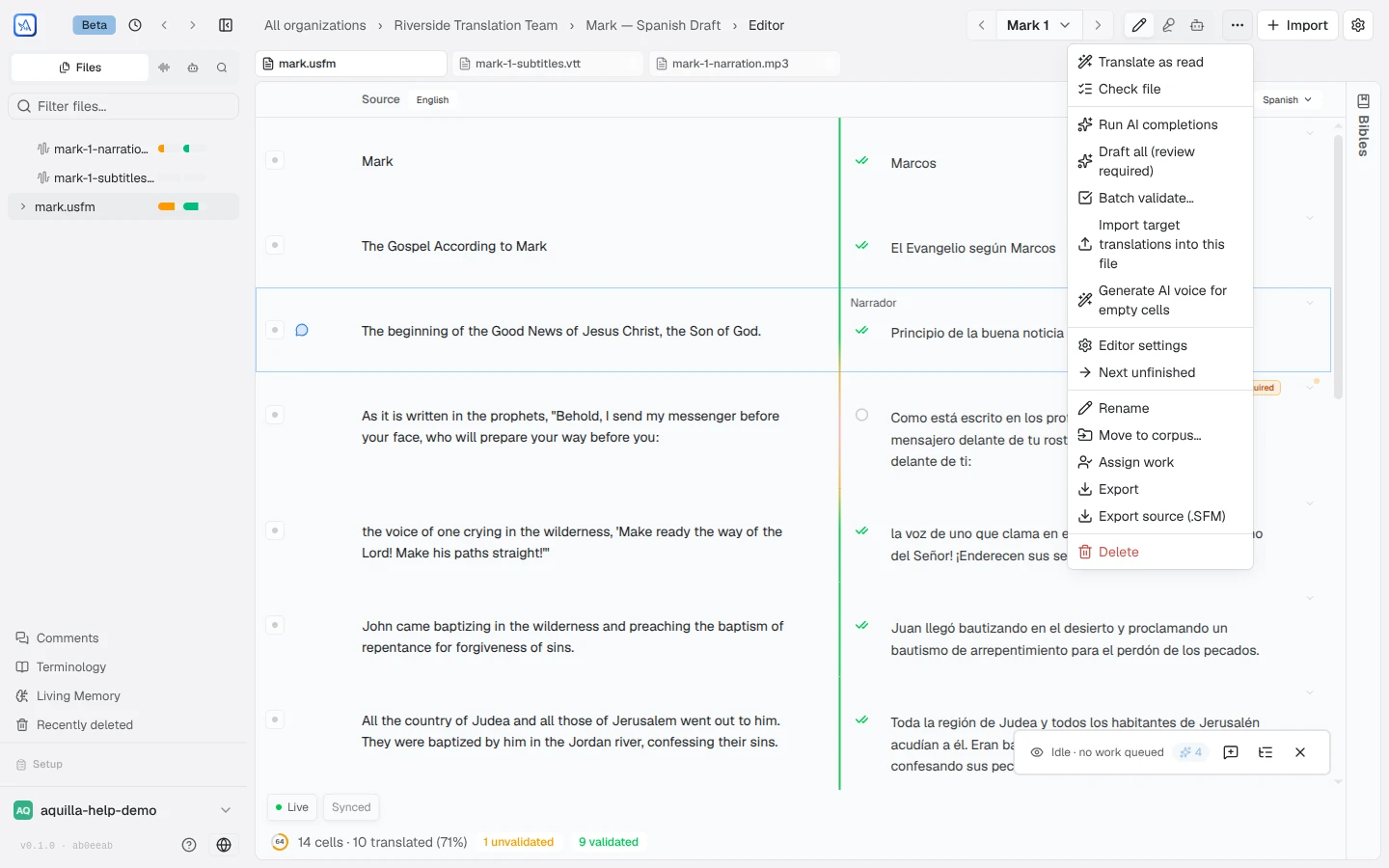
Section titled “The file menu: details and actions”Right-click a file in the sidebar, or open its ⋯ menu, for File details and the actions that manage the file itself.
File details opens a metadata panel: the file’s Type (its format, like USFM or DOCX), Corpus (if it’s grouped into one), Book code (for scripture files), Segments (its cell count), Ordering (“Timeline (timecodes)” or “Sequence”), its Declared source language and Declared target language (when the file states them), when it was Imported, and its translated/validated Progress. “Declared” means the language the file said about itself at import; it is not a setting and does not change a lane’s language (see Setting a lane’s language, name, and code). If the file has been renamed since import, the panel notes what it was originally called.
The same menu holds the actions themselves: Rename, Move to corpus…, Segmentation…, Assign work (if you can assign), Export, and, for a Project lead or above, Delete. Assign work opens the assignment dialog scoped to that file, without changing whatever cells you had selected. Exporting a file you don’t have permission to export still opens the export dialog, but with an explanation instead of a download: “You don’t have export permission.”
The menu’s top item, the Draft as you read toggle, switches on a reading mode where AI drafts each empty cell as it scrolls into view; see Draft as you read.
Segmentation… opens a dialog showing how the file is currently divided into passages, since the AI translator drafts one passage at a time and reads the passages around it for context. Anyone can open it to see the current division; changing it needs Project lead access or above. Three ways to divide the file: Automatically (from the file’s own structure), Every N segments (a fixed segment count per passage), and Let AI find the passages, which reads the file and proposes a division you can review before saving.
Switching target languages: the lane switcher
Section titled “Switching target languages: the lane switcher”The language tag next to the TARGET column header (at the top of the editor, beside the source language tag) doubles as the lane switcher. It shows even when the project has only one lane, so a new project’s maintainer can see the lane and add another. Maintainers and above get a searchable list of every lane, with Change target language…, which opens Project Settings → General with the Languages card in view, and Add lane…, which opens the same card scrolled to Add a target lane. A member limited to certain languages gets the same list over only the lanes they may see, even if that is a single lane, and no Add lane…. Everyone else sees a static pill showing the lane they’re on. Type to filter the list, handy on a project with many lanes; archived lanes stay out of the way behind a Show archived (n) row, and that row opens automatically if the lane you’re currently on is itself archived.
If no target language is set yet, the tag reads Set target language. The default lane’s target language never follows whatever language the first imported file happened to be in. It always follows what’s set in the project’s settings.
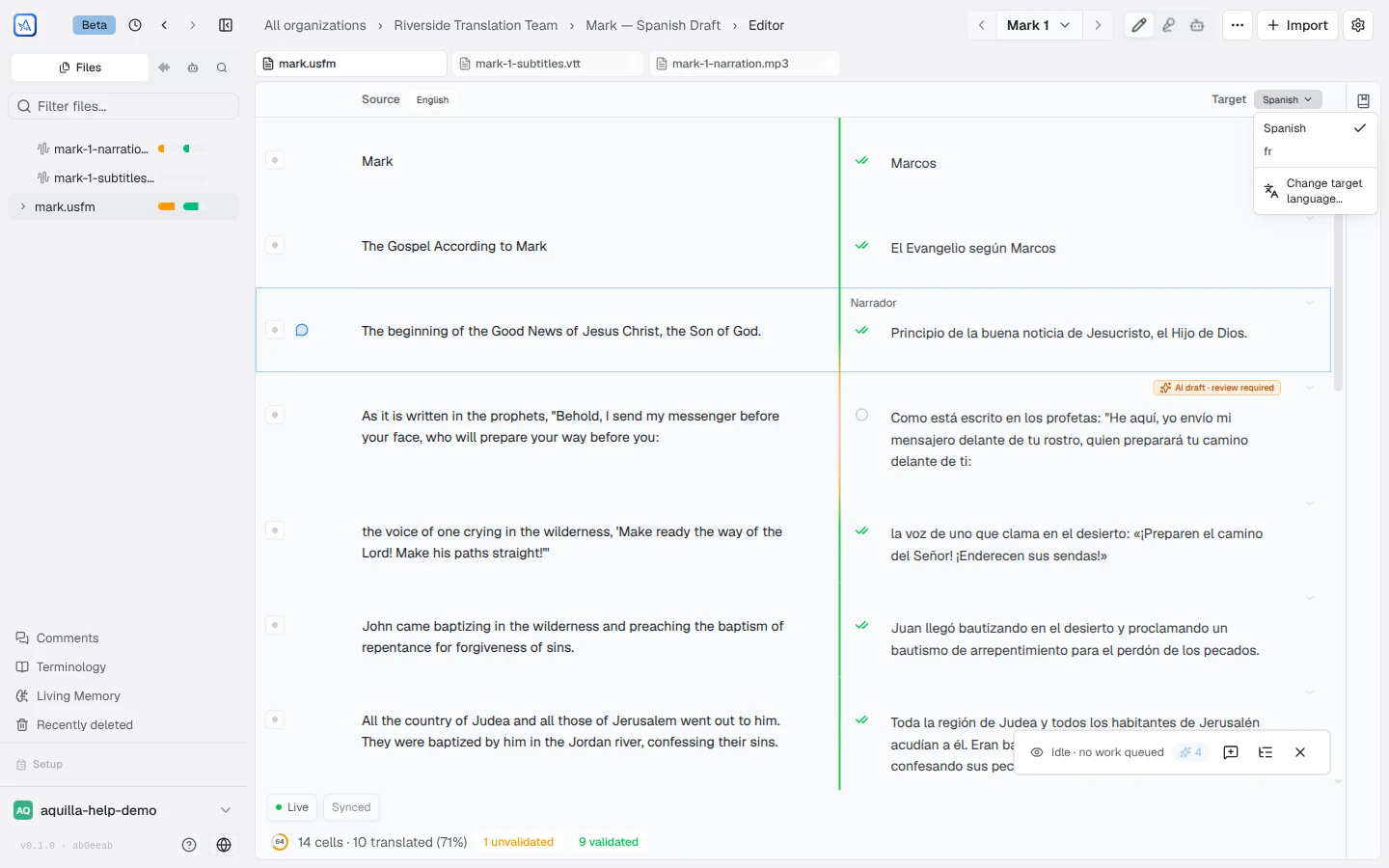
Switching lanes changes which target text you’re reading and writing. Each lane keeps its own translations, its own validation, and its own progress: a newly added lane starts empty, and nothing bleeds between languages. Aquilla remembers which lane you were last on, per project, on this device.
See Languages & target lanes for adding target languages, and Project health for how progress is tracked per language.
Archiving a lane
Section titled “Archiving a lane”A target lane you no longer need can be archived instead of deleted. From
the Target lanes list in the Languages card (Project Settings →
General), the archive icon
on a lane hides it and asks you to confirm: Archive "{lane}"? It's hidden from the lane switcher by default but kept — its cell data is preserved and you can restore it anytime.
Beneath the question, a line tells you whether anyone is still working in the
lane: “Checking recent activity…” while it looks, then “Last change in this
lane: {date} by {editor}” (or “Last change in this lane: {date}” when the
editor is unknown), or “No changes in this lane yet.” Choose Confirm
archive to finish. Archiving (and restoring) needs project edit permission.
Archived lanes drop out of the everyday lane switcher, tucked behind a Show archived (N) control that keeps the list tidy. Open it to find an archived lane and Restore it, which brings it back to the switcher with its translations exactly as you left them.
An archived lane is frozen: edits, validations, recordings, and other changes to that lane are refused for everyone, Maintainers included, until it is restored. If a change is refused you may see “the name lane was archived” (or “that lane does not exist” if your role does not let you know the lane exists). A project must keep one active lane, so the last one cannot be archived.
If a lane is archived while you have it open, a window tells you at once: “A project manager archived {lane}, so it is now read-only. You can still read, search, export and comment on it, and your other languages are unaffected.” Its only button is Got it. Importing a translation into that lane is refused too, with a prompt to switch to another language.
On the project’s overview page, the languages table lists active lanes only; archived lanes sit in a collapsed Archived (N) group beneath it, each with an Archived badge and a link to open it.
Setting a lane’s language, name, and code
Section titled “Setting a lane’s language, name, and code”Each lane’s language, name, and code are set on the lane itself, in the Languages card in Project Settings → General: the Source Language at the top and each lane under Target lanes. The language field suggests language names, and the code is worked out from the language unless you set one under Advanced. Languages & target lanes covers every field, adding a lane, and who sees which lanes.
Moving between sections
Section titled “Moving between sections”Expand a file in the sidebar and its sections appear as clickable rows, each with one small progress bar: the dark part is validated, the lighter part is translated but not yet validated. Click one to jump straight to that section’s cells.
Sections come from each cell’s canonical reference (for example GEN 1 or
MAT 5), so the list always reflects the text you actually have: no manual
setup needed.
Jumping between chapters, slides, or sections
Section titled “Jumping between chapters, slides, or sections”Above the source and target columns, the editor shows a milestone navigator whenever a file has more than one segment to jump between: Previous and Next buttons around a button labeled with the current segment (for example “Genesis 1”). What counts as a segment adapts to the file: chapters for scripture, slides for a slide deck, stories for an IDML layout, sections for a heading-based document, and so on.
Click the current-segment button to open a searchable list of every segment in the file (its search box reads, for example, Find a chapter…). Each entry shows its size (a verse range for scripture) and percentage translated and validated; type to filter the list, then click an entry to jump straight to it.
For IDML imports, a story in that list can expand to show its subsections (for example Cells 1–25), so you can jump partway through a long story instead of scrolling from the top.
Files with only one segment don’t show the navigator; use the sidebar’s section list above instead. By default the navigator scrolls a continuous list; turn on Split into milestones in Editor settings to show one segment at a time instead.
Picking up where you left off
Section titled “Picking up where you left off”When you reopen a project, Aquilla restores your last location: the file and section you were on. You can step away and come straight back to where you were working.
Suggested passages
Section titled “Suggested passages”In a Scripture file, a Suggested passages button sits beside the chapter navigator once there is still untranslated text in the book. Open it for “Next passages to work on”: a short list of ranges (for example a chapter-and-verse span) that surveyed Bibles break at, starting from where you left off. Each range says either “N of 20 Bibles break here” or, for the one you are in the middle of, “Finishes the passage you are in”. Click a range to jump to its first cell. The button does not appear for non-Scripture files, for a finished book, or if the passage data could not be loaded.
Searching and jumping around
Section titled “Searching and jumping around”Beyond the section list, use the editor to scroll through cells in order. The sidebar’s quick links (Living Memory, Comments, Voice, Members, Settings) take you to the project’s other areas without losing your place in the text.
Help assistant
AI answers from the Aquilla docs — may make mistakes.