
Back-translation
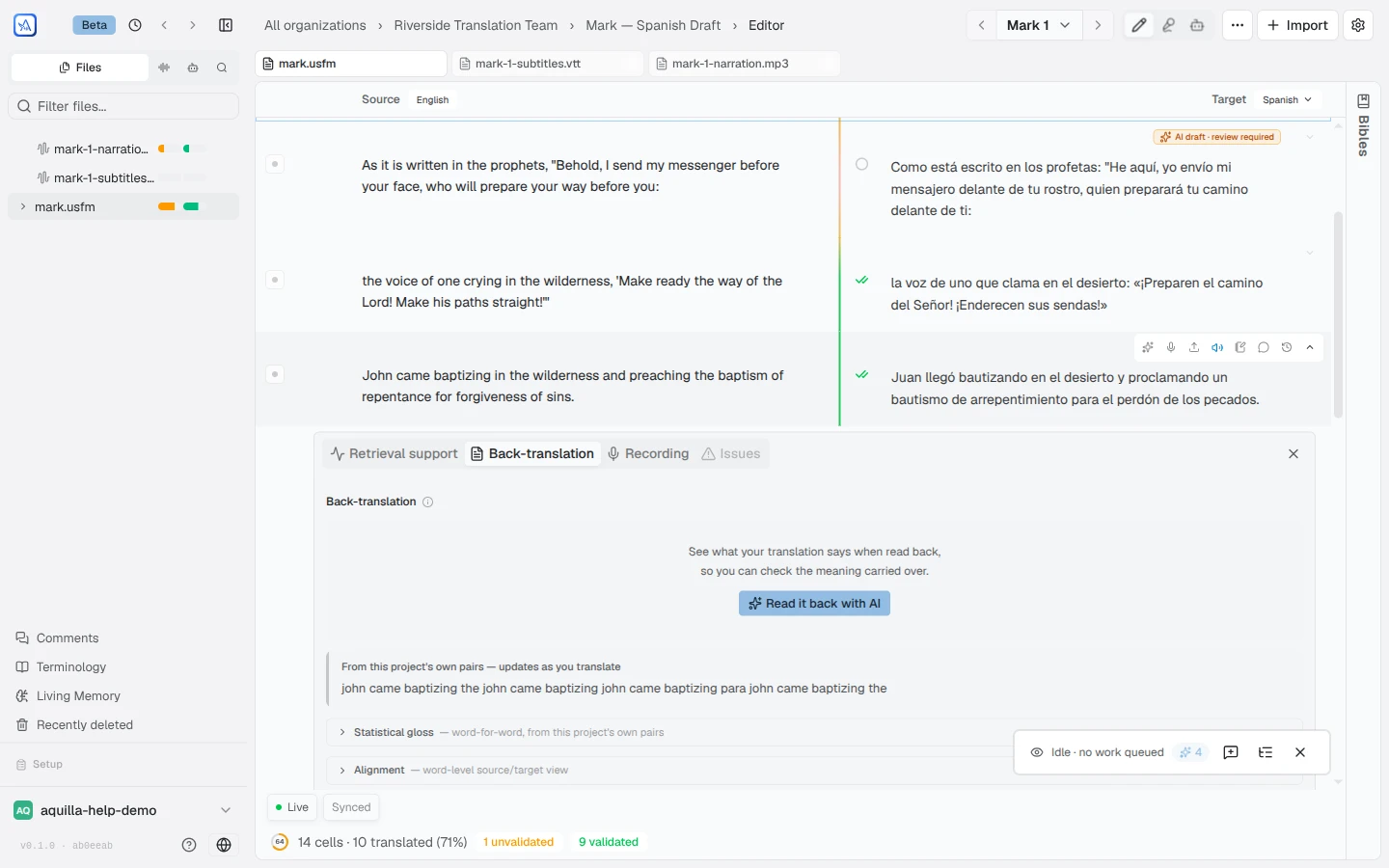
A back-translation reads your translation back into the source language, literally, so you can check that the meaning still matches the original — without needing to read the target language yourself. Aquilla offers three different ways to get that check, all in one place: the cell’s Back-translation tab, which lists them in this order: the statistical gloss, the AI reading, and Alignment.
The statistical gloss
Section titled “The statistical gloss”The first section of the tab is headed Statistical gloss: “Direct word-for-word translation, built from this project’s translated pairs.” It is an independent check that sits above the AI reading. It is built purely from your own project’s translated pairs, with no AI and no network call. It runs entirely from the sentences you and your team have already translated, comparing how words and phrases recur across the source and target text and inferring the most likely correspondence. The gloss for a cell is worked out from the rest of the project, so it shows what your translation says instead of repeating the source back to you.
Because it comes from a different source than the AI reading, it’s a useful cross-check: when the two disagree, Aquilla surfaces it as “Statistical gloss differs,” with a Use this gloss option if you’d rather trust the project’s own pattern over the AI’s guess. Before your project has translated enough to build a meaningful model, the panel says so plainly rather than guessing: “Not enough translated pairs in this project to build a gloss yet.”
Treat the statistical gloss as a hint, not a verdict — it’s only as good as the corpus behind it, and it can produce rough, literal, occasionally wrong word choices, especially early in a project.
Correcting the gloss
Section titled “Correcting the gloss”When the gloss is wrong, a Contributor or above can fix it. Click the pencil beside Statistical gloss (“Correct this gloss”), type the right word-for-word reading, and choose Save (or press Ctrl+Enter or ⌘+Enter; Escape cancels). “Your correction replaces the gloss for everyone on this project, and teaches these word choices to the glosses of other cells.” The section then reads Corrected by a translator, and other cells that use the same words pick up the correction. To go back to the computed gloss, clear the box and save. Below Contributor, the pencil is disabled with “Contributor+ required to correct the gloss”. You can correct a gloss even before the project has enough translated pairs to build one.

AI back-translation
Section titled “AI back-translation”The second section is headed AI back-translation and described as “A smoothed, re-worded reading of the translation, generated by AI.” Click Generate back-translation and Aquilla’s AI reads your target text back into the source language, word for word. It’s deliberately literal: if your translation says “house of him,” the back-translation says “house of him,” not “his house” — so you can see exactly what the translation says at a word level, not a smoothed-over paraphrase of it.
The reading carries its own history:
- Provenance. A Hand-corrected badge appears only when a person rewrote the reading. A reading without the badge is raw model output.
- Freshness. If you edit the target text after generating a back-translation, Aquilla flags it: “This back-translation describes an earlier version of the translation”. Regenerate to bring it current.
- Editing. A Contributor or above can correct the AI reading by hand. (The statistical gloss has its own pencil; see above.) Corrected readings are also fed back to the AI as examples the next time it back-translates a nearby cell, so a fix in one place improves the readings around it.
Generating a reading needs a project with an AI model configured. Until one is, or while you wait for a reading to generate, the statistical gloss above stands in.
Alignment
Section titled “Alignment”The Alignment row, collapsed by default, shows the word-level links behind the statistical gloss: which source word or phrase each target word is believed to correspond to. It works like a guess-and-approve tool:
- Links Aquilla is confident about are shown outright, ready to confirm or reject with one click. Confirming and rejecting need Contributor or above; below that the buttons are disabled with “Contributor+ required to confirm or reject alignments”.
- Links it’s less sure about are shown too, marked as needing confirmation.
- Links it’s not confident about at all are left out, rather than shown as noise.
Confirming or rejecting a link isn’t just a note to yourself — it trains the underlying model. Confirmed pairs teach the statistical glosser; rejected ones are penalized so the same wrong suggestion doesn’t keep coming back. Both feed into better statistical glosses and AI back-translations for every other cell that shares that vocabulary. Like the gloss itself, alignment needs a project with enough translated material behind it before the links are meaningful — early on, the panel encourages you to keep translating instead of showing guesses drawn from too little data.
Original language (Hebrew and Greek)
Section titled “Original language (Hebrew and Greek)”For books with a Hebrew or Greek original, the Alignment row opens with a second, separate strip above the statistical links: Original language, followed by “— the Greek/Hebrew words behind this verse”. Aquilla shows it here because these are the words the verse was actually written in, not a guess to confirm or reject like the statistical links below. Each original word carries its lemma, Strong’s number, and morphology code, aligned to the target word it corresponds to (or marked with no confident match); a word matched by its dictionary form rather than its exact surface form is tagged “via lemma.” This alignment comes from Macula’s morphological data, not from your project’s own translated pairs, so it’s available even in a brand-new project with nothing translated yet.
How the three fit together
Section titled “How the three fit together”- AI back-translation is the reading you check meaning against day to day. It draws on your project’s own statistical gloss as a hint (never as an authority), so established project wording shows up in its readings once there’s a corpus to learn from.
- Statistical gloss is a from-scratch, non-AI cross-check on that reading, and the fallback reading before an AI model is configured or a generation is still running.
- Alignment is where you actively improve the statistical gloss: every confirmed or rejected link makes both the gloss and future AI readings a little more accurate.
Help assistant
AI answers from the Aquilla docs — may make mistakes.