
Languages & target lanes
A project translates from one source language into one or more target languages. Each target language is a lane: its own track of translations, validation, and progress. Everything about a project’s languages lives in one place, the Languages card in Project Settings → General.
The Languages card
Section titled “The Languages card”Open Project Settings → General and find the Languages card. From the editor, the target-language menu at the top of the target column gets you there in one step: Change target language… opens the General settings with the Languages card in view, and Add lane… scrolls straight to Add a target lane. The card has two parts:
- Source Language at the top: the language your source text is in. It stays on the source lane and never appears in the target list.
- Target lanes below it: every language you translate into, in one list. The list’s description reads “Target-language lanes for this project — e.g. dialect variants or parallel drafts of the same source.” A project with none yet says “No target lanes yet.”
Each lane in the list shows three fields:
- Lane language (placeholder “Language this lane translates into”): required. It is the language the AI is told to translate into. Clear it and Aquilla says “A lane needs a language. Type the language it translates into.” and puts the old value back.
- Lane name: optional. Leave it empty and the lane shows its language; type a name and lane chips, pickers, and lists show the name instead.
- Language code, behind the Advanced button: optional. The field’s hint reads “Leave blank to derive the code from the language. Set it only when the derived code is wrong.” The code the lane actually uses shows beside the row.
Type in a field, then press Enter or click away to save.
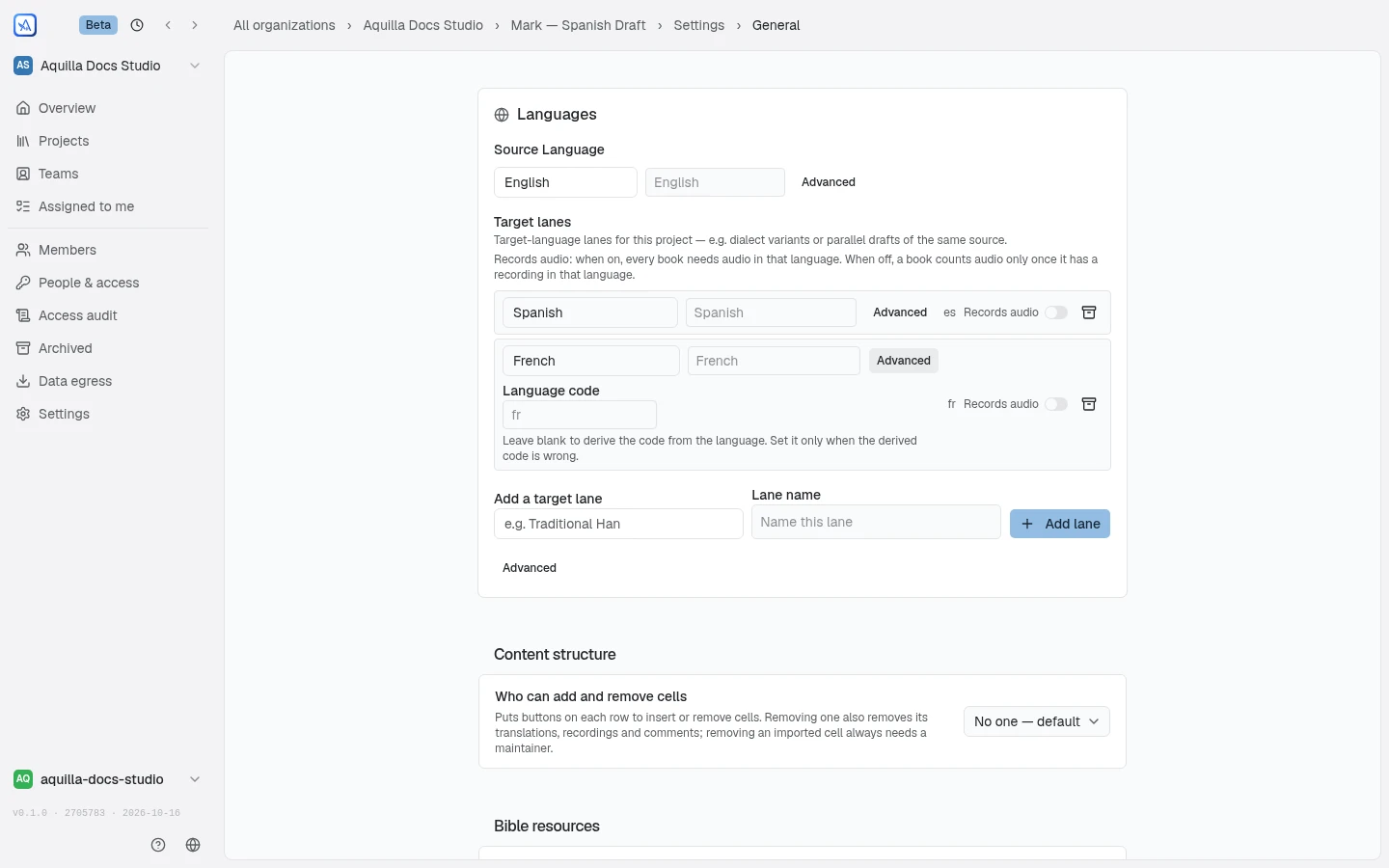
Each target lane also has a Records audio switch. When it is on, every book needs audio in that language to count as complete. When it is off, a book counts audio only once it has a recording in that language.
Changing languages needs Maintainer access by default. An organization can lower that floor to Project lead. Below the floor the fields are greyed out, and hovering them names the role that can change them.
Changing a lane’s language
Section titled “Changing a lane’s language”The Lane language field is a language menu, the same one project
creation uses. Start typing and it suggests language names; pick one, or
press Enter on the highlighted match. Each suggestion shows, beside the name,
the code the lane will use if you pick it and leave Language code blank:
Spanish shows es, French shows fr. Picking a suggestion still saves only
the name.
Aquilla stores the name you chose, not a code. The code is worked out from that name each time it is needed, so if you later change the language, the code follows it. Aquilla saves a code only when you type one under Advanced. Clearing the code field removes your override and goes back to the derived code.
Adding a target lane
Section titled “Adding a target lane”At the bottom of the card, Add a target lane takes a language (the same language menu, placeholder “e.g. Traditional Han”) and an optional Lane name. Advanced opens Language code here too. Click Add lane, or press Enter.
- If the new lane would read the same as an active lane, Aquilla warns you
before you save:
"{lane}" already reads the same as another active lane. You can still add it — the lane switcher will number them.Two teams translating into one language is a normal setup. - A name that matches another lane on save gets “Another lane already has this name. Change one of them.”
- A malformed code gets “That is not a valid language code. Use a BCP 47 tag such as “es” or “es-MX”.“
A new lane starts empty. Who can work in it depends on their role and lane access: see Who sees which lanes below.
Archiving and restoring a lane
Section titled “Archiving and restoring a lane”A lane you no longer need can be archived from its row in Target lanes and restored later from Archived lanes, with its translations kept. A project must keep one active lane, so the last one cannot be archived: “This is the project’s only active lane. Add another target lane before archiving this one.” For the confirmation and what an archived lane refuses, see Archiving a lane.
Who sees which lanes
Section titled “Who sees which lanes”What a person sees depends on their project role:
- Maintainer and Owner see every target lane.
- Project lead, Contributor, Reviewer, and the roles below them see only the lanes they have been given. A lane they have no access to is hidden from them: its name, its text, its progress, and its voice settings.
Source text is not a lane and is never hidden.
Lane access is given when someone joins: an invite or Add member below Maintainer asks which lanes they get, and staffing a lane gives that lane. See Lane access & staffing for each route, including teams.
The overview Languages table
Section titled “The overview Languages table”The project’s overview page has a Languages table: “Progress, people, and actions for each target language on this project.” It lists target lanes only, one row per active lane, with Language, Translated, Validated, People (the members given that lane, including a Project lead limited to it), and Last activity. Click a row to open the editor on that lane. If you can assign work, clicking the People avatars opens that lane’s Staff picker. Archived lanes sit in a collapsed Archived (N) group under the table.
A Maintainer or above also gets an Add language button, which opens the Languages card in Project Settings → General.
If you can assign work on the project, each row’s ⋯ menu (or a right-click on the row) has Assign… and Staff…. Staff… opens a Staff [lane] picker for that row’s lane only: pick a person, pick Reviewer or Contributor, and confirm. The person is added to the project if needed and given that lane. See Staffing a lane for the details.
Help assistant
AI answers from the Aquilla docs — may make mistakes.