
Media view & timing
Audio, video, and subtitle files carry a second view alongside the usual cell list: a timeline, for lining your translation up against the original recording. Open it from the toolbar’s Text | Media tabs, or the sidebar’s Media entry (it reads Audio for audio-only files).
The two tracks
Section titled “The two tracks”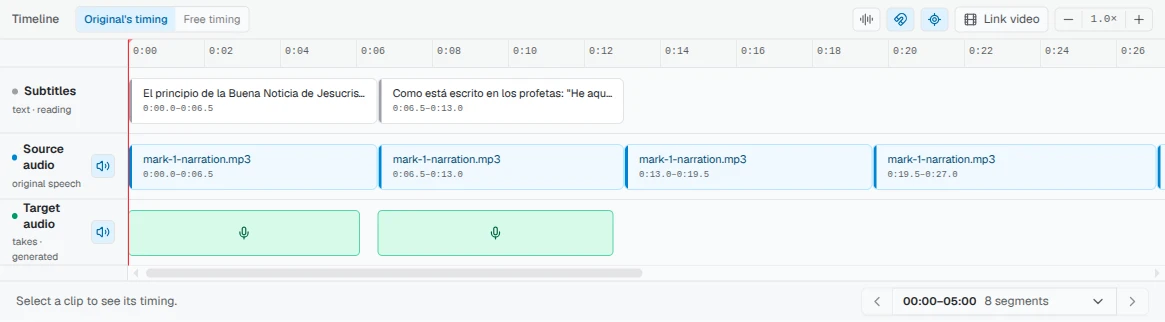
The timeline stacks up to four rows:
- Source audio: the original recording, exactly as imported. It’s fixed; you can’t move or trim it.
- Target audio: your translation’s clips, whether recorded takes or generated voice. This is the track you edit. Once a clip’s take is validated, a small check mark sits in its corner too; it’s read-only here, so validate or unvalidate from the editor, a cell’s Recording tab, or the Takes strip instead.
- Source text: the file’s lines or subtitle cues as chips, shown when the file has them. (Older projects may still call this row Subtitles; the name is per project.)
- Untimed: a parking strip that only appears when a clip has no timecode yet.
An audio row shows its mute button only when it has something to play. Source audio has one when the file has an original recording or a linked video with its own sound (not in Free timing, where the video is hidden and silent). Target audio and any added track get one once they hold a take. A row you have muted keeps its button so you can always unmute it.
On a target clip, drag its body to move it, or drag either edge to trim it (trimming only cuts the ends; it never changes the audio’s speed). A clip can’t be dragged past a neighboring clip’s start, so clips stay in order, and the shortest a clip can be is 0.2 seconds. A Snap to neighboring edges toggle, when on, magnets a clip’s edges to the clips beside it as you drag.
Hiding a track on your screen
Section titled “Hiding a track on your screen”Right-click a track (or open its ⋯ menu) and choose Hide track, or Hide {count} tracks with several selected. The track leaves the timeline on your screen only, for this file, and stays hidden on this device. Nobody else’s timeline changes, and anyone, viewers included, can hide tracks. A hidden track keeps its takes and still plays. Folders can’t be hidden, and a track being recorded into or dragged can’t be hidden (“Can’t hide a track while it’s recording or being dragged”).
While anything is hidden, the toolbar shows Hidden tracks ({count}), “Hidden for you, on this device”, with Show {name} for each track and Show all tracks when two or more are hidden.
A line parked with Hide cell is drawn faded on the timeline, with no play or record buttons, and its takes never play, including in Play all. Show cell brings it back.
Splitting a take into pieces
Section titled “Splitting a take into pieces”A recording can be cut into pieces on the timeline. Right-click a take and choose Split here, or press S to split the selected take at the playhead. The Blade tool (B) cuts where you click. Cutting isn’t available in Free timing yet. A split take is still one take, now made of pieces: its label reads like “Take 1 · split in 2”, and the Recording tab shows how many pieces it has. The take’s right-click menu also offers Approve this piece and Delete this piece, so you can work on one piece at a time.
Changing the voice of one line
Section titled “Changing the voice of one line”A take’s right-click menu also has Change voice, beside Regenerate voice. It keeps the recorded words and timing and makes the take sound like the line’s assigned cloned voice; nothing is spoken afresh from text. Pick a quality from its submenu: Fast, Standard, or High (higher takes longer). The original take is kept, and the converted take plays in its place. A toast says “Changing this line to {name}…” and then “This line is now in {name}’s voice”. The item is greyed out, with the reason as its label, when the voice has no reference clip or when a voice is cloned from this take.
Imported lines and cues are locked against dragging by default, project leads included: the timings came from the file you imported, and a dragged chip moves a line for the whole team with nothing to compare it against afterwards. Only a Maintainer can turn the lock off, from Project Settings → Timeline, and the timeline shows an amber “Timings unlocked” badge for as long as it’s off, so it’s never left that way by accident. A line someone added by hand into the timeline can still be dragged either way; recordings can still be placed against their lines as usual.
Undo and redo
Section titled “Undo and redo”The timeline toolbar has Undo and Redo buttons, and Ctrl/Cmd+Z does the same. The Undo tooltip names the step it will take back, for example “Undo: Cut take”.
The History button (a clock icon, in the toolbar beside the view switcher) opens a panel that lists every step you can undo, newest first, such as Edit translation, Delete take, Cut take or Remove row. Click Undo on the newest step to undo just that one, or Undo to here on an older step to undo everything newer along with it. Steps you have undone appear under Can redo, and a step that can’t be undone any more is listed with the reason. History is kept per language: undoing in one language does not touch your work in another.
Folding and full-screening the lens’s sections
Section titled “Folding and full-screening the lens’s sections”The Media view is built from up to three sections: the Timeline above (the lanes described above), Text (a scrollable table of the file’s cells, kept in sync with the timeline), and Video (only when a video is linked to the file).
Each section’s header carries a chevron beside its name: click it (or click anywhere on a folded section’s thin strip) to fold it out of the way or bring it back. Aquilla always keeps at least one of Text and Video open, so folding the last one open on that side reopens its neighbor automatically. You can also drag a section’s edge closed instead of using the chevron.
Text and Video also carry a full-screen control that folds every other section so just that one fills the lens; the same control puts everything back exactly where it was. Aquilla remembers which sections are folded, and which is full-screen, per file, in your browser, so the layout is just as you left it next time you open the file.
Transcribing a section
Section titled “Transcribing a section”A row under the timeline lanes lets you run speech-to-text on just the sections you pick, instead of the whole file: click a chip to select it, then Ctrl/⌘-click or Shift-click chips to select more sections. The button reads Transcribe section (or Transcribe N sections) once something is selected, and Clear selection resets the pick. Unlike transcribing the whole file, this re-runs on a section even if it already has a transcript.
Timing modes: Original’s timing vs. Free timing
Section titled “Timing modes: Original’s timing vs. Free timing”A file’s timing mode decides how your translation’s length is treated against the original recording:
- Original’s timing: the translation is fitted to the original recording’s timing. If a target clip overlaps a neighbor, it’s flagged in red naming which side and by how much (for example “Overlaps the next dub, −1.8s”); a clip that runs past its section without colliding gets a milder amber warning (“Runs 2.3s past the section”).
- Free timing: verses are laid end to end instead, each taking as much room as its own length needs. Nothing overlaps and nothing “runs long,” so the overlap and past-section warnings don’t apply in this mode. Free timing works on subtitle files (SRT, VTT, SBV) that have no video linked, letting you dub from a transcript without being locked to the original cue timings.
In Free timing on a subtitle file with no video, Play all plays the takes back to back, and the red playhead on the timeline follows the programme clock, so you can see which take is sounding.
If you switch to another browser tab while something is playing, Aquilla pauses it, and plays on from the same place when you come back. Something you paused yourself stays paused.
Switching between the two doesn’t touch your recordings or their timing data: it’s safe to try either mode and switch back. The mode is set per file, from a control in the timeline toolbar, and changing it needs Maintainer access; everyone else sees the current mode as a read-only label.
Linking a video
Section titled “Linking a video”Link video (Project lead access or above) attaches a video to a file so it plays alongside the timeline; it’s project setup, done once before a file reaches translators and dubbers, not a routine edit. Once a video is linked, each subtitle row’s action rail gets a Play from this cue button that seeks the video to that cue’s timestamp and starts it playing. On a caption file with timings but no video, the same button starts the timeline’s silent clock at that cue. While a row’s line is the one playing, its button turns into Pause, and pressing it stops playback. The playing row also carries a faint tint and a bar at its start edge, and the mark moves from row to row as playback runs; it stays on a line through the silence after it. Video playback follows the original recording’s timing, which Free timing mode no longer tracks, so Aquilla warns you at the point the two would conflict: linking a video while a file is in Free timing warns “This file uses Free timing, the video won’t be shown,” and switching a file that already has a linked video into Free timing warns “Switch to Free timing and hide the video?” Either way, the switch itself is lossless: nothing about the video or your recordings is lost, only its on-screen playback is affected.
Linking a video to a Free timing subtitle file, or clearing it, changes the file’s timing mode (a file with a linked video always uses Original’s timing). You made that change yourself, so Aquilla does not show you the “Timing mode changed” notice; it appears only when someone else with settings access changes the mode.
Making rows from a linked video
Section titled “Making rows from a linked video”A file with a linked video but no rows yet shows one card, headed Linked to a video (Linked to a YouTube video for a YouTube link). A Maintainer can attach the video’s captions there, and they become the file’s rows. Below that sit two quieter ways in: “make rows from an audio or video file”, and, when the video is not on YouTube, “make rows from the video’s own sound”.
The second one opens Make rows from the video’s own sound. Aquilla saves a copy of the sound with the file, splits it into rows where the speech pauses, and transcribes them; the rows are timed to the video. Pick a Sound track if the video has more than one, then choose Make rows. The card shows “Downloading the video’s sound…”, “Saving a copy of the sound…”, then “Making rows…”, and Cancel stops it with “Stopped. Nothing was saved.” A long transcription can reach the hosted service’s limit; it pauses and carries on by itself. A YouTube video’s sound can’t be read this way. Its owner can download the captions or the video file from YouTube Studio instead.
Extracting subtitles from a subtitle file
Section titled “Extracting subtitles from a subtitle file”A time-ordered file that has a clip on it but no text yet can get its source lines from the subtitle file that came with the clip. Open the Sources menu on the timeline and choose Subtitles (its badge reads “not imported” until cues exist; once the file has text, the row is greyed out and shows “N imported”). Maintainer access is needed.
In the Extract subtitles dialog, choose a .vtt, .srt, or .sbv file.
The dialog summarizes it (“N cues, …”) and notes anything it adjusted:
short-form timestamps read as minutes and seconds, lines with no usable text
that were skipped, and cues with no timing, which become translatable rows
but do not appear on the timeline. Confirm with Extract N cues. Aquilla
refuses to extract into a file that already has source lines, so cues are
never duplicated.
Attaching captions as a text track
Section titled “Attaching captions as a text track”A caption file can also become its own text track on the timeline, separate from the file’s own lines. Open the Sources menu and choose Attach captions. The item is greyed out and says Enable track editing in Project Settings until a Maintainer turns on Let maintainers add and edit timeline tracks under Project Settings → Timeline. Attaching needs Maintainer access.
In the Attach captions to window, choose a Caption file (.vtt,
.srt, or .sbv). Each caption shows as a segment with editable wording and
editable start and end times in seconds, and a segment with a bad time is
counted (“1 segment needs attention”) until you fix it. Remove
segment (with its number) drops a caption you do not want. Under Destination track, the default is
New caption track; give it a Track name. To replace an existing track
instead, pick it, read how many segments will be overwritten, and tick
Overwrite the existing content in this track. Then choose Add caption
track (or Overwrite caption track).
Aligning a script
Section titled “Aligning a script”Align script in the same Sources menu lines up a plain text script
against the file’s original recording. It needs the same access and setting
as Attach captions, and it appears only when the file has one source
clip. In the Align script to window, paste the script or choose a Script
file (a .txt file in UTF-8, at most 200,000 characters). Paragraph
breaks define the segments. Choose Align script, then review each
segment’s wording and start and end times. Each segment shows an Initial
word match percentage, and Listen to segment plays its stretch of the
recording. A segment Aquilla is unsure about carries an I reviewed
segment box that you must tick before Use aligned segments saves the
result as a track. Edit script takes you back to the script.
Recording your translation
Section titled “Recording your translation”Choose Record audio on a clip to open the recorder. Press Start to begin, Stop to end the take, then Retake to try again or Save (press Enter) to keep it. Space plays the take back first. Before you save, drag the two trim lines on the waveform to keep only part of the take. The readout shows “{start} – {end} · {length}”, the hint reads “Space plays · drag a line to trim”, and Reset trim restores the full take. A take plays only its kept part. The recorder, the Recording tab, and the Audio view share one waveform. A Generate TTS button next to it produces a spoken take with the project’s voice engine instead, useful for a quick placeholder or when recording isn’t practical.
Every attempt is kept, not just your last one: a Takes strip lists each one by name (Take 1, Take 2, and so on), with controls to preview, rename, or delete any of them. A denoised copy of a take is labeled Cleaned, and you can revert to the original audio at any time.
Formats and limits
Section titled “Formats and limits”Importing an audio or video file is capped at 2 GB. A large file uploads in parts, so a brief dropped connection resumes the upload instead of starting over. Your own recordings upload in a compressed format; generated voices upload compressed too but keep an original-quality copy alongside it, and a playback-quality toggle lets you choose between the smaller compressed version and the original when listening back.
Who can do what
Section titled “Who can do what”Recording, trimming, and moving clips need Contributor access or above; below Contributor, the timeline is read-only, so you can watch and listen but not edit. Linking a video needs Project lead access or above. Changing a file’s timing mode, or turning off the timing lock, needs Maintainer access.
Help assistant
AI answers from the Aquilla docs — may make mistakes.