
Editing cells
A cell is the smallest unit you translate: one paired piece of source and target text. Editing is meant to feel direct: click into a cell’s target side and type.

There is no Save button
Section titled “There is no Save button”Aquilla saves your work automatically. Your edit becomes a durable record when you naturally move on from the cell: when it loses focus, after a short idle pause, or when you release the edit. There’s nothing to commit, push, or publish.
This is a deliberate difference from the older Codex editor: no Ctrl+S, no
“commit all”, no “publish”. You translate, you move on, and it’s saved.
Enter confirms; Shift+Enter adds a line break
Section titled “Enter confirms; Shift+Enter adds a line break”Press Enter to confirm your edit: it commits the cell’s current text and exits, the same as clicking away. If a translation needs more than one line, press Shift+Enter instead: it inserts a hard line break inside the cell without confirming or exiting, so you can keep typing.
Typing a translation into a cell yourself also marks it validated by you: the cell’s indicator turns emerald in the same gesture, no separate review step. See Validation for the full picture.
Next-word suggestions
Section titled “Next-word suggestions”As you type in a cell, Aquilla can show the next word or two in grey after the cursor. The suggestion comes from your own project: the cells your team has already validated and the source text of the line you are on. It is worked out on your device, with no AI model involved.
- Press Tab to accept the whole suggestion.
- Press → (or ← in right-to-left text) at the end of the text to accept one word at a time.
- Press Esc to dismiss it, or just keep typing.
To swap a single word, select it and choose Words that fit here on the selection bubble. It lists words your project uses in that spot; click one to replace the selected word. Until the project has enough validated text, it says “No suggestions yet”.
Suggestions are not offered in InDesign (IDML) cells. To turn them off, switch off Suggest next words in the editor view settings. The setting is saved in this browser only.
Saved on this device first, then synced
Section titled “Saved on this device first, then synced”When you make an edit, Aquilla first writes it to a local outbox in your browser, then sends it to the server when the connection is healthy. The benefit: your work survives a brief network drop, since your edits wait safely in the outbox and drain out once you’re back online.
A status indicator at the bottom of the workspace shows the current sync state (Live and Synced when everything has reached the server, queued or offline otherwise), so you always know where your latest edits are. Changes saved on your device but not yet uploaded show as a count, such as “On device · 3”; hover it to see the last upload and download times. See Real-time sync & presence.

Selecting several cells
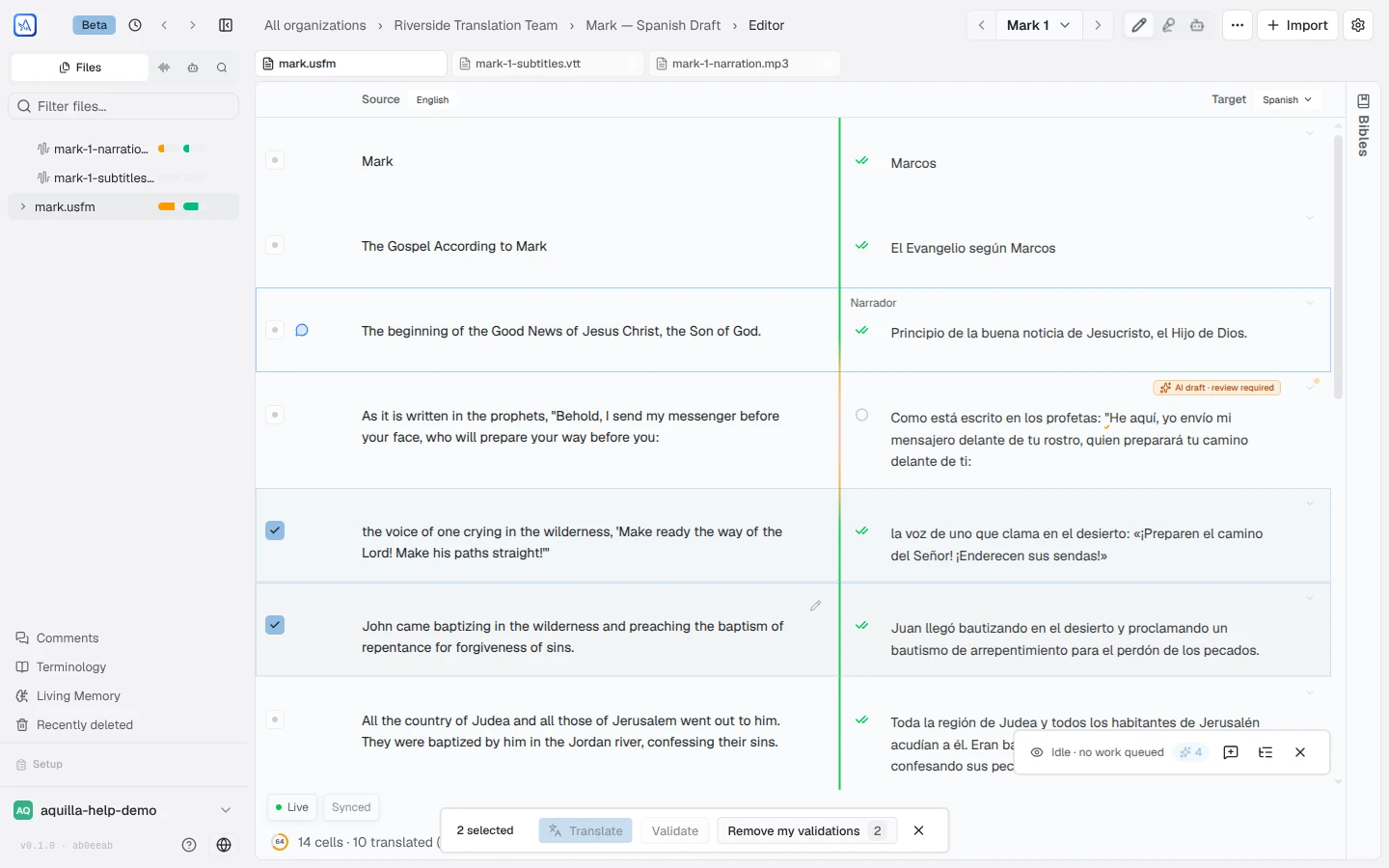
Section titled “Selecting several cells”Every cell row starts with a small checkbox (“Select cell. Drag to select a range.”). Tick one and a Selection actions toolbar appears above the editor with the count and the bulk actions: Translate, Validate text, Remove my text validations, and, where the selection supports them, Voice together and Harmonize…. Cells with recordings add Validate audio and Remove my audio validations. Each button enables only when it applies to what you selected; Clear selection (or Esc) dismisses the bar. Extend a selection by dragging across checkboxes or Shift-clicking another cell’s box. The Translate button is disabled if your role cannot commit target cells; the hover text explains why. When the selection includes repeated source text, Validate text first asks “Validate the repeated rows too?”; see Validation.
Undoing recent steps
Section titled “Undoing recent steps”Aquilla keeps a list of your recent steps: editing a translation, validating a line, hiding or showing a row, adding or removing a row, and changes to recordings on the timeline. The History button next to the view switcher opens it. It lists every step you can undo, newest first, with Undo on the newest and Undo to here on older ones. Steps you undid wait under a Can redo heading. Undo and Redo also work with Ctrl/Cmd+Z and Shift+Ctrl/Cmd+Z anywhere except inside a text field, where those keys undo your typing. A bulk validation counts as one step.
If someone else changed the same thing afterwards, Aquilla leaves their change alone and lists the skipped step under Not undone or redone, with the reason.
Adding and removing cells
Section titled “Adding and removing cells”Some projects let you insert or remove cells straight from a row’s menu. This is off by default: a maintainer turns it on and picks the minimum role allowed to use it in Project Settings → General → Content structure → Who can add and remove cells, choosing from No one — default, Commenter (200), Reviewer (300), Contributor (400), Project lead (500), or Maintainer (600).
Splitting a line at its quotation marks
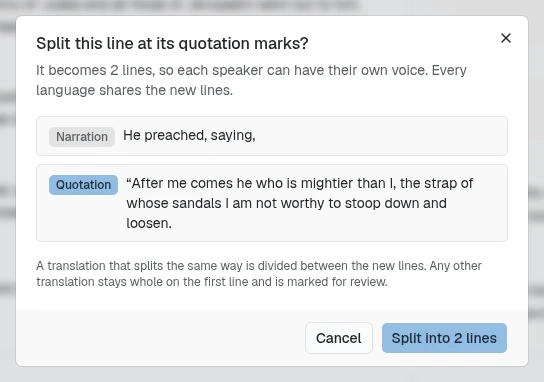
Section titled “Splitting a line at its quotation marks”When one source line holds narration and a quotation, you can split it so each speaker gets a line, and a voice, of their own. Open the ⋯ menu on the source row and choose Split at quotes. A preview, “Split this line at its quotation marks?”, lists the new lines as Narration and Quotation; on a line with recordings it also notes “Recordings stay on the first line.” The row keeps its comments, validations and translations, and the new lines appear in every language. A translation that splits the same way is divided between the new lines; any other stays whole on the first line and is marked for review. A split verse is numbered 5a, 5b, 5c.
The item is greyed out with a reason when the line has one speaker (“No quotation to split at — one speaker throughout.”), when formatting or markup crosses a quotation mark, or when you can’t edit source text. It is offered on files without timing, to people allowed to add cells. To split every multi-speaker line in a file at once, use Split lines at quotes in the file’s ⋯ menu; its confirmation counts the lines first.
Hiding a cell
Section titled “Hiding a cell”Hiding parks a cell without deleting anything. Use it for a stray heading, an import leftover, or text nobody should translate. Unlike removing a cell, it is reversible: the source text, every language’s translation, recordings, comments, and validations all stay, and come back when you show the cell again.
To hide a cell, open the ⋯ menu on its source row and choose Hide cell. A hidden cell is hidden in every language at once, not just the one you are looking at. Translators no longer see it, and it leaves progress, health, exports, search, and AI drafting (see What a hidden cell stops counting).
Only a Project lead or above can hide and show cells. Everyone else never sees the menu entry. It is also missing on a project linked live to a source project, and on a project pinned to a Door43 upstream, where the source is managed elsewhere. If the change is refused, the cell reappears (or stays visible) and Aquilla says “Couldn’t hide that cell, so it is still showing.” or “You don’t have permission to hide cells here, so nothing changed.”
Finding and showing hidden cells
Section titled “Finding and showing hidden cells”When a file has hidden cells, project leads and above see a N hidden button in the file toolbar (for example “3 hidden”). Hover it for a reminder that nothing was deleted. Click it to turn on Show hidden cells: the hidden cells come back into the list, dimmed and marked with a crossed-out eye badge (“Hidden — not shown to translators and left out of exports.”). Then open the ⋯ menu on one and choose Show cell to bring it back for everyone.
Turning Show hidden cells on changes only what you see, on this device. It does not un-hide anything for anyone else, and it is off by default. If a show fails, Aquilla says “Couldn’t show that cell, so it is still hidden.”
What a hidden cell stops counting
Section titled “What a hidden cell stops counting”- Progress and health: a hidden cell leaves both the completed count and the total, so a book can read 100% without it. See Project health.
- Export: left out of the file. See Exporting your work.
- Search and Find & Replace: hidden cells are not matched, so a replace never rewrites text a reviewer cannot see.
- AI drafting and Autopilot: hidden cells are skipped, so no credits are spent on them.
Attaching a file to a cell
Section titled “Attaching a file to a cell”A cell can carry reference files: a screenshot of the layout it sits in, a photo of the source page, a PDF of style notes. They hang off the cell and never change its text.
- Attach. Click the paperclip (Attach a file) on the cell’s action rail and pick a file. Aquilla accepts PNG, JPEG, GIF, WebP, AVIF, and PDF, up to 25 MB each. If a file is too big or the wrong type, a Upload failed note names the reason, with a Dismiss link. Attaching needs a connection: offline, the note reads “You’re offline” and nothing is saved.
- Find them. Once a cell has attachments, the paperclip turns to your accent colour with a dot, and its tooltip counts them. Each attachment also shows as a small paperclip link with the file’s name under the cell’s text.
- Open the panel. Click a link to open the Attachments panel on the right, the same slot the comments and history panels use, so opening one closes the other. It lists every attachment in the open file, grouped by cell reference, and scrolls to the one you clicked. Images show a preview; a PDF shows its file type. Open full size opens the file in a new tab. Close the panel with its X, or drag its edge to resize it.
- Remove. Remove attachment (the trash icon) deletes an attachment from the panel.
Attaching and removing need Contributor access or above. Below that, the panel still shows previews, without the paperclip button or the trash icon. If the panel can’t load, it says “Couldn’t load attachments. Check your connection.” A very large file shows only the first attachments, with a note saying how many are listed.
The cell detail panel
Section titled “The cell detail panel”Click a cell (or its Open cell details arrow) to expand its detail panel, with tabs for:
- Health: how well-supported this cell is: its endorsement count and a health percentage, with a hint when it deserves a closer look (this tab used to be labeled Retrieval support);
- Back-translation: read your translation back in the source language, to sanity-check meaning;
- Footnotes: shown when the cell has footnotes, for reading and editing them in place;
- Recording: recordings and transcription for the cell;
- Issues: any check violations on the cell; and
- Metadata: appears only when a cell carries extra information imported
with it (for example from a linked Door43
resource), shown as a key/value list such as its source reference or
occurrence count. Beside any field short enough to show as a one-line
label, a checkbox reads “Show
{key}on cells”: turn it on and that field appears as a small label on every cell in the project that carries it, not just the one you toggled it from, so, for example, an occurrence count or source reference can sit visibly next to every relevant cell instead of staying tucked away in this tab.
The tabs adjust to the cell, showing only what applies to it. A cell’s edit history isn’t a tab here at all: open it any time from History in the action rail’s More actions menu (tooltip “Edit history”), which slides in a history drawer beside the cell.
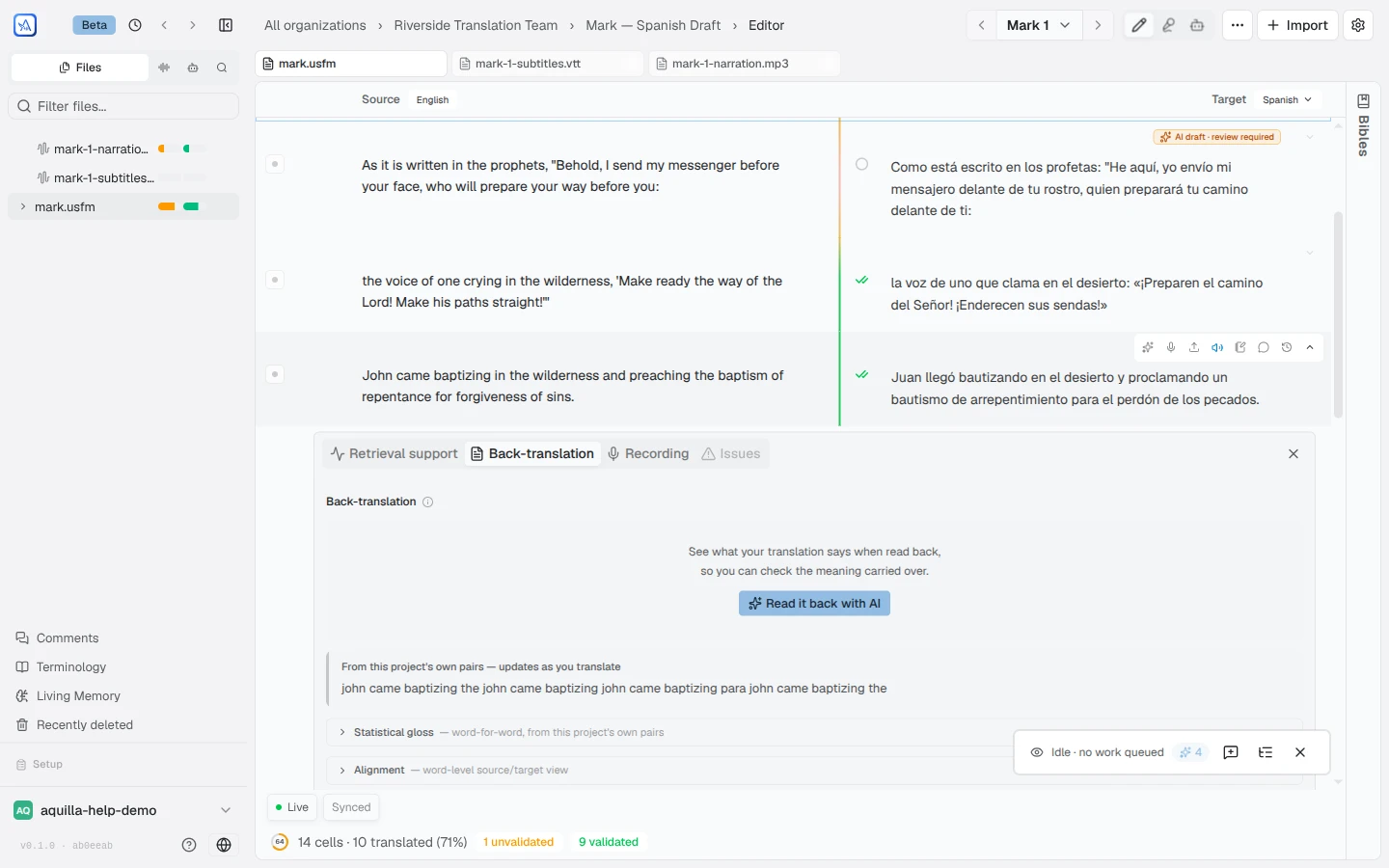
The action rail appears when you hover or focus a cell, and stays pinned
open for as long as that cell stays focused, so you’re free to move your
mouse away. It shows one direct AI button, plus a Draft paragraph button
on a paragraph’s first cell (see The AI copilot),
and a More actions button that opens everything else in a row of icons
beneath the rail: Record audio, Upload audio file, Play audio
(only once the cell has a recording), Generate & play, Add
footnote, Attach a file, Add comment, and Edit history. Done with
the detail panel? Click the explicit X (“Close cell details”) in its
corner, or use Esc or the collapse chevron.

A footnote on the target side shows as a small numbered badge; its preview keeps any bold, italic, or underline formatting from the note itself. Click the badge to reopen the note for editing. On a read-only cell it’s just a plain marker.
What if two people edit the same cell?
Section titled “What if two people edit the same cell?”While you’re focused on a cell, your client holds a brief, soft focus lock, and teammates see that you’re editing it, so collisions are rare by design.
If two people do edit the same cell while offline, Aquilla keeps it simple: the first edit to reach the server “wins” and becomes the cell’s current value. The other edit survives: it’s preserved in the cell’s history as a recoverable earlier version, so nothing is lost.
Open the History drawer on any cell to get an earlier version back. A version bumped by a concurrent edit like this offers Promote to current; any other older version offers Restore this version. Both ask you to confirm, then add a new edit on top of the current text rather than deleting anything in between. If the drawer can’t load the history, it says whether the network or the server failed (“Couldn’t load edit history — network error. Check your connection.”), and offers Retry.
Help assistant
AI answers from the Aquilla docs — may make mistakes.