
Lane access & staffing
On a project with target lanes, a Contributor, Reviewer or Project lead works only in the lanes they have been given. A Maintainer and above sees every lane and is never limited to some. This page covers the three ways lane access is given: when you add or invite someone, when you staff a lane, and through a team.
Choosing lanes when you add or invite someone
Section titled “Choosing lanes when you add or invite someone”When you add or invite someone at a role below Maintainer, the form asks which lanes they get. A Target lanes choice appears with two options:
- Every current target lane
- Only selected lanes, which opens a checklist of the project’s lanes. Tick at least one.
Nothing is picked for you. Until you choose, the form will not add the person, and trying anyway says “Choose the lanes before adding this person.” Pick Maintainer or above and the choice goes away, because a maintainer sees every target lane.
The same choice appears in the project’s Add a member dialog (on both its Add members and Invite link tabs), on the project’s Members page, in the multi-select add row, in the member matrix, and in the invite dialog that covers several projects at once.
Above the submit button, a sentence spells out the grant before you make it, and it follows your lane choice. For example:
- “
{name}will join as a{role}on{project}— every lane” - “
{name}will join as a{role}on{project},{lane}lane only” - “
{name}will join as a{role}on{project},{lanes}lanes only”
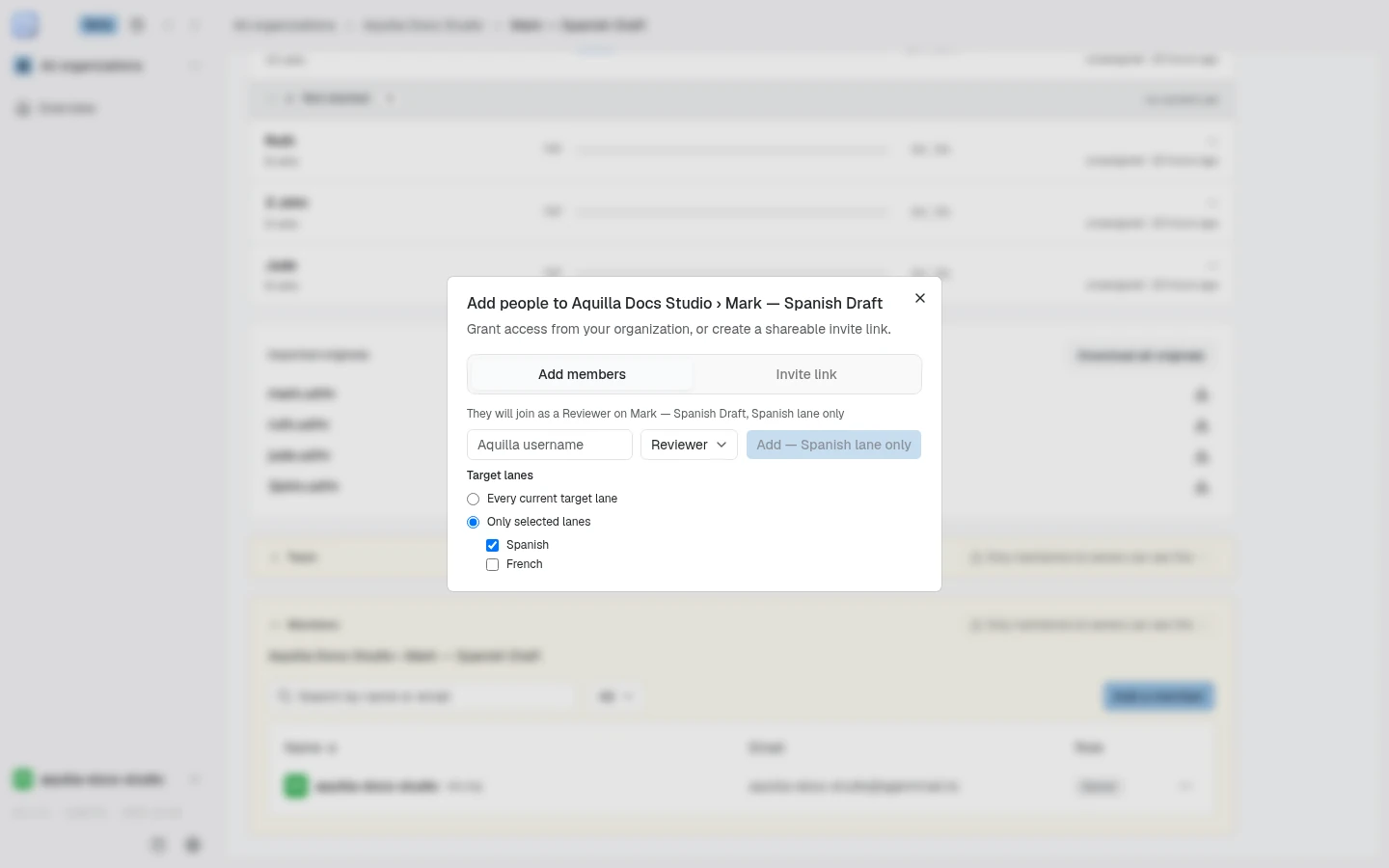
If the person was on the project before and you add them again, your new choice replaces whatever lanes they had last time.
Staffing a lane
Section titled “Staffing a lane”Staffing puts one person onto one lane in a single step. Open it from the project overview’s Languages table: each row’s ⋯ menu (or a right-click) has Staff…, which opens a Staff [lane] picker for that row. The organization’s project table offers the same picker on each lane row when you expand a project. In the Languages table, Staff… shows only if you can assign work on the project.
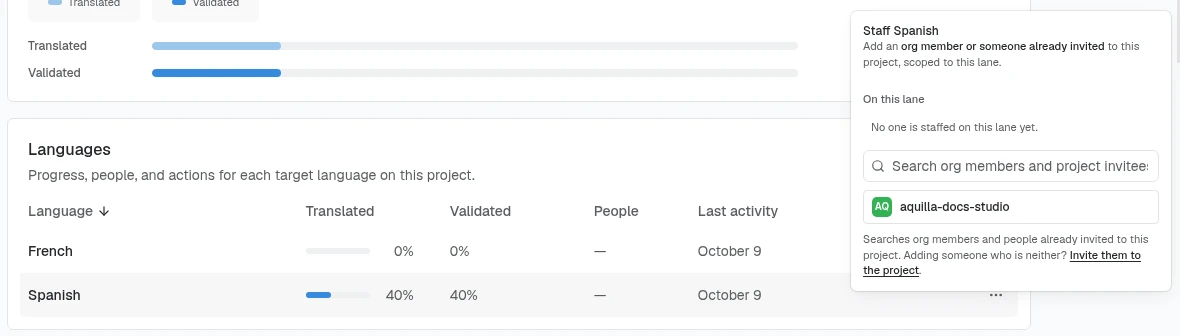
- Search for the person. The box reads “Search org members and project invitees”: the list holds your organization’s members and anyone already invited to the project, including a direct invite who is not on the organization roster.
- Pick Reviewer or Contributor. Reviewer is selected to start.
- Read the grant sentence (“… on
{project},{lane}lane only”) and confirm.
Confirming adds the person to the project at that role if they are not
already there, then gives them the lane you clicked. Any lanes or files they
already had stay. Staffing never lowers a role: someone who already holds a
higher role on the project keeps it, and the sentence says so (“{name} stays a
{role} on {project}, {lane} lane only”). If you pick a Maintainer or above,
the popover reads “{name} is a Maintainer or above on this project, so they
already see every language. No lane limit is needed.” and the add button is
greyed out.
Removing someone from a lane
Section titled “Removing someone from a lane”The Staff [lane] popover also lists the people already on that lane under On this lane, including a Project lead limited to that lane. Each person has a Remove button beside their name. Removing takes the person off that one lane only, leaving their other lanes and any file limits untouched.
If the person has open assignments in that lane, Remove asks first: “{name}
has {count} open assignments in {lane}. Removing them from this language
closes them. Work they have already finished stays as it is.” Choose Remove
and close to go ahead, or Cancel. Nothing is saved until you confirm. With
no open assignments in the lane, one press removes them.
If it is the person’s only language, Remove is disabled: with no lane limit left, the project would read that as every language, so removing their last lane would widen their access rather than narrow it. The popover points to Project Settings → Team members instead, where you can take them off the project.
The popover’s role choice offers only Reviewer and Contributor. To make someone a Project lead, use the project’s Members page instead.
When the person is not in the list
Section titled “When the person is not in the list”Under the search, “Searches org members and people already invited to this project. Adding someone who is neither?” comes with an Invite them to the project link to the project’s Members page. Use it for someone who is neither in your organization nor on the project yet.
When your organization’s member list is hidden from you, the picker still lists the people already on the project, with a note:
- “Your organization hides its member list. People already on this project are listed below.”
- “You can staff this lane, but you can’t see this organization’s member list. People already on this project are listed below.”
With no one on the project to list, the note ends “Invite the person to the project instead.” in place of the last sentence.
Lane access through teams
Section titled “Lane access through teams”A team grants its members access to the projects attached to it. That access includes lanes, the same as adding someone by hand:
- Adding someone to a team gives them lanes on every project the team is attached to.
- Attaching a team to a project gives every member of the team lanes on that project.
- A member with no lane limit gets every target lane. A member already limited to some lanes on that project keeps exactly those lanes; joining a team never widens them.
- Changing the team’s role on a project changes what members can do in their lanes, not which lanes they have.
Someone whose highest role on the project is Maintainer or above, by any route, sees every lane anyway.
Related
Section titled “Related”- Languages & target lanes: the lanes themselves, and who sees which.
- Inviting people: invite links and email invites.
- Roles & permissions: changing an existing member’s lanes and files.
Help assistant
AI answers from the Aquilla docs — may make mistakes.