
Rule flags & fixes
A project rule is a check your team writes: a pattern a translation must or must not contain. You write rules in Living Memory (see Translation quality). This page covers what happens next, in the editor: how a rule flags a cell, how to see every cell breaking it, and how to fix them.
Rules and the built-in checks flag cells the same way, so everything below applies to both, except the rule panel’s fix buttons, which act on one rule at a time.
How a rule flags a cell
Section titled “How a rule flags a cell”When a cell breaks a rule, its line number turns red for a major rule or amber for a minor one. Hover the line number, or the cell’s health indicator, to see each rule the cell breaks, one per line: the rule’s name, then the reason it fired. For a built-in check that reads, for example, End punctuation, then “Terminal punctuation differs from source”.
A line number can also tint with no rule broken, when confidence in the line is still low. Its hover then says “Not yet validated — confidence on this line is still low”.
The words a rule flagged are marked in the text. Hover them for the same name and reason.
Opening a rule from a cell
Section titled “Opening a rule from a cell”Click the marked words, or open the cell’s Issues tab and click a rule there. A card opens at the bottom right with the rule’s name, the reason, and a Waive button for a false alarm. Click the rule’s name on the card to open the rule panel.
A rule can match more than once in the same cell. The Issues tab then gives each match its own row, with the matched text in quotes, and Waive accepts only that match. The cell’s other matches stay flagged. Clicking a marked word and choosing Waive on the card works the same way.
The rule panel
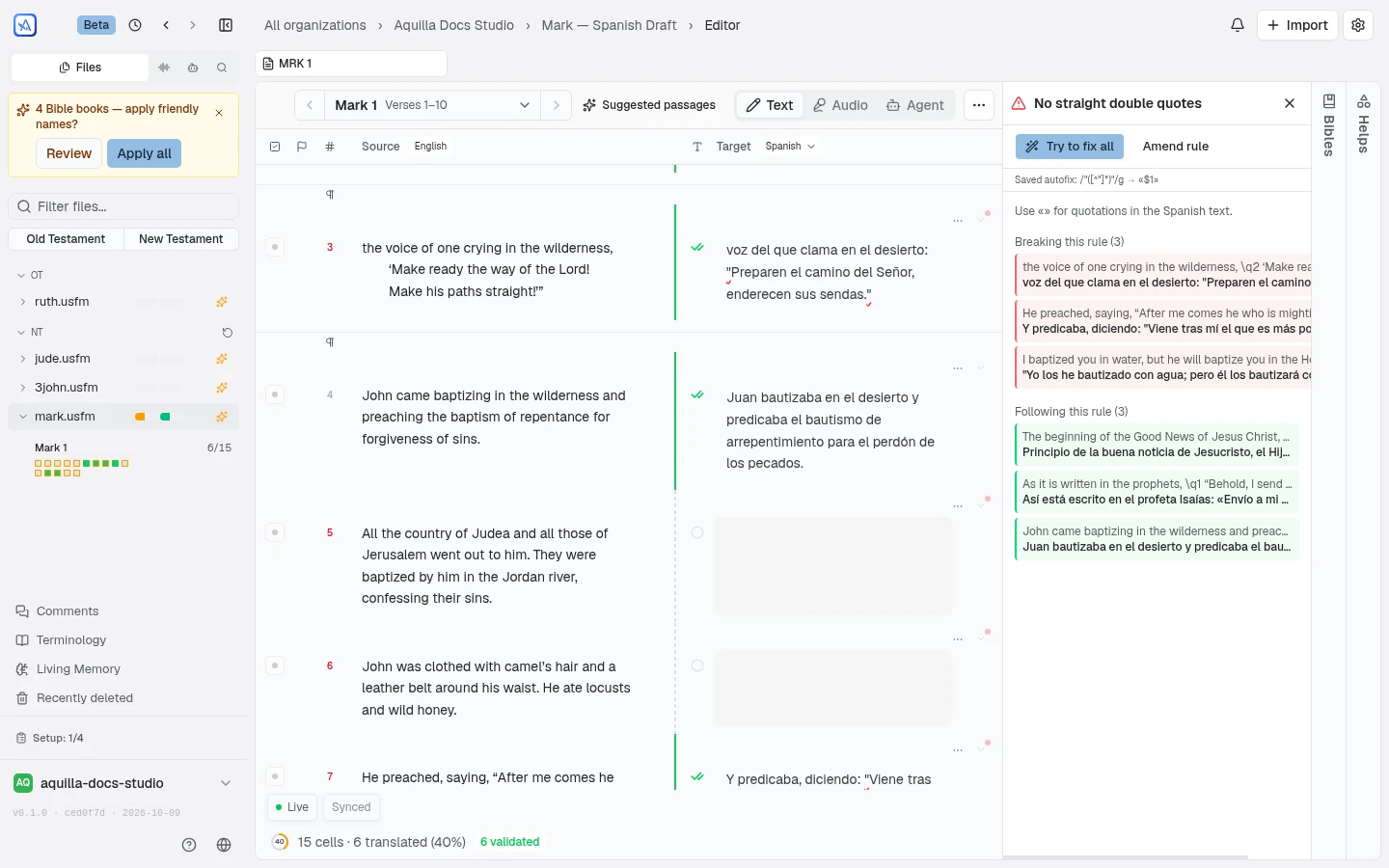
Section titled “The rule panel”The rule panel opens beside the editor. From the top:
- The rule’s name, with its severity icon.
- Try to fix all and Amend rule. Amend rule opens the rule in Living Memory so you can change it.
- The rule’s saved fix, if it has one (“Saved autofix: /
{pattern}/{flags}→{replacement}”), or “No saved fix yet”. - The rule’s description.
- Breaking this rule (N): the cells that break the rule, each showing the start of its source and translation. The panel lists up to 20.
- Following this rule (N): up to ten translated cells that pass, for comparison. With none yet, it says “No translated cells yet”.
Click any example, breaking or following, to jump to that cell in the editor.
Fixing with AI
Section titled “Fixing with AI”Each cell under Breaking this rule has a sparkle button, Fix this cell with AI (tooltip “Propose a fix for this cell”). It asks the AI for a fix to that one cell.
Try to fix all proposes a fix for every cell breaking the rule. When the rule has a saved fix, Aquilla uses that and asks no AI, so this works even before AI is set up. Otherwise it asks the AI.
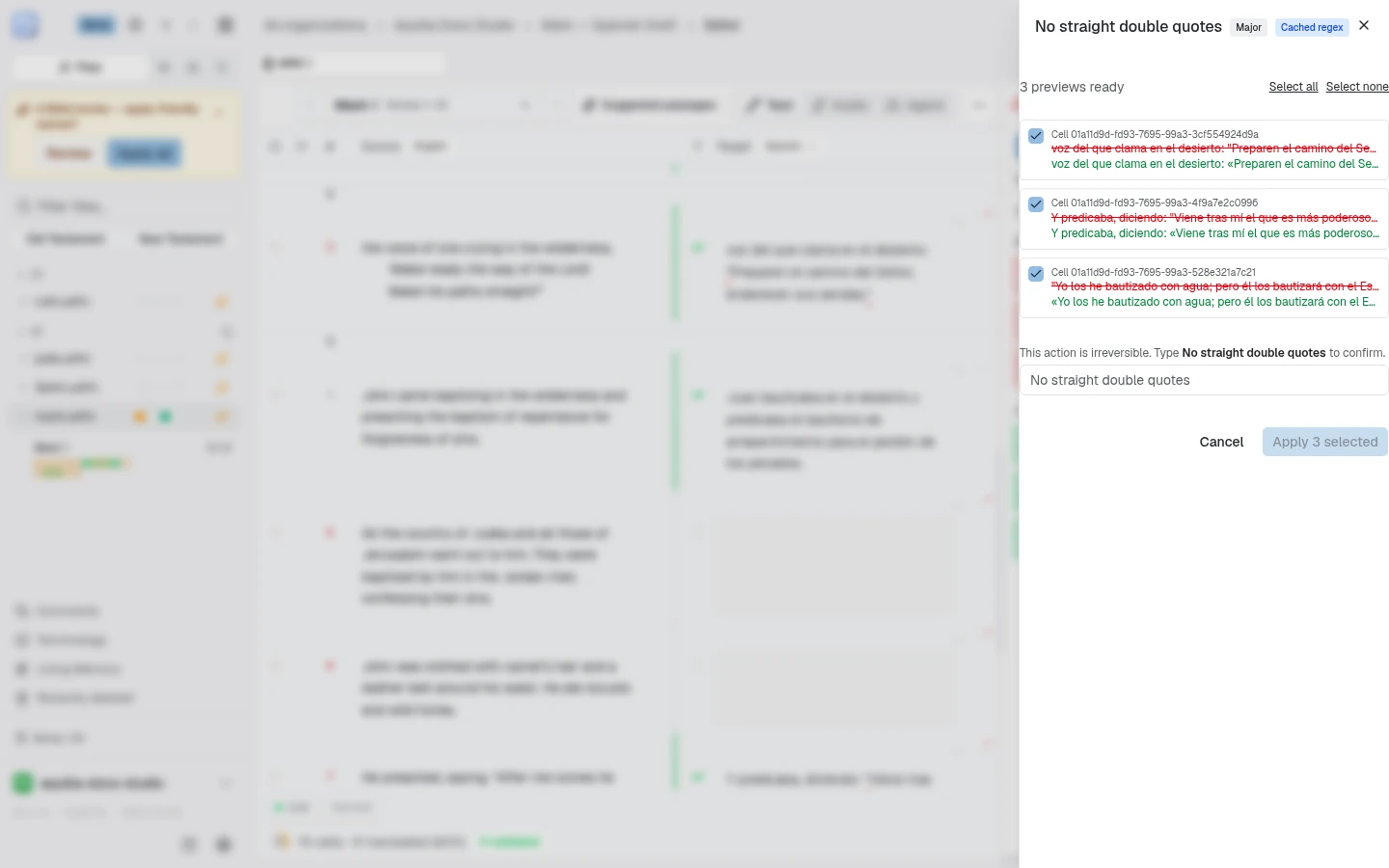
Nothing is written straight away. Every proposal opens a review sheet first:
- The rule’s name, its severity (Major or Minor), and how the fix was made: Cached regex (the saved fix), Batch regex, or Per-cell rewrite.
- “
{count}previews ready”, with one preview per cell (Cell{cellId}): the current text struck through, the proposed text under it, and a tick box. Every preview starts ticked. With more than one, Select all and Select none change them all. - Apply
{count}selected writes the ticked fixes.
Applying to more than one cell needs one more step: the sheet says “This action is irreversible. Type” the rule’s name “to confirm.”, and Apply stays disabled until you type it. A single cell needs no typing.
If the AI has no fix to offer, the sheet shows its reason and an Amend rule button instead of previews.
As fixed cells stop breaking the rule, they leave the Breaking this rule list and its count drops.
Who can fix
Section titled “Who can fix”Applying fixes needs Project lead access by default, and a project can raise that to Maintainer. When you can’t use a fix button, its tooltip says why:
- “You do not have permission to apply fixes in this project”
- “Set up AI to propose fixes”
Anyone below the floor can still open the panel and jump to the examples.
Help assistant
AI answers from the Aquilla docs — may make mistakes.