
Search & reference panels
The workspace keeps its lookup tools at the edges so the cells stay in the middle: the sidebar’s Search rail on the left, and the reference flyouts on the right.
The Search rail
Section titled “The Search rail”Open Search in the sidebar rail. Buttons at the top switch what kind of search you’re doing, and a File / Project toggle sets the scope:
- Search finds text. Results group under the query with a count and an Expand all control that opens every match in the main area as Search Results.
- Replace finds and substitutes text in target cells.
- Bible looks up scripture references in Bible resources without leaving the workspace (it appears when the project has Enable Bible resources on, the default for scripture projects).
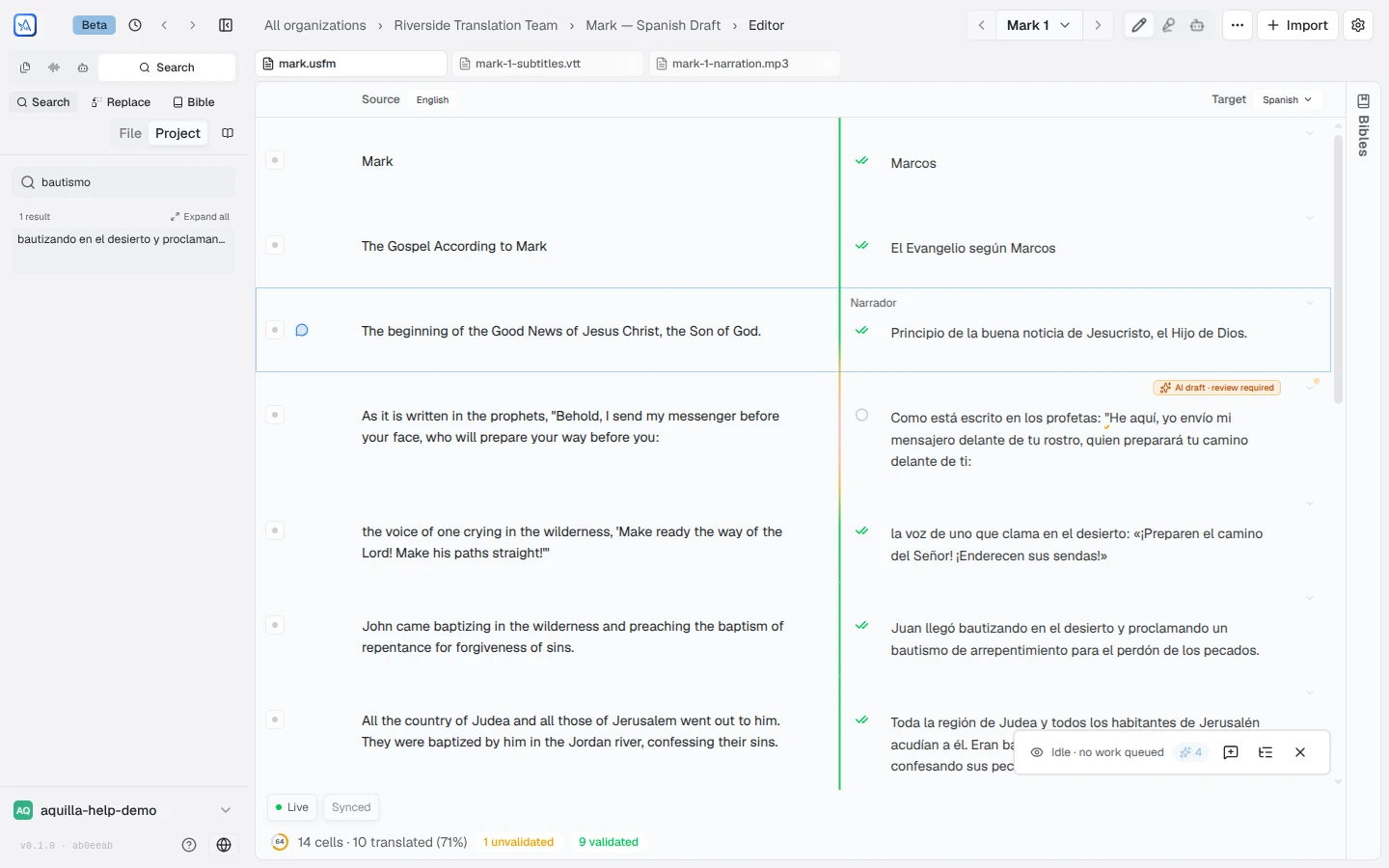
An Open full search panel button pops the same search into a large panel with more room. There the mode tabs also include Passages, which finds parallel passages rather than literal text, and a Both / Source / Target toggle narrows which side of the cells you’re searching.
Find & Replace
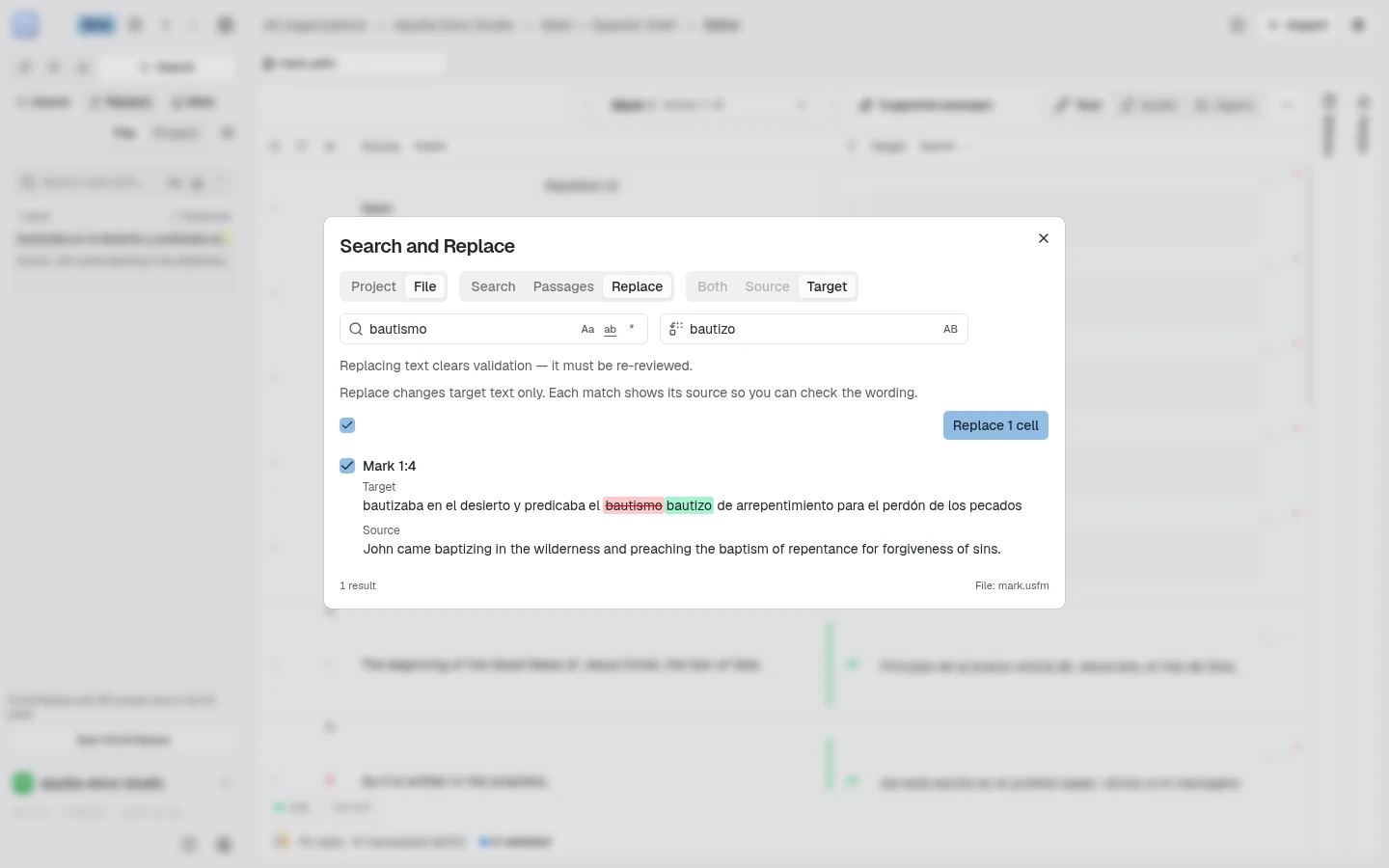
Section titled “Find & Replace”Replace works on target cells only; your source text is never touched. The sidebar version points at the big one for anything real: “Find & Replace with diff preview lives in the full panel.” In the full panel you give a replacement, review what will change, and apply with Replace All (the button counts the cells it will change, for example Replace 1 cell). Each match keeps its source text beside the target, and is labelled with a verse reference where there is one, so you can judge whether a replacement is safe without closing the panel.
One line in that panel deserves memorizing: “Replacing text clears validation — it must be re-reviewed.” A replace sweep across validated cells sends them back through validation, which is the point: reviewed text that changed is no longer reviewed.
Parallel Bibles
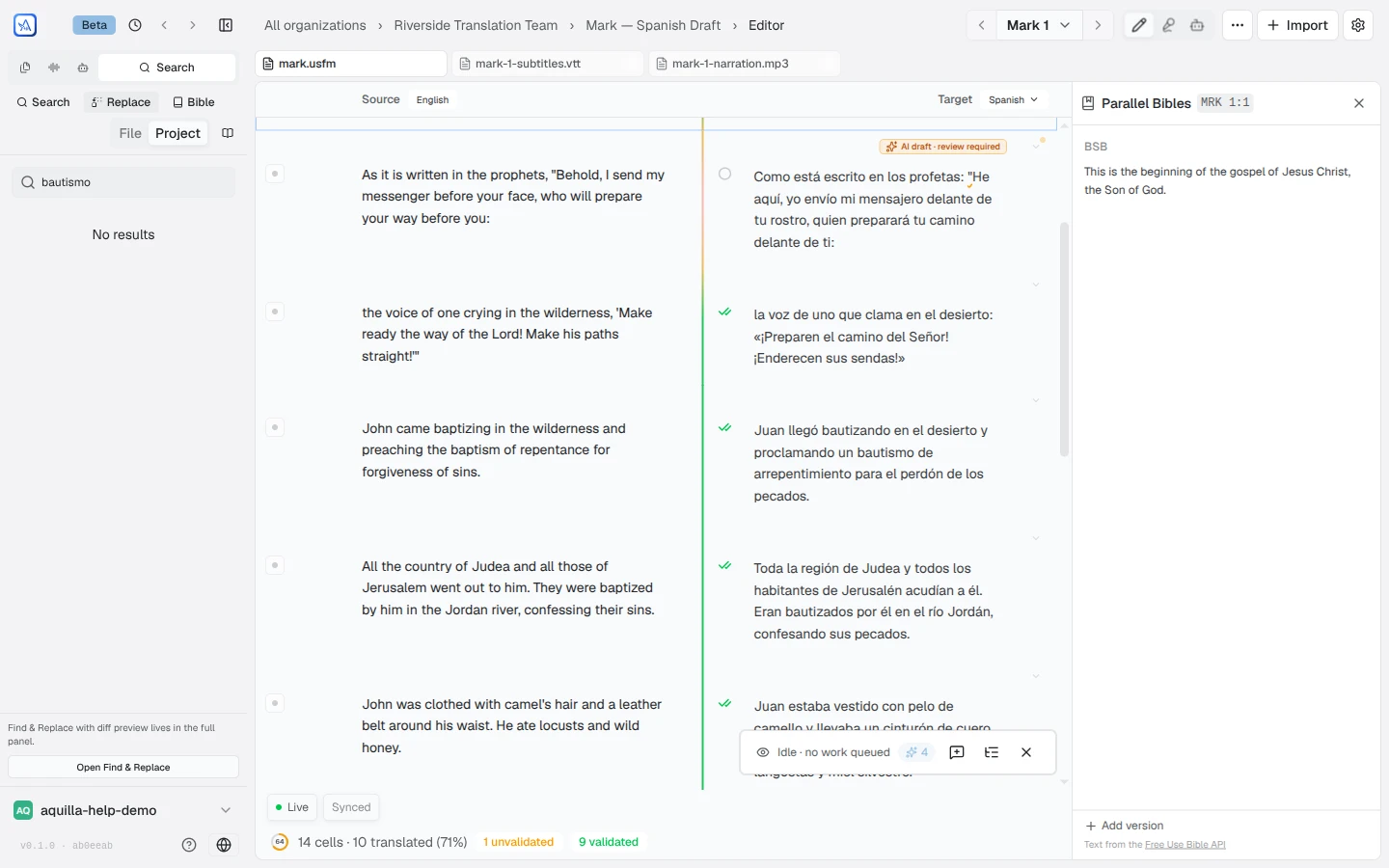
Section titled “Parallel Bibles”The Bibles tab on the editor’s right edge slides out the Parallel Bibles panel. Add version searches the Free Use Bible API’s translations; each version you add shows its rendering of whatever verse your editor is scrolled to, and follows along as you move. Each version’s Remove control takes it out again. Versions are a per-device reading aid, so your picks don’t change anything for teammates. If a version fails to load, a Retry button appears for it (and Retry loading versions if the version picker itself could not load), so you do not need to reload the page.
If the cells you’re viewing don’t have a chapter-and-verse reference Aquilla can recognize, for example non-Scripture content, the panel says “No Bible references” instead of showing a blank list, since there’s nothing yet for it to look up.
Verse Resources
Section titled “Verse Resources”A Helps tab on the editor’s right edge, next to Bibles, slides out the Verse Resources panel: the people, places, and terms the Bible Aquifer corpus links to the verse you’re scrolled to, refreshing as you move through the text. Each entry shows its name, a kind badge (person, place, term, and so on), a one-line gloss, and a link to open the full article. A place with known coordinates also gets a small locator map with an “Open map” link.
Scroll to a chapter heading rather than a verse and the panel reads “Scroll
the editor to a verse to see the people, places and terms it mentions”; a
verse with nothing linked reads “No linked people, places or terms for
{ref}.” The panel appears only for Scripture-type files on a project with
Enable Bible resources on, the same setting the Bible search mode and
Parallel Bibles depend on. (With the Bible data experiment
on, that switch reads Enable Bible data.)
Below the linked entries, a Translation checks section shows material from TaBiThA for the same verse, in up to three groups: Simple English, Cultural background, and Translator notes. The first time anyone opens a verse it can take a while: the panel says “Preparing checks for this verse. The first time can take up to a minute.” A verse with nothing available reads “No translation checks for this verse.”, and if the lookup fails you see “Couldn’t load translation checks.” The panel footer links to TaBiThA and to Bible Aquifer as the sources.
Bible data (experimental)
Section titled “Bible data (experimental)”Bible data is a newer layer of reference facts for scripture files. It is experimental and off until you switch it on, on your own device. In Project Settings → Experimental, turn on Bible data enrichments: “Shows Bible data while a Bible book is open: who speaks to whom, who is who, original-language context, translation helps and Bible data checks. Only on this device.” Your teammates’ apps do not change.
With that switch on, the Bible resources card in Project Settings → General becomes a Bible data card. Its main switch, Enable Bible data, turns the whole layer on or off for the project. The card says the data comes from bibletranslation.org, built from Macula, OpenText, ACAI and unfoldingWord, and that it powers Verse Resources, Bible search, the agent’s Bible lookups, and the enrichments below. Data sources opens a dialog that credits each open dataset and links to its license.
Under the main switch, one row per enrichment shows its name, one sentence about it, its source and license, and its own switch:
- Voices: who speaks to whom in each cell, with rails that mark where a quotation opens and closes.
- Who’s Who: each person through the passage, including the pronouns and implied subjects that refer to them.
- Passage structure: section titles, question and command markers, and verses that some manuscripts leave out.
- Original-language context: a Context tab with the Greek or Hebrew words, their glosses, and who each pronoun refers to.
- Translation helps: Translation Notes and Translation Questions next to the words and verses they discuss.
- Key terms: key terms marked in the source text, each linked to its Translation Words article.
- Places and maps: a short description and a map for each place a passage names.
- Bible data checks: checks of the translation against known facts, such as who is speaking and where a quotation ends. Open built-in checks jumps to the checks list.
- Autopilot uses Bible data: gives Autopilot these facts while it drafts and checks its drafts against them. This row is the only one that starts off.
A row you cannot change is greyed out, never hidden, and says why: “Turn on Bible data to use these enrichments.” when the main switch is off, “Autopilot is off for this project. Turn it on under Experimental first.” for the Autopilot row, or the usual lock note when your role is below Maintainer. The switches join the settings page’s Save bar, like the main switch. The enrichments appear only while a Bible book is open in the editor.
Translation Notes and footnotes
Section titled “Translation Notes and footnotes”Two more reference surfaces open beside the editor when their content exists:
- The Translation Notes sidebar shows imported unfoldingWord notes for the verse you have focused (“Focus a translation cell to see notes for that verse.”). Each note displays the original-language phrase it comments on, and shows “occurrence {n}” below it when a verse contains that phrase more than once. Notes arrive through the Translation Notes importer.
- The footnotes tray collects the footnotes visible in the current scroll position. Where footnotes render at all is a per-device choice in Editor settings: hidden, inline under their cells, or in the bottom tray.
Help assistant
AI answers from the Aquilla docs — may make mistakes.