
Validation & reviewer queue
Validation is how a translation gets confirmed by a human. Enough validations and the project’s health rises and decay falls.
Editing a cell validates it
Section titled “Editing a cell validates it”The most common way a cell gets validated is the simplest one: you type a translation, and Aquilla marks it validated by you in the same gesture. The cell’s indicator turns green and the control’s label changes to “remove your validation”: no separate confirm step. Empty cells are never auto-validated.
This is self-validation: a human (you) has touched the cell. A project can require more than one validation before a cell counts as fully reviewed; that’s where reviewer validation comes in, layered on top of self-validation rather than replacing it.
Validating a cell as a reviewer
Section titled “Validating a cell as a reviewer”If you have a reviewer (or higher) role, each cell offers a control to validate it: to say “this translation is correct,” whether or not you wrote it. Changed your mind? You can unvalidate it again.
This validation control (the health ring, the validate toggle, and a “Validated by” popover) sits immediately to the left of its target cell. The line-number gutter further left is separate: it only ever carries the line number and any stale-source markers.
Each validation a cell receives counts as an endorsement. As a cell collects the endorsements it needs, its decay falls and the project’s health rises.
Validating several cells at once
Section titled “Validating several cells at once”Select multiple cells to reveal Validate text and Remove my text validations in the Selection actions bar above the editor. Bulk validation skips cells that aren’t eligible and tells you why: for example, a cell still needs a translation before it can be validated at all, and your own drafts may need individual review if the project forbids self-validation.
A project’s Batch validation size setting (Project Settings → AI Instructions, 0–500, default 0) caps how many eligible cells a single bulk validate action processes at once; 0 means no cap: all eligible cells in the selection.
The file-level Batch validate text… action opens a Batch validate this file dialog. Under What this run includes it lists what the file holds:
- cells ready for your check: committed text you have not signed off, including lines someone else already checked (AI drafts among them). This is ticked by default.
- AI drafts nobody has checked: untouched AI drafts. This is unticked by default, so they stay out of the run. A reviewer, or anyone at project lead or above, can tick it to sign them off together under their name. For a contributor the box is disabled, with the note “A translator reviews these one at a time. A reviewer or a project lead can include them here.”
The dialog counts the eligible cells it will validate under your name and names any it skips, such as AI drafts left for individual review. If nothing qualifies, it says “Nothing in this file can be batch-validated right now.” Confirm with Validate text.
Repeated source text
Section titled “Repeated source text”When the same source text appears more than once in a file, a small Repetition ×N badge shows next to the source (N counts the cell itself). Hover it for the explanation: “This source text appears N times in this file. Validating one fills the rest.”
If Auto-propagate repetitions is on, validating one of those cells (by typing a translation and then leaving the cell, or with the validate toggle) copies its translation into the other cells in the same file with the same source text. A repeated row also asks “Validate the repeated rows too?”: Validate the other rows now, or choose Just this row (or Just these rows after a batch) and leave them to be validated later. They receive the translation either way. Don’t ask again stops the question, and Ask me each time on the message that follows a validation brings it back. When rows you validate together translate the same source in different ways, a dialog asks which translation the other rows get. Propagation fires once the cell is settled (the caret leaves it), not while you are still typing. Source texts count as the same even if they differ only in capitalization or spacing. On a line made from a recording, the text that repeats is its transcript. A line with no transcript yet repeats nothing.
- Cells that are already validated are never changed.
- Cells that are still empty or unvalidated receive the text, replacing whatever unvalidated text they held.
- The filled-in cells stay unvalidated, so someone still checks them in context.
- Hidden cells neither receive text nor count toward the badge.
- Propagation only happens within the file you are working in.
A toast tells you what happened (“Applied to N repeated segments”) with an Undo button that puts the previous text back.
The setting has two levels. Org maintainers and owners set the default under Organization Settings → Project defaults (see Project defaults). Each project can follow that default or override it in Project Settings → Validation & health: choose Organization default, Propagate, or Don’t propagate.
Required validation count
Section titled “Required validation count”A project’s settings set how many validations a cell needs before it counts as fully reviewed: anywhere from 1 to 15 (the default is 1). Setting it to two or more lets a project require genuine peer review rather than a single sign-off.
In Project Settings → Validation & health, Required validators (text) offers Organization default (shown with its number, such as “Organization default (1)”) or a number set for this project.
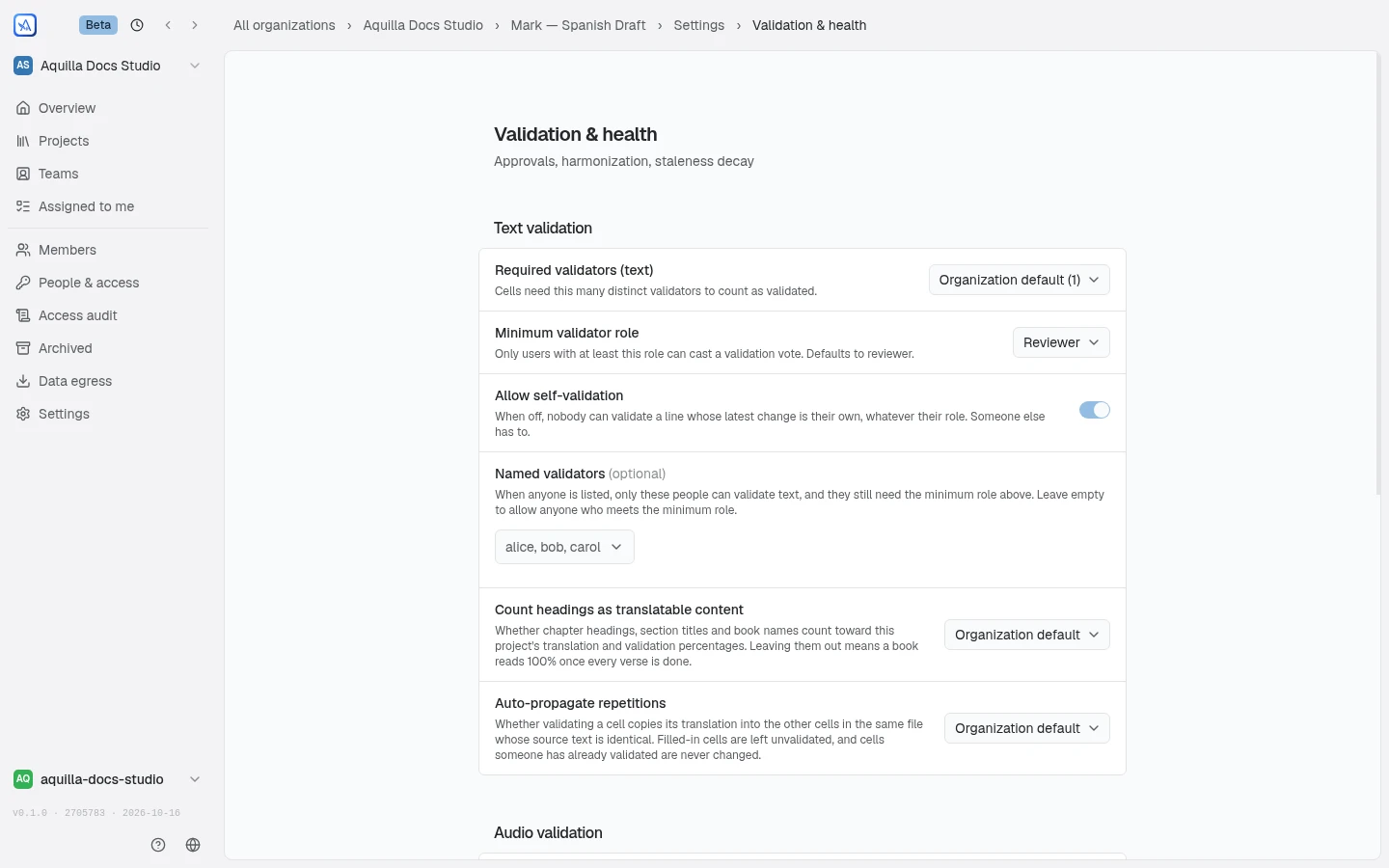
- A cell counts as fully validated only once it reaches the required count.
- By default a cell’s translator can validate their own work, but a project can turn Allow self-validation (text) off; then a validation only counts if it comes from someone other than the cell’s last editor.
Validating a recording
Section titled “Validating a recording”Once cells have recordings, they get their own validation, tracked separately from the text but built the same way: casting a vote is the endorsement, and once enough people have, the recording counts as validated.
The control shows up everywhere a recording does: the editor’s gutter, beside the text control; a cell’s Recording tab and its Audio voice panel; the Takes strip, on every take; and, read-only, as a small check mark on timeline clips once a take is validated. Its icon works like the text ring: muted until someone’s validated it, a check once you have, a double check once the recording has reached the project’s required count. Hover it (or click, once you’ve done all you can) to see “Audio validated by” and exactly who’s signed off, take by take when a line carries more than one.
A line can hold more than one recording at once, say a recorded take on one track and a generated voice on another: every track holding a chosen take needs its own votes before the line counts as done, and the number beside the icon on a partly-done line (for example “1/2”) tracks how much of that is still yours to give, not the line’s overall progress. Only actual translations, recorded or AI-generated, get validated; the original programme audio a media import brings in is never something you validate.
Recording a fresh take yourself validates it on the spot, the same way typing a translation does; re-recording, cleaning up noise, transcribing, or uploading a file don’t. Selecting several cells reveals Validate audio and Remove my audio validations in the selection bar too, alongside their text equivalents, skipping takes you’ve already validated or aren’t allowed to for the same reasons the text actions do.
If your role or the project’s rules don’t let you vote, Aquilla says why on hover: “You recorded this — someone else must validate it” if self-validation is off, or “Audio validation unavailable” if your role doesn’t allow it at all.
A separate audio policy
Section titled “A separate audio policy”A project’s audio-validation rules sit beside its text ones in Project Settings, in their own Audio validation card next to the Text validation card, but they’re entirely independent: a project might want two people vetting a recording while only one signs off the matching translation, or trust a different set of people with each.
- Required validators (audio): how many people must validate a take before it counts, 1 to 15, once recordings exist.
- Minimum role to validate recordings and Named recording validators: who’s allowed to vote, mirroring the text settings but set on their own.
- Allow validating your own recordings: turn it off and whoever made a take can no longer validate it themselves; older takes whose recordist Aquilla can’t identify are unaffected.
Minimum role to validate recordings and Allow validating your own recordings each have a dropdown beside them. Choose Organization default (shown with its value, such as “Organization default (on)”) to follow the organization’s setting, or set the value for this project alone.
Recordings follow the same per-language rule as text. A dub belongs to the one target language it was recorded for, so on a project with several target languages a recording made for one language doesn’t appear as a take, or count as recorded, in the others, and a vote on a take counts for that take’s language only. The shared programme audio that an audio or video import brings in is the exception: it is heard alongside every language.
Validation is per target language
Section titled “Validation is per target language”On a project with more than one target language, text validation is tracked separately for each one: validating a cell in Spanish doesn’t validate it in French, and each language keeps its own validation progress. A reviewer who’s scoped to certain languages can only validate cells in those languages. Recordings are tracked per language too: see Validating a recording above.
When a validation doesn’t stick
Section titled “When a validation doesn’t stick”If your role or scope doesn’t allow a validation, Aquilla tells you why up front rather than letting the click revert silently:
- On an individual cell, a disabled Validate control explains why: “Outside your assigned files or lanes” if the cell isn’t in your scope, or “Text validation unavailable” if your role doesn’t allow validating at all.
- Selecting several cells and choosing bulk Validate text shows “Some selected cells are outside your assigned files or lanes” if part of the selection is out of scope for you.
- If a validation is rejected anyway (for example, your scope changed and this device hasn’t refreshed yet), a dismissible banner explains exactly why: the file or lane isn’t in your assigned scope, self-validation is off for this project, your role can’t validate on this project, or you’re not on the project’s validator allowlist.
This also closes a gap on projects with self-validation off: that setting now reliably blocks a translator’s own edit from auto-validating itself, not just manual reviewer clicks.
The reviewer queue
Section titled “The reviewer queue”Rather than hunting for unreviewed cells, reviewers use the reviewer queue, which surfaces cells that are unvalidated or under-validated, ordered by priority. Work down the queue and the project steadily gets confirmed.
Help assistant
AI answers from the Aquilla docs — may make mistakes.