
Importing
Everything enters Aquilla through the Import dialog, opened from the editor header’s Import button. This page is the full catalog; Creating a project covers the quick path of getting a first file in.
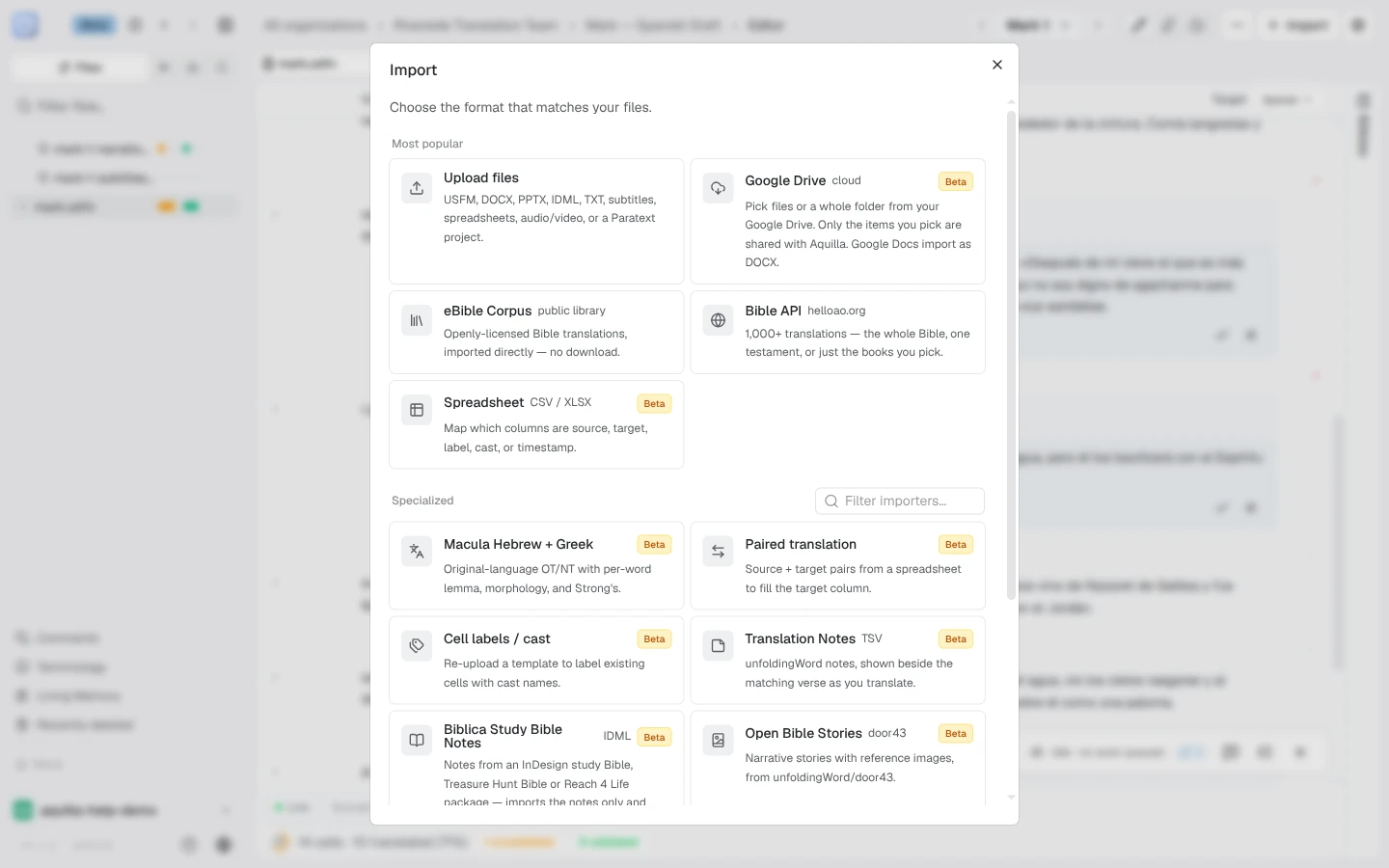
The dialog opens on “What are you importing?” with two cards: New source text (“Adds new files to translate from.”) and A translation (“Target text for a file that’s already in this project.”). Choose New source text and the dialog shows “Choose the format that matches your files.” with a Most popular row and a Specialized section behind a filter box. Cards marked Beta work today and are still settling; Soon cards are announced but not yet live. For A translation, see Importing translations into an existing file.
Uploading your own files
Section titled “Uploading your own files”Upload files takes nearly anything a translation project starts from. The panel lists what each group covers:
- Scripture — USFM, USX, SFM
- Translation — XLIFF/XLF, TMX, CSV/TSV
- Documents — DOCX, TXT, MD, HTML, EPUB, JSON/ARB, PPTX (text boxes and table cells alike), IDML (InDesign)
- Localization — PO/POT, Java properties
- Subtitles — VTT, SRT, SBV
- Paratext project — .zip or folder
- Other formats — AI-assisted when configured, always reviewed before import
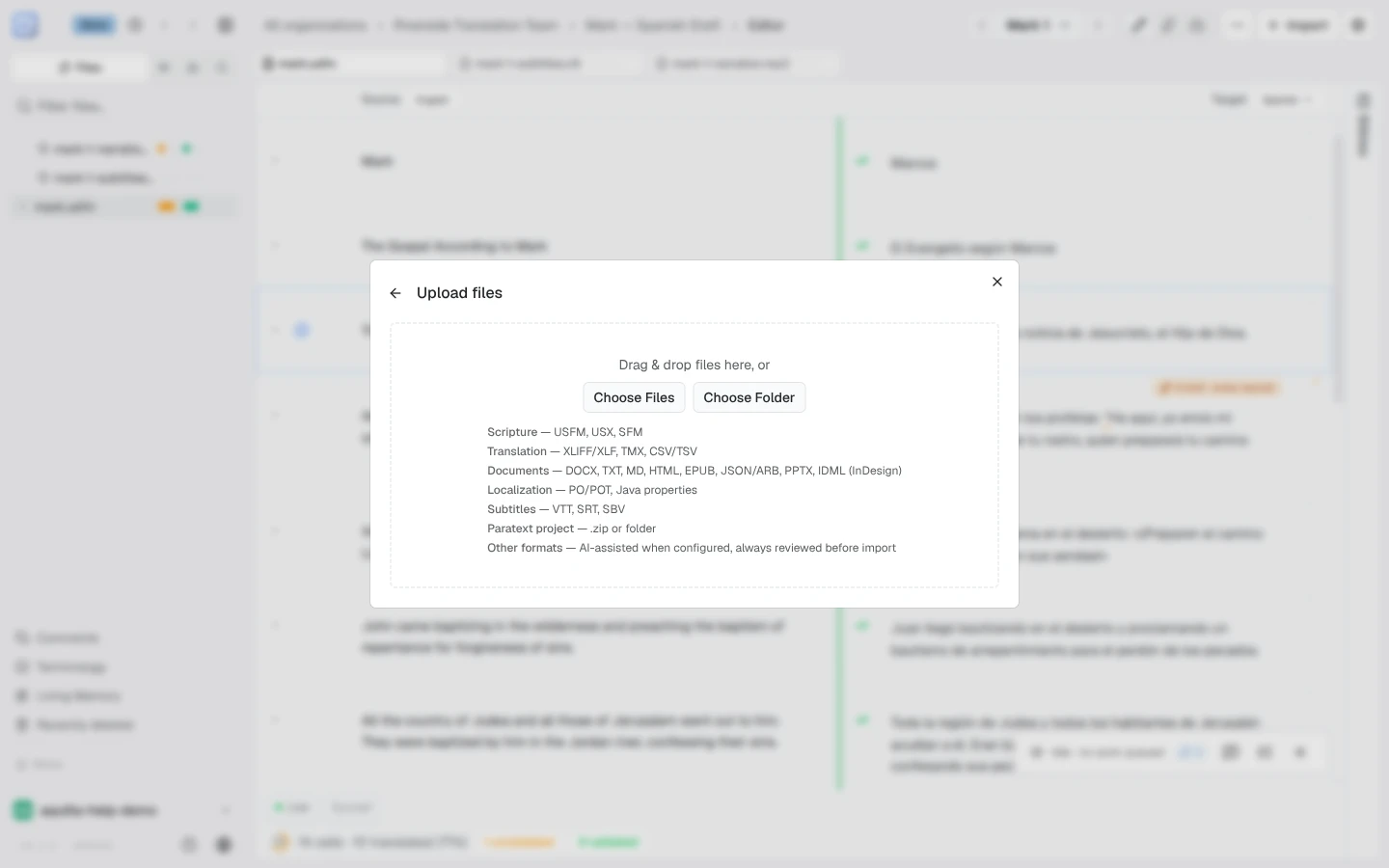
Drop files on the panel, or use Choose Files / Choose Folder. A Paratext upload asks one extra question first: whether the project should come in as Source text or as a Translation in progress. An EPUB shows a chapters picker on preview, so you import just the parts you need.
A single JSON or ARB file opens Choose which keys to translate first: “Tick the values in {fileName} that hold translatable text. Everything you leave unticked stays in the file and is written back unchanged when you export.” Use Select all keys or tick keys one by one, watch the count of strings selected, then choose Import selected keys. The finished translation can go back into the same JSON file with the JSON export.
Preview before anything is written
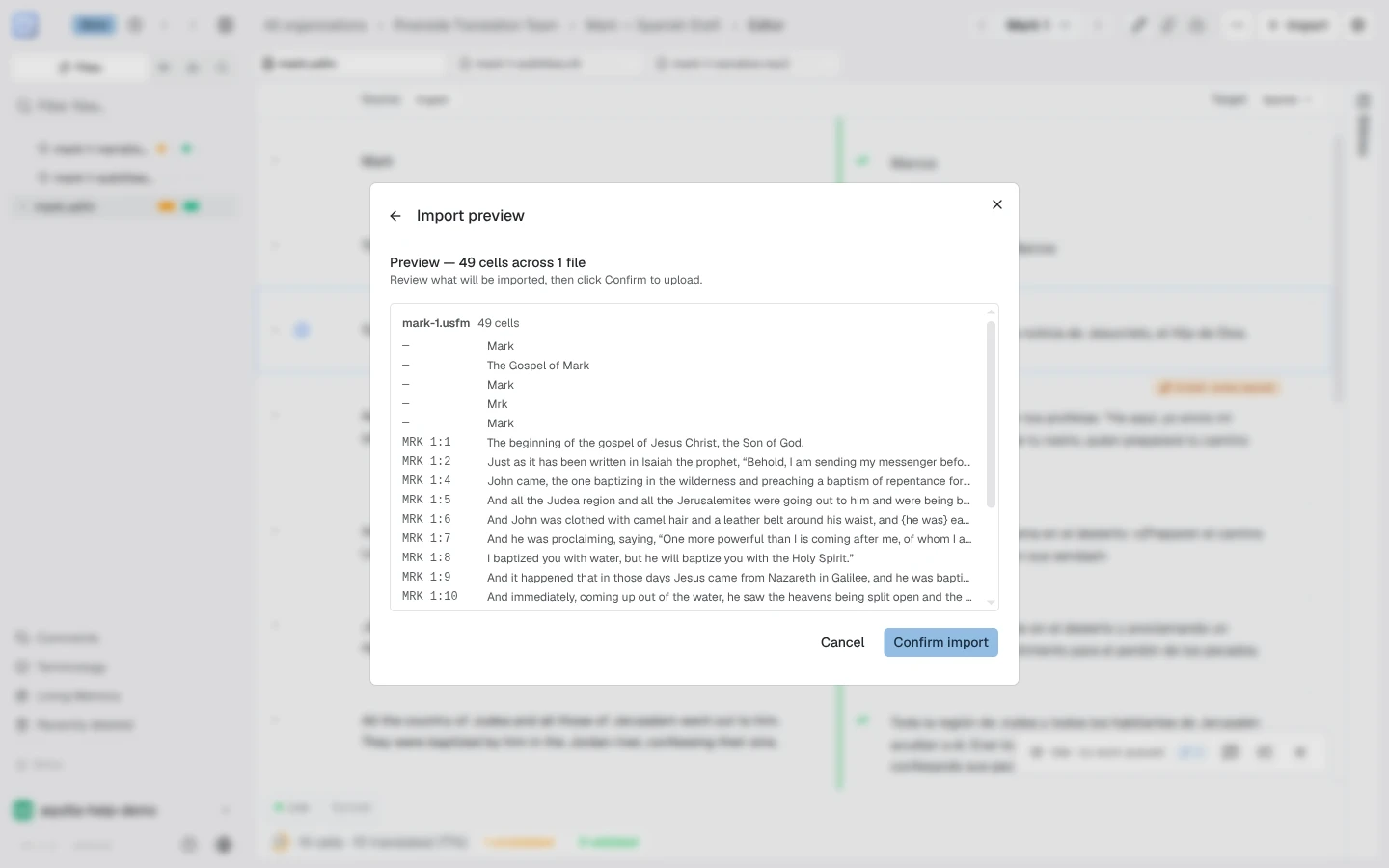
Section titled “Preview before anything is written”Every import ends at a preview: how many cells, each reference and its text, and structural content marked separately. Nothing lands until Confirm import.
For USFM files, the preview also checks the file’s structure. If something is off, it says “Structure problems found in this file” and lists each one, for example “This chapter number appears more than once” or “Unrecognized marker” followed by the marker, so you can fix the source file before you import it.
Every cell has a size limit. If a document contains a section too large for one cell, the import stops before anything uploads and names exactly which section is too big, so you can split it in the source document and try again. IDML layouts get one extra chance first: Aquilla splits an oversized story at its line breaks, and only a paragraph with no break inside it reaches that limit.
When the file already exists
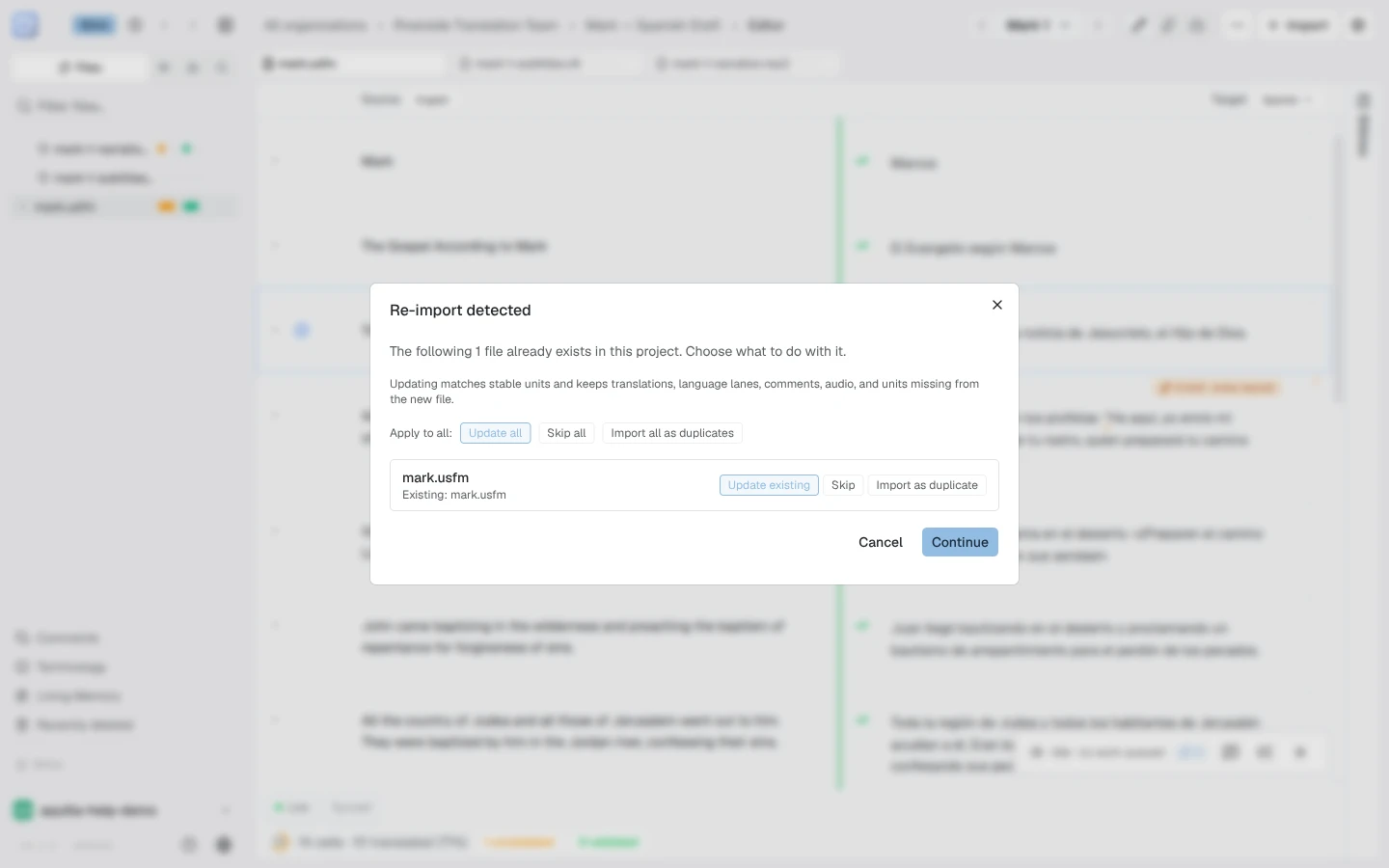
Section titled “When the file already exists”Uploading a file whose name matches one already in the project opens Re-import detected: “The following 1 file already exists in this project. Choose what to do with it.” Per file you choose:
- Update existing — “Updating matches stable units and keeps translations, language lanes, comments, audio, and units missing from the new file.” This is the safe default for a revised source.
- Skip — leave the project untouched.
- Import as duplicate — bring it in as a second file.
With several colliding files, the Apply to all row (Update all, Skip all, Import all as duplicates) decides them in one move.
Public Bible libraries
Section titled “Public Bible libraries”Two cards import source text with nothing to upload:
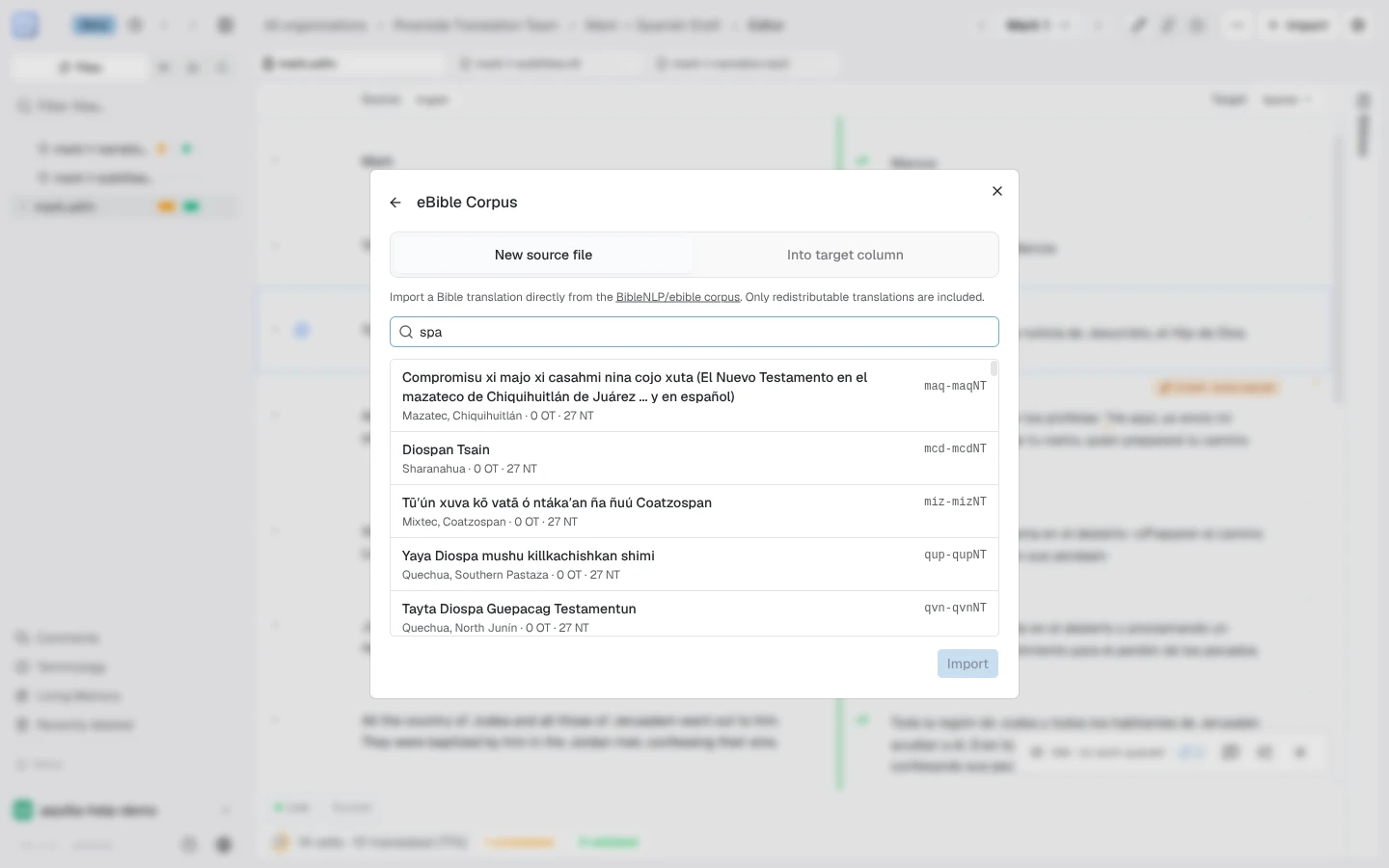
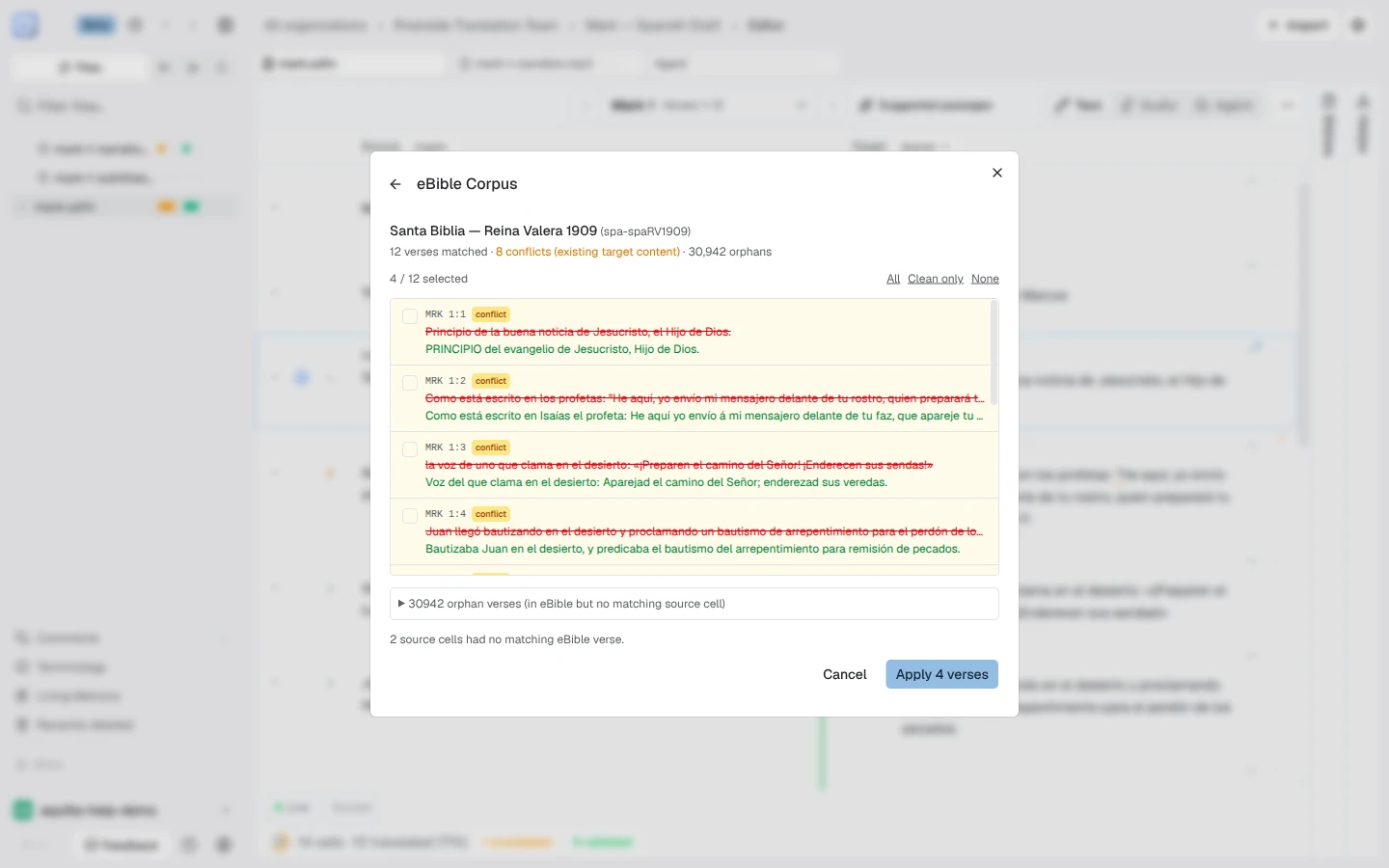
- eBible Corpus pulls openly licensed translations from the BibleNLP corpus. Search by language, title, or id, and pick a mode: New source file, or Into target column to fill your target from an existing translation.
- Bible API (helloao.org) offers “1,000+ translations — the whole Bible, one testament, or just the books you pick.”
Audio and video files
Section titled “Audio and video files”Upload files also takes audio and video. An uploaded video is linked automatically as the file’s picture, so it plays beside the timeline with no separate link step. If you drop caption files (VTT, SRT, or SBV) in the same batch, or an MP4 or M4A file carries its own caption tracks, Aquilla opens an Import window titled with the media file’s name before anything is written. It says “Review wording and timing before importing. Your original files are preserved.”
- Text source chooses where the wording and timing come from: a caption file from the batch (one whose name matches the media file is offered first), the media file’s own Embedded captions (named by language when it has one), or Transcribe audio. Transcribe audio splits the audio at pauses and, as the window says, you can choose automatic transcription after the import (see Audio & voices).
- Each segment has its wording and its start and end time in seconds, all editable. A line reading “1 segment needs attention” counts segments whose wording or times cannot be imported as they stand; fix them before Continue import is available. Remove segment (with its number) drops one. A segment that Aquilla placed by matching text can show its Alignment confidence.
- A caption file you use in this window becomes the media file’s text. A caption file you do not use imports as an ordinary subtitle file.
Captions can also be added after the import as separate tracks on the timeline: see Attaching captions as a text track. Importing audio or video is limited to 2 GB per file.
YouTube video
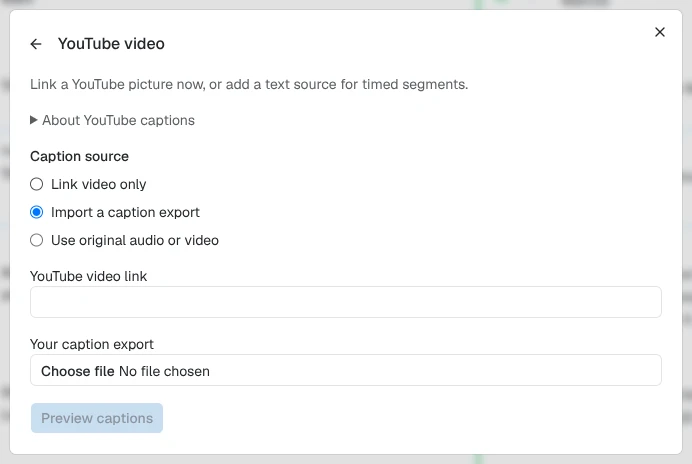
Section titled “YouTube video”The YouTube video card (in the Most popular row) is described as “Link a video, bring captions, or generate them from your original media.” Choose a Caption source, then paste the video’s link under YouTube video link. Open About YouTube captions for a short explanation of what YouTube does and does not share with Aquilla.
- Link video only: links the video as the file’s picture. Give the file a Video name, then choose Preview import and Link video. Once linked, a maintainer can attach captions to turn them into the file’s rows; see Attaching captions as rows below.
- Import a caption export: upload your own VTT, SRT, or SBV file under Your caption export. About YouTube captions says “Export your captions from YouTube Studio as VTT, SRT, or SBV.” Aquilla cannot read captions from YouTube itself, so the export is the only way to bring the text in. Each caption becomes a cell: the wording is the cell’s text, and the caption’s start and end times set the cell’s timing. Preview captions shows the cells before Import captions writes them.
- Use original audio or video: upload the original recording, with the same timing as the YouTube video, under Your original audio or video. Aquilla can generate captions from it using your ASR settings, or let you review embedded caption tracks. Import media and link video opens the same review window as an uploaded audio or video file (see Audio and video files below), then the picture is linked to the YouTube video.
Attaching captions as rows
Section titled “Attaching captions as rows”A linked video with no rows yet shows a card explaining what to do. On an empty linked-video file, a maintainer can Attach captions without track-editing enabled. Attach captions appears in the Text view’s card and the Media view’s Text track card. The attached captions become the file’s own rows, like captions added at import time. The video keeps its own sound unless you choose an uploaded recording.
For a linked video that is not on YouTube, the card adds “or make rows from the video’s own sound”. Pick a Sound track (the project’s source language is chosen to start) and click Make rows. Aquilla downloads the sound, saves a copy with the file as its recording, splits it into rows where the speech pauses, and transcribes them. The rows are timed to the video. Progress shows as it goes, and you can cancel until the rows go in (“Stopped. Nothing was saved.”). A long transcription that reaches the hosted limit pauses and carries on by itself: “Transcription limit reached, continuing at {time}”.
From another project
Section titled “From another project”The From another project card (marked live link) is described as “Read another Aquilla project’s source files here. The link is live, so later upstream edits keep flowing through.” It opens the same steps as Project Settings → Source & sync → Link to a source project: pick the project, say which corpus becomes your source, and review the files you will bring in before anything changes. The card is greyed out when the project already reads its source from another project, or when your role is below Project Lead. See Linking a project you already started.
Spreadsheets and column mapping
Section titled “Spreadsheets and column mapping”The Spreadsheet importer (CSV, TSV, XLSX) shows your file’s real columns and asks what each one means: “Tell us which column contains each piece of data. Only ‘Source text’ is required.” Beyond source and target you can map a cell label or reference, a cast name, start and end timestamps, and a content type, with a First row is a header checkbox for files with headings.
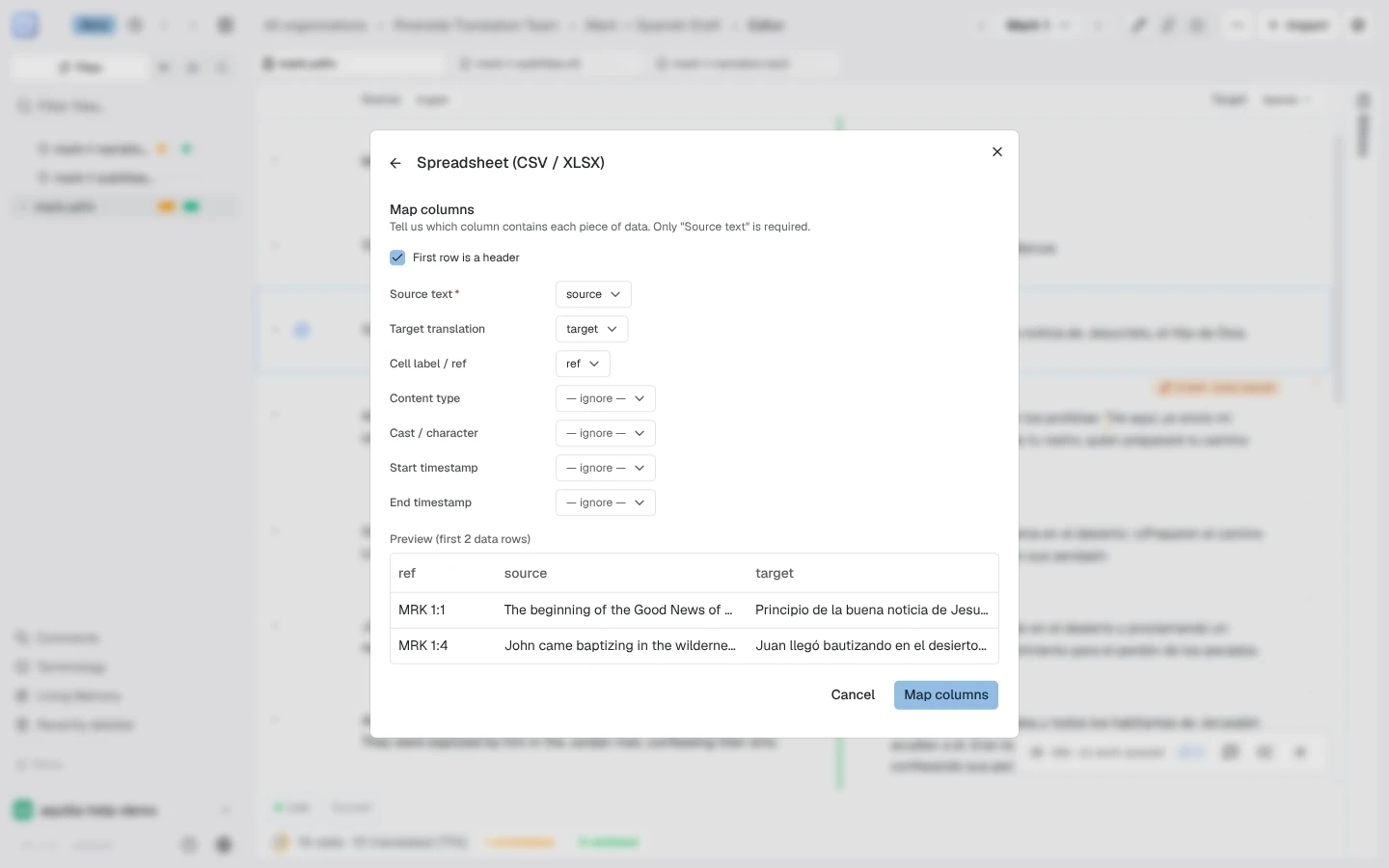
The related Paired translation importer fills the target column from source and target pairs in a spreadsheet, and Translation Memory does the same from a TMX memory file.
The specialized importers
Section titled “The specialized importers”- Macula Hebrew + Greek — original-language OT/NT with per-word lemma, morphology, and Strong’s.
- Translation Notes — unfoldingWord notes, shown beside the matching verse as you translate.
- Biblica Study Bible Notes — an InDesign study Bible, Treasure Hunt Bible or Reach 4 Life package. A book volume imports its study notes and every verse of the Bible text, each verse as its own cell keyed to its reference, so a translator can tell a verse from a note about it. Front and back matter volumes hold no scripture and import notes only.
- Open Bible Stories — narrative stories with reference images, from unfoldingWord/door43.
- Door43 (DCS) — import a released Door43 resource as a pinned source you can re-sync later; the workflow is covered in Source projects & linked targets.
- SDBH Hebrew Lexicon — the Semantic Dictionary of Biblical Hebrew, for localizing definitions by semantic domain with lossless export back to MARBLE XML. Choose the master edition as your source and, optionally, an already-localized edition to pre-fill the target column. A few entries list more verse references than a cell can hold; if any do, Aquilla warns you first (“Some reference lists will not be imported,” naming each affected entry) and lets you Cancel import or Import anyway. Those entries’ definitions still import in full: only the oversized reference list is left off, and exporting rebuilds from the preserved lexicon file, so the original reference data is never actually lost.
Google Drive appears when the deployment has Drive access configured: you pick files or a whole folder, only the items you pick are shared with Aquilla, and Google Docs import as DOCX.
Importing translations into an existing file
Section titled “Importing translations into an existing file”To fill a file’s target column from a translated file, open Import and choose A translation. It needs the Contributor role or higher, and the project needs at least one source file to translate into; otherwise the card says “Add a source text first. A translation goes into a file that’s already here.” (a project lead has to add it).
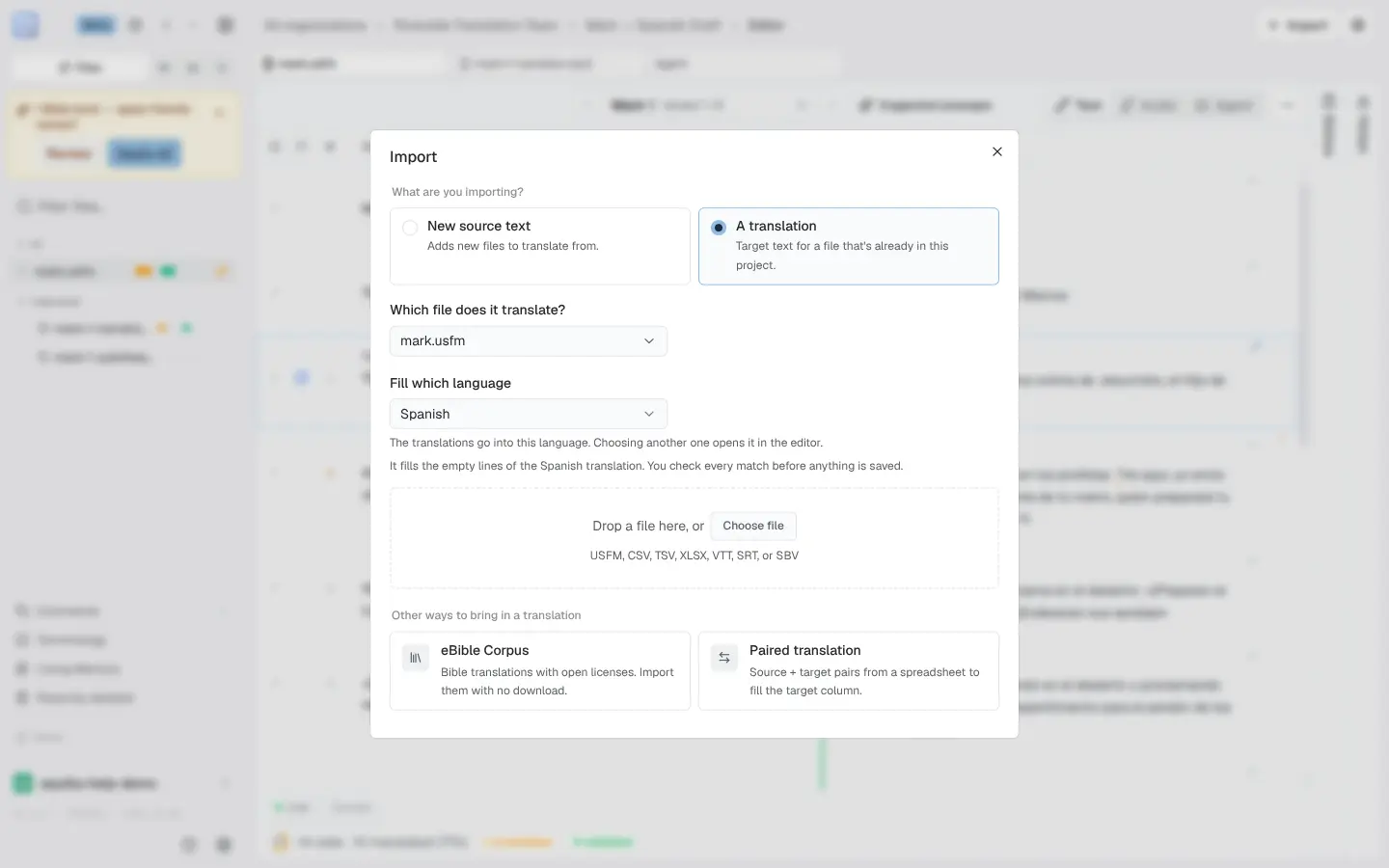
- Under “Which file does it translate?”, pick the file in the searchable list (“Search files”).
- The dialog is now titled “Import a translation into {fileName}”. Drop in the translated file. Accepted files are USFM/SFM, CSV/TSV/XLSX, and, for subtitle files, VTT, SRT, or SBV, so a translated subtitle file from a dubbing vendor imports the same way a VTT does.
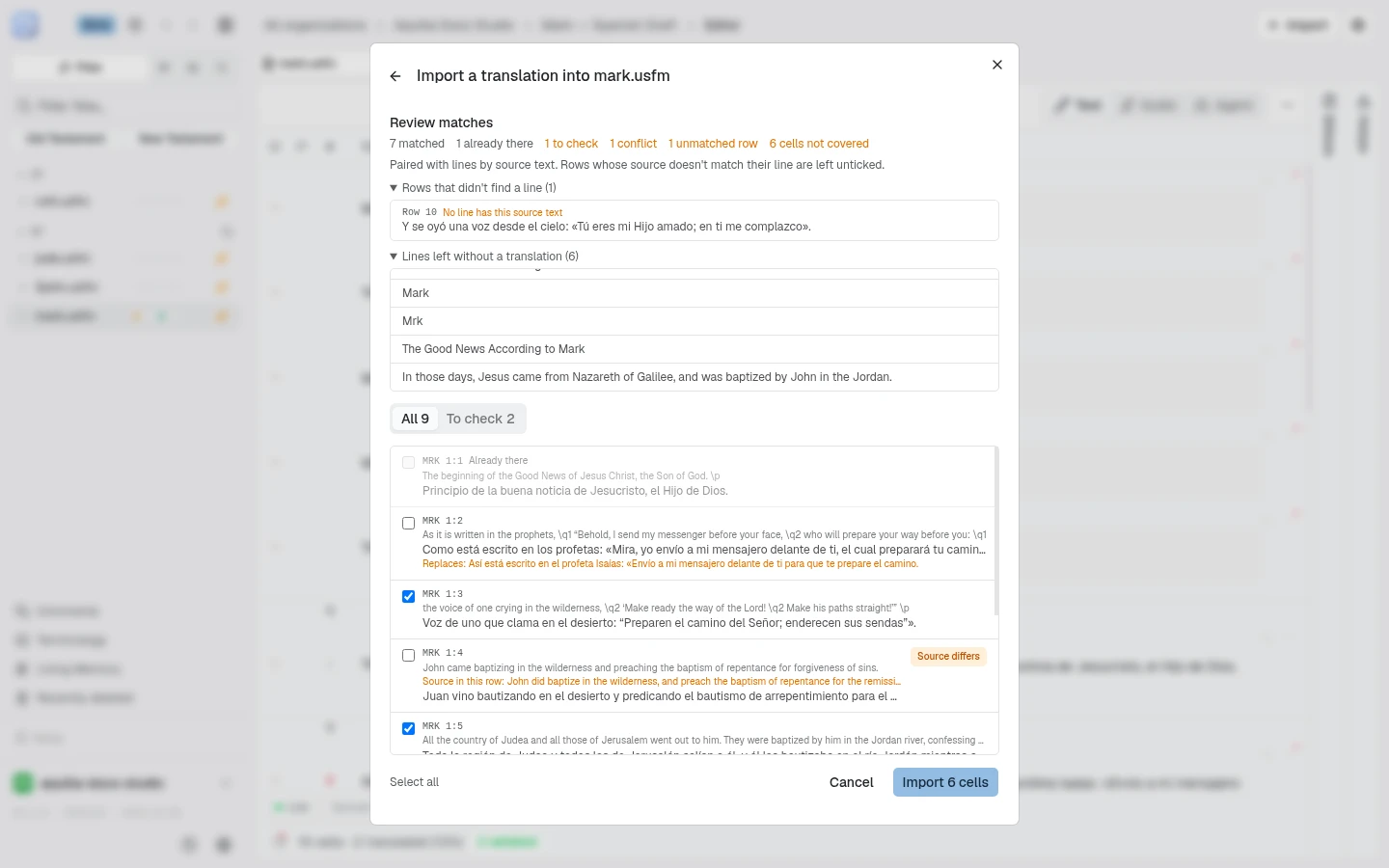
- Aquilla pairs the rows with the file’s lines and opens Review matches. Only the rows you confirm import, and source text never changes.
To have someone check the translation before it lands, tick Stage as proposals for review: “Each match becomes a proposal waiting for approval. Nothing is written to the file until someone approves it.” The dialog title then ends in “as proposals”. The matches arrive as one changeset, named “Imported from” the file, that is approved or rejected like any other staged change.
On a project with more than one target language, the dialog has a Fill which language picker, set to the language you have open in the editor. The translations go into the language you choose, and choosing another one opens it in the editor (“Opening this language… you can choose a file in a moment” shows while it loads). With a single target language the picker is hidden. Add one file at a time.
When an upload looks like a translation
Section titled “When an upload looks like a translation”Source uploads get a check first. If a file looks like a translation of a book already in the project, the dialog stops with “This looks like a translation” (the file says it is in your target language) or “{book} is already in this project” (the file is for a book you already have), and asks “What is it?” with answer cards:
- A translation of {book}: fills that book’s empty translation lines, and you check every match before anything is saved.
- New source text: adds the file to the project as new source text. Nothing already there changes.
- A separate source text: adds it as its own file next to the one you have.
A translation goes into one file at a time. A file that holds several books, some already in the project, can only come in as source text; to bring it in as a translation, split it into one file per book first.
Reading the Review matches screen
Section titled “Reading the Review matches screen”While Aquilla pairs the incoming rows with your cells, the screen shows “Matching lines…” over placeholder rows. A summary strip then counts what it found: rows matched, rows already there (the cell already holds exactly that text, so importing changes nothing), rows that would replace existing text, cells left without a translation, and, for subtitles, cues skipped because they were empty or unreadable. A Lines left without a translation list names every cell the file did not fill. A switch above the list, All or To check, hides the rows that need no attention.
Each row shows the incoming text beside the cell’s source text, and rows that would overwrite a translation show “Replaces:” with the current text. Rows tagged Already there, and rows tagged Contested, start unticked. Tick the ones you want. Select all ticks every row shown (never an Already there row) and then turns into Deselect all.
The eBible Into target column mode ends at a review step too, reached with Next: Review matches. It lists each matched verse; where the target already has text, the verse is tagged conflict, starts unticked, and shows the current text struck through above the incoming text.
How rows are paired depends on the file:
- By reference. USFM, and spreadsheets with a reference column you mapped, match on cell references. Aquilla recognises a reference in several spellings, so Genesis 1:4, gen 1:4, and GEN 1.5 all find their verse.
- By timing. Subtitle files, and spreadsheets with Start timestamp and End timestamp columns mapped, match on when each cue or row plays, when both sides have timestamps. Inserting or deleting one cue only affects that row.
- By source text. A spreadsheet whose Source text column is mapped is paired with lines by that text. The screen says “Paired with lines by source text. Rows whose source doesn’t match their line are left unticked.” A row whose source differs from its line’s carries a Source differs pill.
- By order. With none of these, rows pair top to bottom, and an amber warning says “Matched in order, not by reference or timing. Check each row’s source text.”
Other warnings say a pairing is shaky. “The open file’s lines have no timings, so rows were matched in order. Check each row’s source text.” appears when you bring in timed rows but the open file’s lines have no times to match against. “Rows in this file: {rows}. Lines in the open file: {lines}. If a row was added or left out, every row after it is on the wrong line.” appears when the counts differ. When the file belongs to another book or chapter, a note such as “This file is for {incoming}; the open file is {file}.” says so.
A row that finds no line lands in “Rows that didn’t find a line” (verses: “Verses that didn’t find a line”) with its reason, such as “No line has this reference,” “This reference appears twice,” “No reference,” or “No line has this source text.”
Subtitle imports add tools for messy files:
- Timing shift. If every cue in the file runs early or late by the same amount, a tickbox such as “Shift timings 2 seconds later (lines up 14 more)” offers the correction. Ticked, pairing uses the corrected timings; unticked, it uses them as delivered. A frame-rate mismatch between the file and your video is corrected the same way (“Frame rate adjusted”). Only the pairing changes: your cells’ own timings are never altered.
- Contested rows. Two cues that both fit one line show a Contested pill. Click it to open Also fits this line, which shows the other cue and where it sits now (“Now on:” a line, or “Not placed”), and use Swap to put that cue on this line instead.
- Same timing. Cues with identical start and end times, as when two people speak at once, show a Same timing pill and a Swap button. Which line each landed on was decided by file order, so check them.
- Timing differs. A row whose cue times differ from its line’s shows a Timing differs pill. Only the text imports; the line keeps its own time.
- Cues that didn’t find a line. A list names each unplaced cue and why: “No line within reach,” “Lost its line to another cue,” or “Timecode ends before it starts.” A count of broken timecodes shows in the strip. “Many cues cover only part of their lines. Check the pairings.” means the file is probably offset or cut differently from yours.
On a spreadsheet with several sheets, the back arrow in the dialog title reads Back to sheet list on the column step and Back to column mapping on the review step.
Downloading what you imported
Section titled “Downloading what you imported”Aquilla keeps a copy of the original file behind every import that had one
(an uploaded document, not a public-library pick), so you can get back the
exact bytes you brought in, translations aside. A file’s ⋯ menu offers
Download original when a copy exists; a project’s overview page also
lists every file with one under an Imported originals card, each with
its own Download original button plus a Download all originals
button that bundles them into a single zip. On a project with more than
five imported originals, the card shows five at a time behind Show {N}
more and Show all ({N}) buttons, collapsible again with Show
fewer.
This is different from Export: export injects your current translations into a copy of the file, while downloading the original hands back what you imported, untouched. See Exporting your work for the translated version.
Help assistant
AI answers from the Aquilla docs — may make mistakes.