
Your preferences
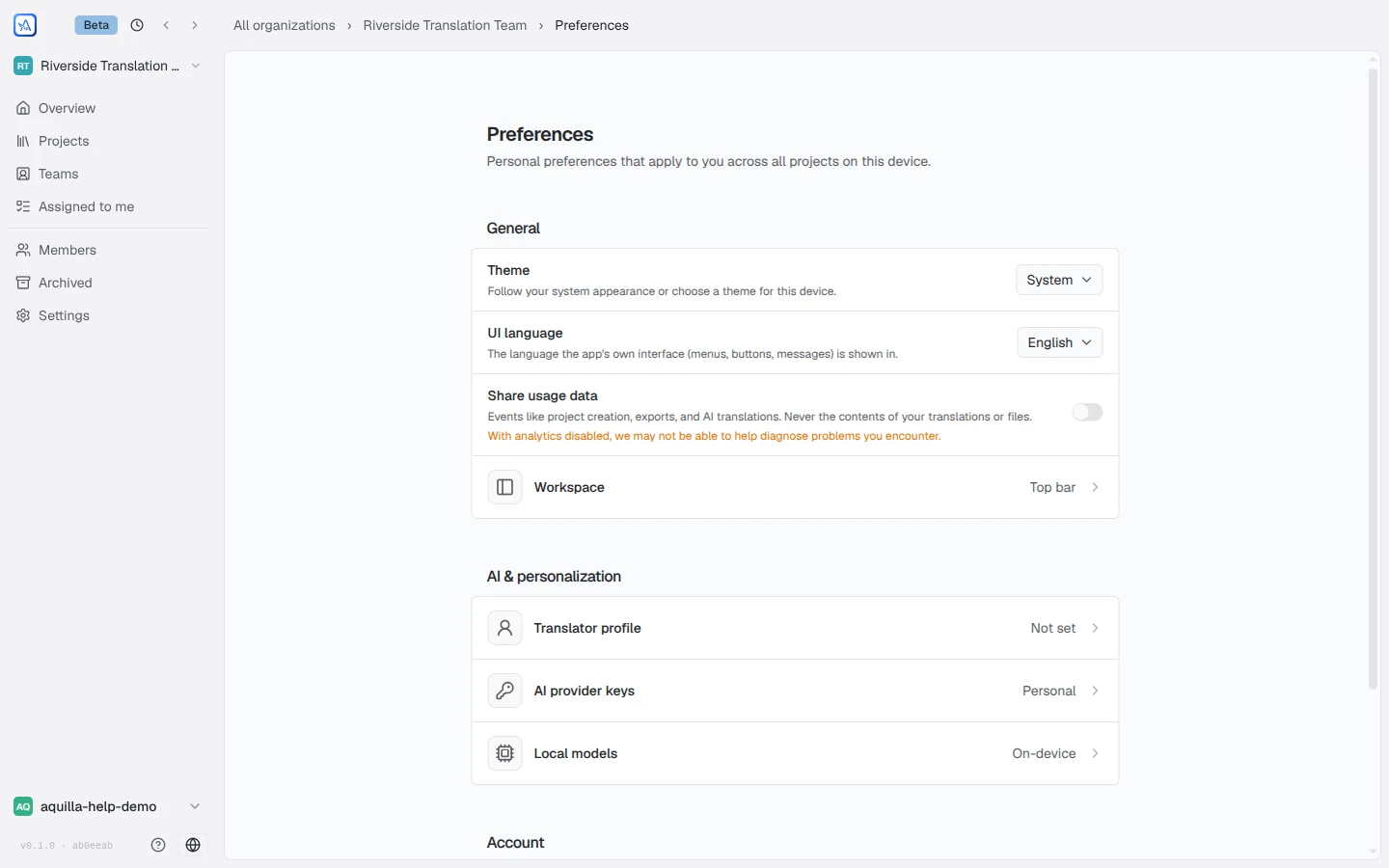
Everything under Preferences is about you, not any one project. Open it
from the account menu in the sidebar (your username, then Preferences),
or go to aquilla.app/preferences. The page’s own words set the scope:
“Personal preferences that apply to you across all projects on this device.”
That last part matters: most of these settings live in your browser, so they
follow you per device, not per account.
General
Section titled “General”- Theme: follow your system appearance, or pin Light or Dark on this device.
- App font size: “The overall size of menus, sidebars, settings, and editor cell text,” from Small through Default to Large and Extra Large. A file’s own view settings can still set a bigger or smaller size on top of this for one side of one file; reset there to follow this size again.
- UI language: “The language the app’s own interface (menus, buttons, messages) is shown in.” This is separate from any project’s languages and from the AI’s reply language.
- Share usage data: product analytics, on or off. The description is explicit about the boundary: “Events like project creation, exports, and AI translations. Never the contents of your translations or files.”
- Workspace: where the editor sidebar’s tab strip lives (Left rail or Top bar), and whether replacing an existing translation asks for confirmation first.
AI & personalization
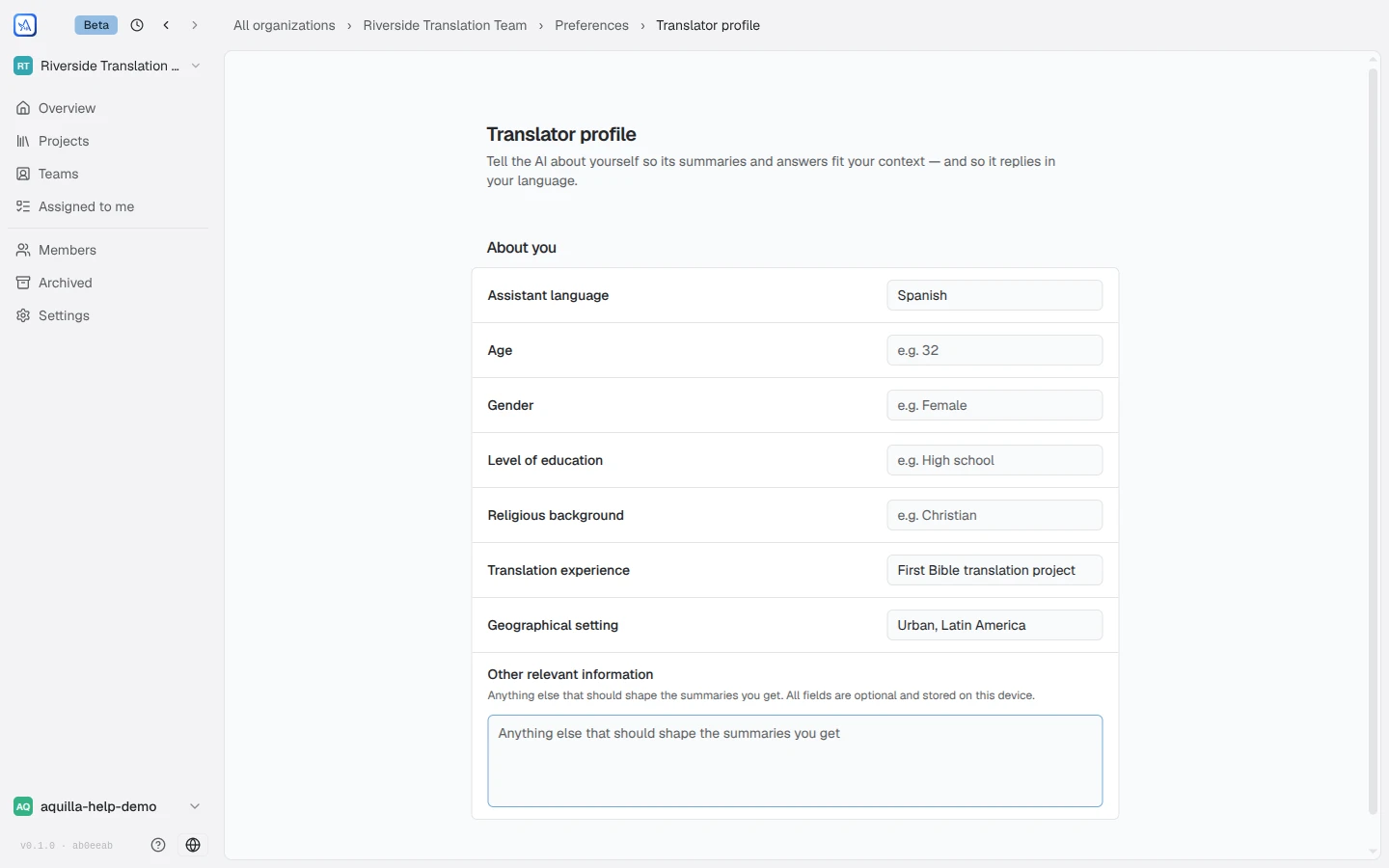
Section titled “AI & personalization”Translator profile is the interesting one: a short, entirely optional form the AI reads so “its summaries and answers fit your context — and so it replies in your language.” Assistant language, age, education, translation experience, geographical setting, and anything else you want it to weigh. All of it stays on your device.
AI provider keys holds your personal key override: a key saved here is used for your own AI calls across projects on this browser, on top of whatever each project configures. Local models starts with a Transcription choice (Aquilla hosted (recommended), with a Hosted model list under it, or Local Whisper in this browser, see Audio & voices) and manages the on-device models (Whisper transcription and the local voices), which download once and are shared by every project on the device. If your browser has no usable graphics card (hardware acceleration switched off, or a remote desktop, for example), local Whisper switches to a slower mode that runs on the processor instead of showing Failed. Expect longer waits, not an error.
Account
Section titled “Account”Notifications sets how much comment email Aquilla sends you: Every mention and reply, Only when someone @-mentions me, or Never. Replies on one thread always arrive as a single email conversation, however you set it.
Usage shows your recent AI and audio activity: requests today, audio generated today, and a 7-day audio history. While you’re in an organization, it also shows how much of that organization’s AI for this week has been used, as a percentage, under the organization’s name.
API tokens mints personal access tokens for the Agent API, so an external agent or script can act with your access. Each token gets a name, a scope (an organization, optionally narrowed to one project), an expiry, and a mode:
- Ask — every write waits for your approval.
- Act — writes apply immediately. Requires a project below where you’re a maintainer.
The token’s plaintext is shown once at minting; after that it can only be revoked. Treat it like a password, because the page says exactly that. Approving agent changes walks through what a connected agent’s requests look like and how the Ask mode’s approvals work.
Help assistant
AI answers from the Aquilla docs — may make mistakes.