
Project health
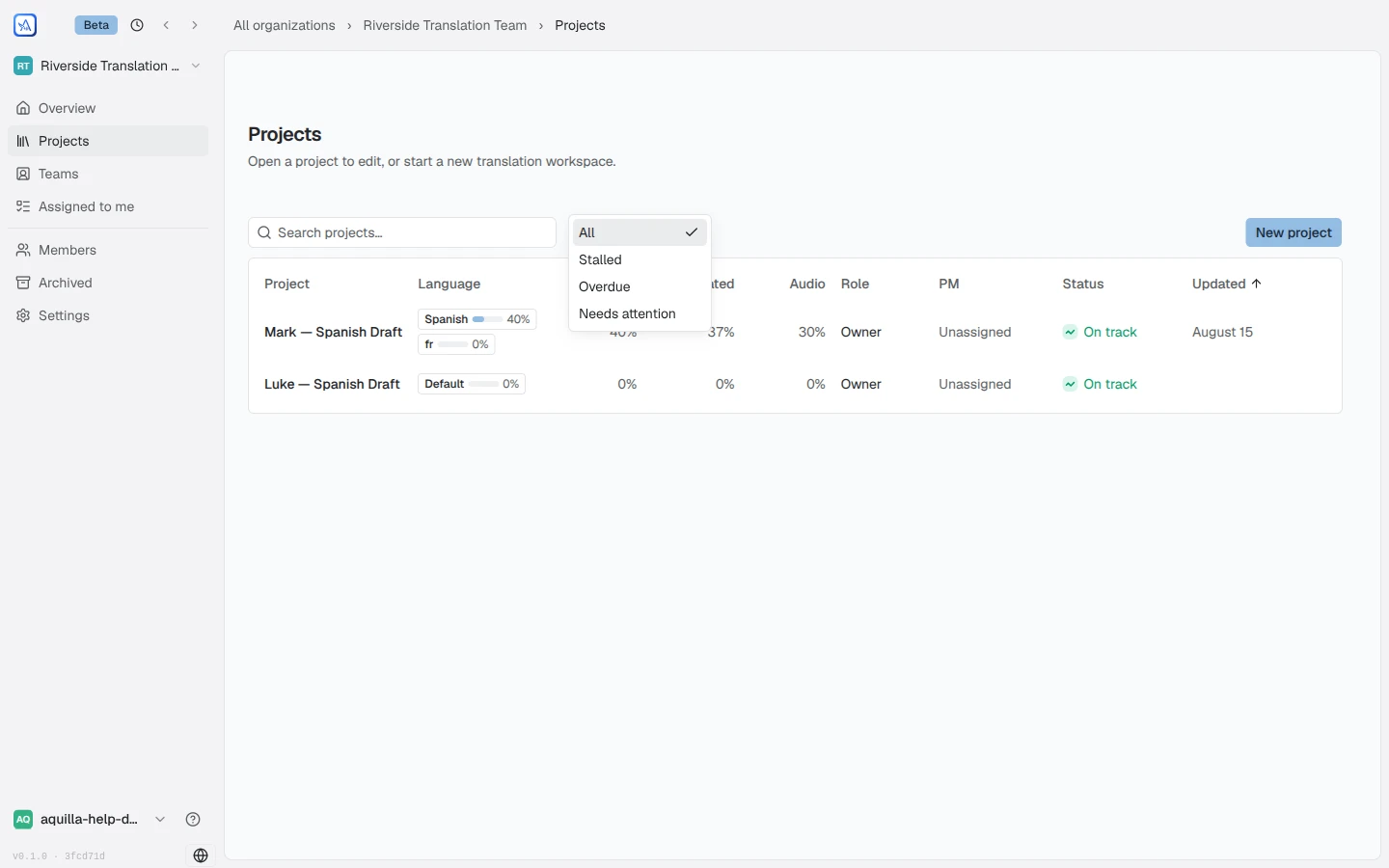
Every project shows a Health Ring: a circular gauge that summarises how far along, and how well-reviewed, the project is. You’ll see it on project cards and in the workspace’s status bar. (Your organization’s project list shows Translated / Validated / Has Audio percentage columns instead of a ring; see below for per-language detail.)
What “health” means here
Section titled “What “health” means here”Health is an aggregate quality signal. It rolls up the decay of every cell into one number:
health = 1 − (the average decay across all cells)
In plain terms: health goes up as cells get validated by reviewers, and it reflects how much of the project has been confirmed by a human rather than left unreviewed.
Why a fresh project starts low
Section titled “Why a fresh project starts low”A book you’ve just imported starts with little or no health: nothing has been validated yet. At exactly 0% you’ll see a bare icon rather than a ring; as translators and reviewers validate cells, an arc appears and fills in.
So a low (or ring-less) start on a new project doesn’t mean something is wrong; it means there’s work still to confirm. The ring also never rounds up to 100% while any cell is still short: a book with two blank verses reads 99%, not 100%.
Seeing progress per language
Section titled “Seeing progress per language”Projects with more than one target language track health and progress per lane, but the Health Ring and the workspace’s progress numbers always reflect the project’s default lane. If you are limited to certain languages and are below Maintainer, the ring is instead the average of the languages you were given, weighted by cell count, and languages you cannot see never affect it.
To see how an individual language is doing:
- In your organization’s project list, each project’s Language column shows a chip per lane with a small progress bar: click a chip to expand the row, or use + Language to add another lane without opening the project.
- Open a project’s overview for a Languages table (Language, Translated %, Validated %, People, Last activity), with filter pills at the top so you can narrow the header stats to one language at a time. All shows the combined progress of every language. Audio is counted per language: a language whose Records audio switch is off (in the Languages card, Project Settings → General) shows no audio progress, and its tab says “This language doesn’t record audio. Turn on Records audio for it in Project settings → Languages.”
Counting structural cells
Section titled “Counting structural cells”Every imported book or file also creates cells for its structural material: chapter headings, section titles, and book names. By default these count toward Translated and Validated percentages the same as any other cell, so a book that reads “100%” has every heading translated and validated too, not just its verses.
An organization can turn this off instead: Count headings as translatable content, in Settings → Project defaults, is the org-wide default every project follows unless it says otherwise. Turn it off and headings are left out of both the completed count and the total, so a book reads 100% once every verse is done. Only a Maintainer or Owner can change it; turning it off offers to reset any project that already has its own override, or to leave those projects as they are.
A single project can override the organization’s default in Project Settings → Validation: choose Organization default, Count them, or Leave them out. The Organization default option shows what the organization is currently doing, so you’re never guessing which way it resolves.
A Project lead or above can change this project setting, even though the rest of the Validation card needs a Maintainer. For anyone below Project lead the control is greyed out, and hovering it says who can change it (“Only Project leads can modify”, with a link to see who they are) and what the organization currently does.
Hidden cells
Section titled “Hidden cells”A cell hidden with Hide cell (see Editing cells) is not work, so it leaves progress and health. It drops out of both the completed count and the total, in every language. This holds even on a project that counts headings: a heading someone hid is still not counted. In the chapter grid, a hidden cell still gets a square so you can jump to it, but it is drawn as “not counted” instead of as something left to do.
Customizing which stats you see
Section titled “Customizing which stats you see”A project’s Progress card (on its overview page) shows a tile per stat: Translated, AI Drafted, Validated, Has Audio, Audio Validated, but not every project needs all of them. Choose Customize on the card to open Show stats and uncheck any tile you’d rather not see; only stats that apply to your project are listed (the audio tiles, for instance, only appear if the project has audio). This is a personal, per-browser preference: it doesn’t change what your teammates see.
Filtering your organization’s projects by status
Section titled “Filtering your organization’s projects by status”Your organization’s Projects page also has a Sort by menu beside the search box (a number badge on it shows how many filters are active), with four submenus:
- Status: pick All, Stalled, Overdue, or Needs attention
to narrow the table to projects in that state.
- Stalled: has some translated or validated progress, but hasn’t been touched in a while. A project that’s been imported but not yet translated shows Not started instead, not Stalled.
- Overdue: past its deadline.
- Needs attention: a combined view of everything that’s Overdue, Due soon, or Stalled. Selecting it also switches the table’s sort order so the projects most in need of a look rise to the top.
- PM: narrow the table to projects with a given project manager, or Unassigned for projects with none. If you manage any projects yourself, a pinned Managed by me option sits right under All PMs; the PM column also marks your own rows (you), so they’re spottable even without filtering.
- Role: narrow the table to projects where you hold a given role.
- Updated: Updated any time, or Updated in the last N days, to find projects by how recently anyone touched them.
This is separate from a project’s Health Ring: a project can be well-validated and still show as Stalled if nobody’s touched it recently, or Overdue if its deadline has passed.
The same table also has a Done column: “N of M” units marked done, with a badge naming how many are overdue when any are. A project with nothing plannable yet shows an em dash instead of “0 of 0”, so “nothing to plan” never looks the same as “nothing done.” See The plan board for what a unit is and how it gets marked done.
A project’s other actions
Section titled “A project’s other actions”A project’s overview page keeps its own lifecycle and download actions behind a More actions (⋯) button in the header, next to Open project and the settings gear:
- Download deliverable: the whole project bundled for handoff. Maintainer access or above, disabled if the project has no files yet.
- Mark as Inactive / Mark as Active: pauses a project without archiving it, useful when work is on hold rather than finished.
- Archive: an Owner-only action that moves the project out of the everyday Projects list without deleting it.
Restoring an archived project
Section titled “Restoring an archived project”Find an archived project from the org sidebar’s Archived link, on its Projects tab; open a project’s row menu there and choose Restore to bring it back to the regular Projects list with its data exactly as it was. Restoring, like archiving, needs Owner access.
AI review effort (post-edit metrics)
Section titled “AI review effort (post-edit metrics)”A separate lens on quality lives in Project Settings → AI metrics: Approved AI Review Effort measures how much reviewers actually change AI drafts before approving them (the edit distance between draft and approved text), with an overall average, how many drafts were accepted as-is, a weekly trend, and a per-reviewer breakdown. It only has data once the project has approved AI drafts that were edited first; until then it reads “No post-edit pairs yet”. Cloud-synced projects only.
Below the overall figures, a By file table (hint: “(one row per imported file — a book each, for scripture)”) has the columns File and Kept as-is, so you can see which files need the most reviewer editing.
The same measure shows in a cell’s history. A revision badge reads “{pct} of AI draft kept”, or “AI draft kept as-is” when nothing changed. Its tooltip explains that the figure is measured character by character against the AI draft, and “100% means the draft was approved unchanged.”
What health is not
Section titled “What health is not”- It is not a correctness score. A high ring means cells have been validated, not that the translation is guaranteed perfect.
- It is not affected by built-in checks. Violations from checks are tracked separately and don’t pull the ring down.
Help assistant
AI answers from the Aquilla docs — may make mistakes.