
Sign up & sign in
Aquilla runs in your browser at aquilla.app: there’s nothing to download or install.
Creating an account
Section titled “Creating an account”Choose Sign up free on aquilla.app and the onboarding wizard walks you to the account step (labelled Create your Frontier account). There you’ll choose a username and give an email address and a password.
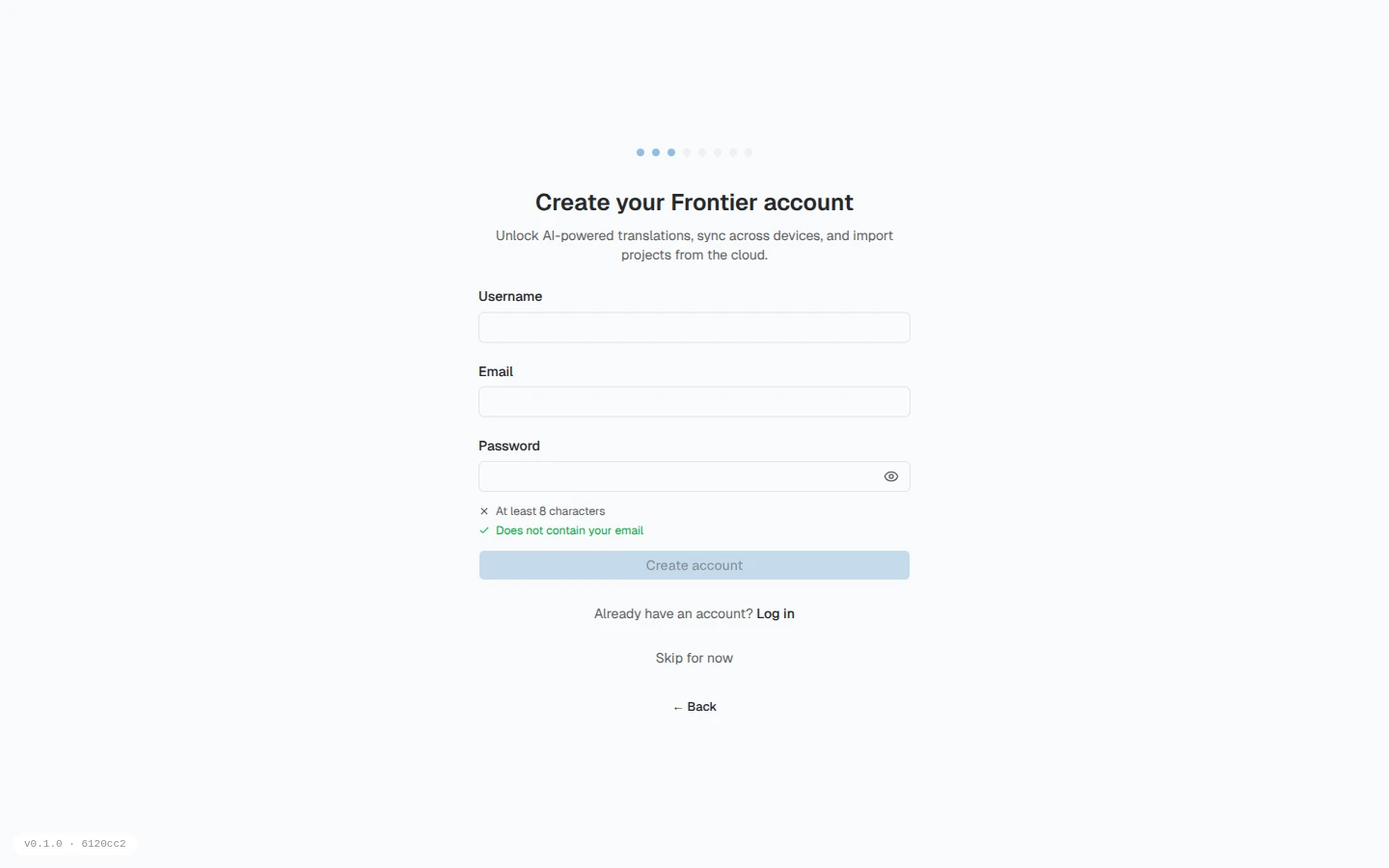
As you type a password, Aquilla shows a live checklist with the two things it asks for:
- at least 8 characters, and
- that it doesn’t contain your email.
Alongside that, a strength meter reads weak → medium → strong. Longer passwords, and ones with numbers and symbols, score higher, so you can watch yours get stronger. You can also reveal what you’ve typed to catch typos before you submit.
If the username or email already belongs to an account, Aquilla says so under the form: “An account with this username or email already exists. If you already use Codex, sign in with those credentials — your account and projects come across automatically.” Choose the Sign in button under that message and the sign-in form opens with what you typed already filled in.
Signing in
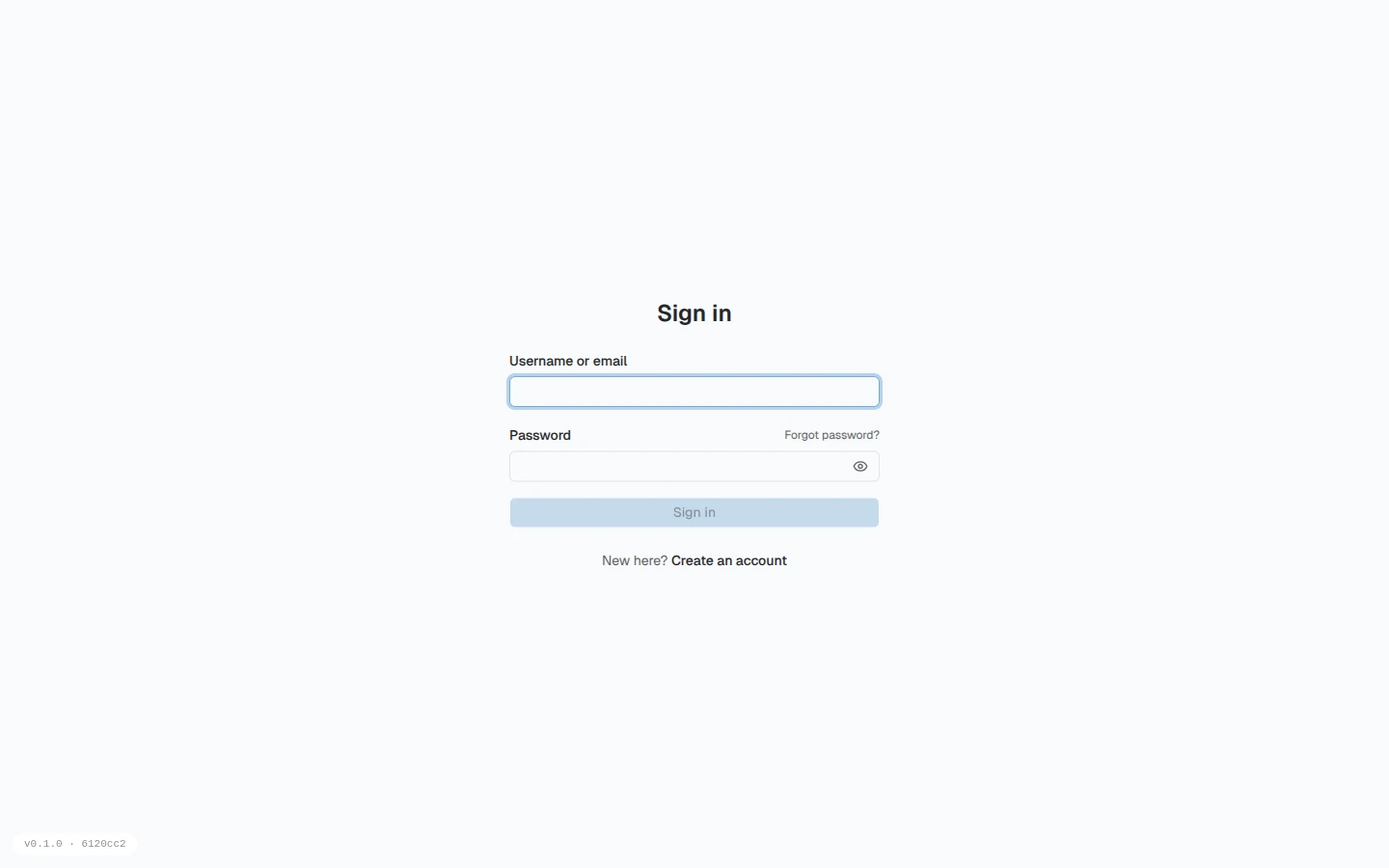
Section titled “Signing in”Return to aquilla.app any time, choose Open app, and sign in with your username or email and password. Your session keeps you signed in across visits on the same device and browser.
If you enter the wrong password too many times in a row, Aquilla briefly locks out further attempts on that account as a security measure: wait a few minutes and try again. See Common issues.
Resetting a forgotten password
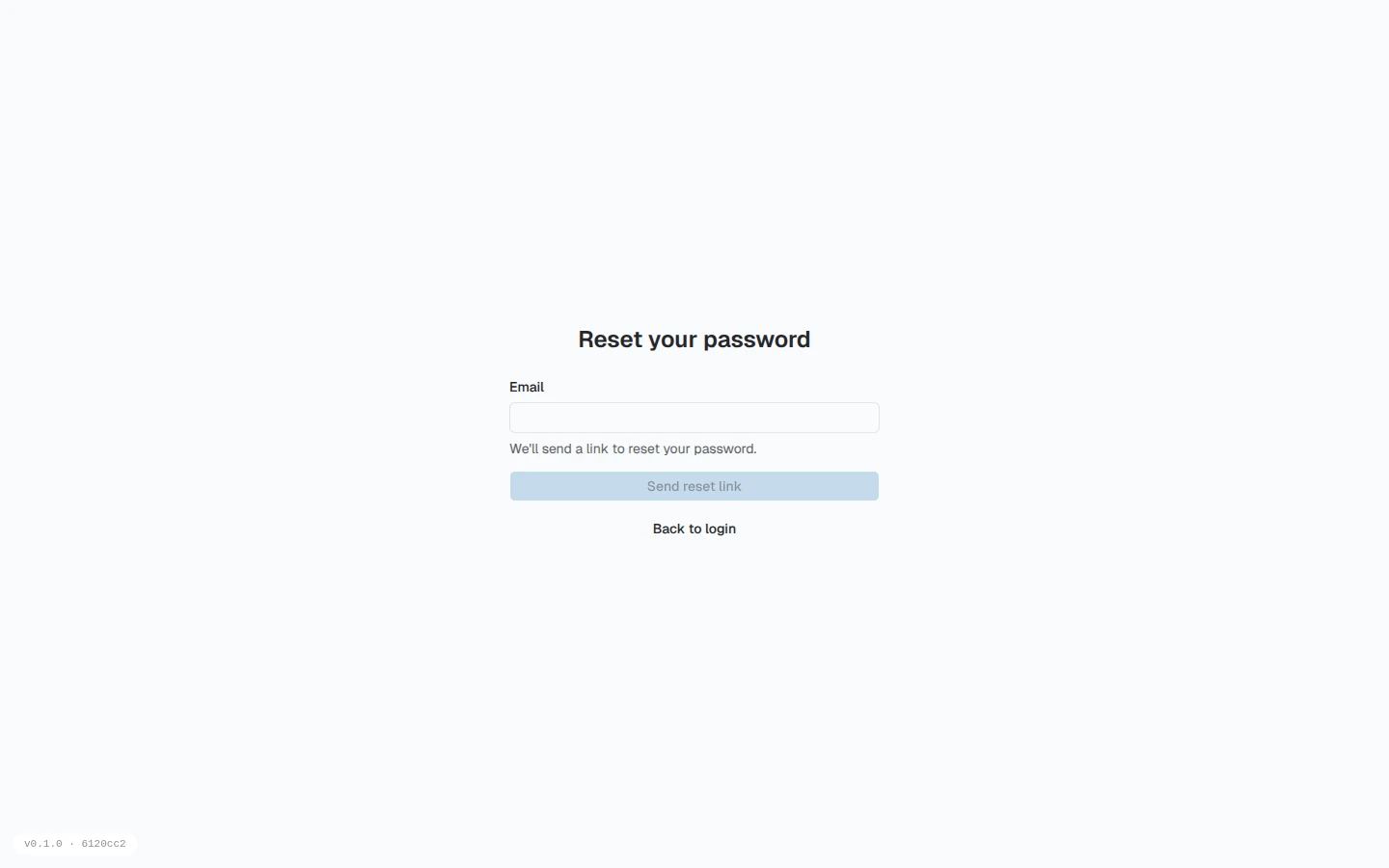
Section titled “Resetting a forgotten password”If you can’t remember your password, use the Forgot password? link on the sign-in screen. Aquilla emails you a reset link; follow it to choose a new password (the same strength checklist applies), and you’ll be signed back in. Resetting your password also signs out any other device or browser tab that was signed into your account. If you use Aquilla in more than one place, you’ll need to sign in again there too.
Switching between accounts on one device
Section titled “Switching between accounts on one device”Translation teams often share a device, and project managers sometimes need to demo several projects under different accounts. Aquilla supports multiple accounts on one device with one-click switching, no signing out and back in each time.
Each account keeps its own local settings and cached projects, so switching accounts gives you a clean, separate workspace.
Joining from an invite
Section titled “Joining from an invite”If someone invites you to a project or organization and you’re signed out when you open the link, the join page lets you sign in with an existing account, or switch to “Need an account? Sign up” and “Create an account to accept your invitation” right there. If the invite was sent to your email, that email is pre-filled for you.
What’s next
Section titled “What’s next”Once you’re signed in, Aquilla walks you through a short setup. See Your first project.
Help assistant
AI answers from the Aquilla docs — may make mistakes.