
The plan board
A project’s overview page has a Plan card: one row per planning unit, usually one imported file (a whole-Bible import splits into one unit per book instead, so a Genesis-through-Revelation project still gets 66 manageable rows). It replaces the older flat list of files with something a project lead can actually plan against: target dates, done/overdue status, and progress, all in one place.
Reading the board
Section titled “Reading the board”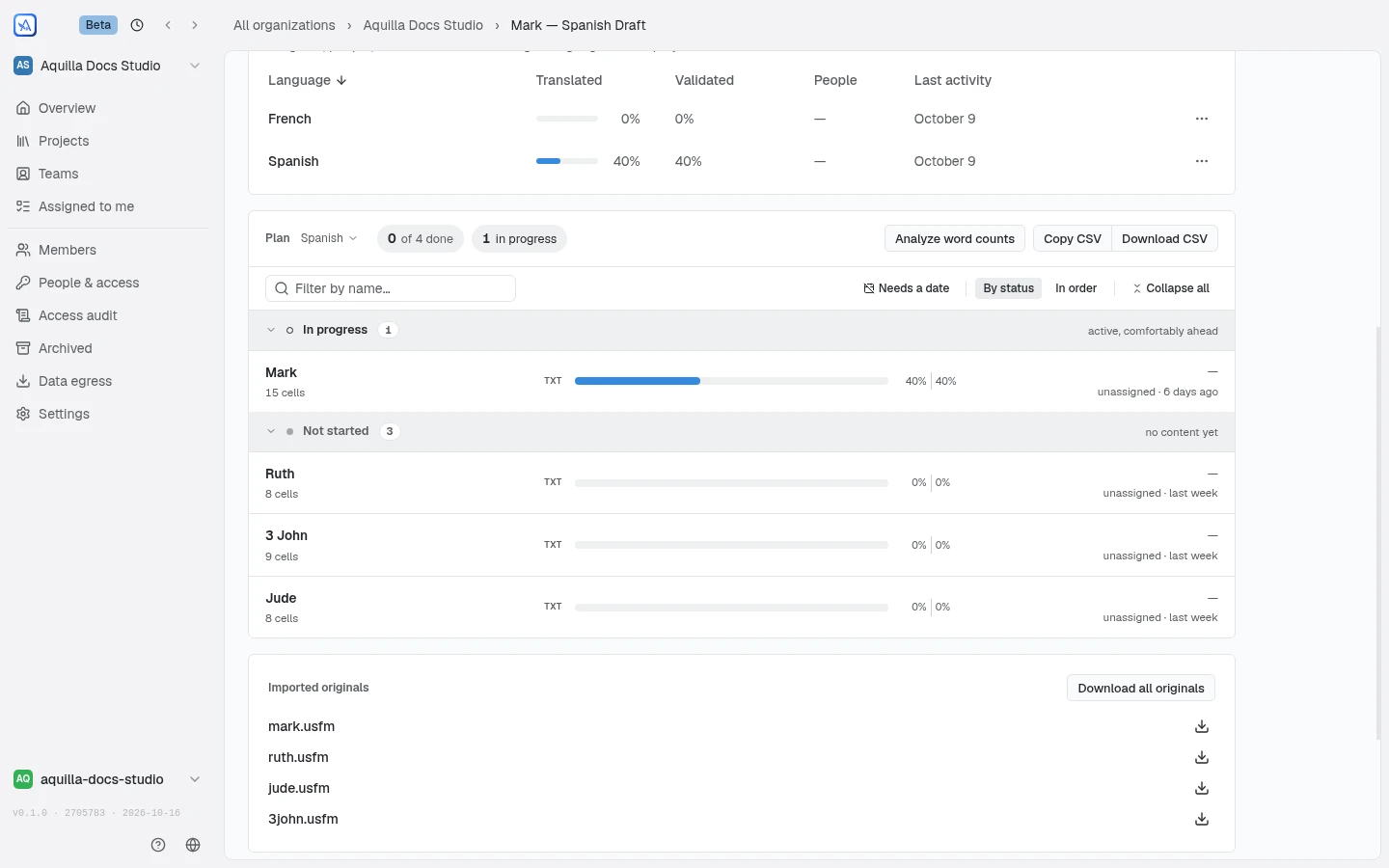
On a project with more than one target language, a lane picker sits next to the Plan heading (for example “Plan · Spanish”): open it to switch which language’s plan you’re looking at. A plan is always one language’s answer, so there’s no “all languages” view here.
A summary line reads “N of M done”, with chips for how many units are overdue, nearly complete, or still in progress. Below it, units arrange By status (grouped into Overdue, Due soon, Nearly complete, In progress, Not started, and Done, with empty groups left out, each nearly complete unit carrying a hint like “within 6% or 7 cells of done”) or In order, which groups rows under folder headers matching the project’s own book/chapter structure, each folder showing a count badge and a tally like “3 done · 1 nearly complete.” A Filter by name… box narrows the list by unit name or book code, and a Needs a date toggle shows only units nobody has given a target date yet.
Each group (or folder) can be closed and reopened on its own; Collapse all and Expand all above the list do it for every group at once. CSV export and the arrow-key navigation between rows always cover every unit, filtered or not. If a project has nothing plannable yet, the card reads “Nothing to plan yet”: import a source and its books, episodes, or documents appear here as rows you can date and mark done.
An archived project’s overview shows no plan or team. It reads “This project is archived” and explains that nothing has been deleted: someone who can restore it is pointed to Restore, and anyone else is told a maintainer can restore it.
Click a row, or move between rows with the arrow keys, to open its details alongside the board; Esc closes it. A row short of done also carries a shortfall link, for example “4 cells to validate” or “9 takes to record”: click it to jump straight to that unit’s first untranslated, unvalidated, unrecorded, or unvalidated-take cell in the editor. Where a row represents more than one unit (a folder, or a multi-chapter view), a short list of the chapters still short (for example “chapters 3, 9, 41”) sits beside the link. Each row also shows up to three avatar chips for the people assigned to that unit, with a “+N” overflow when there are more, or “unassigned” when nobody is.
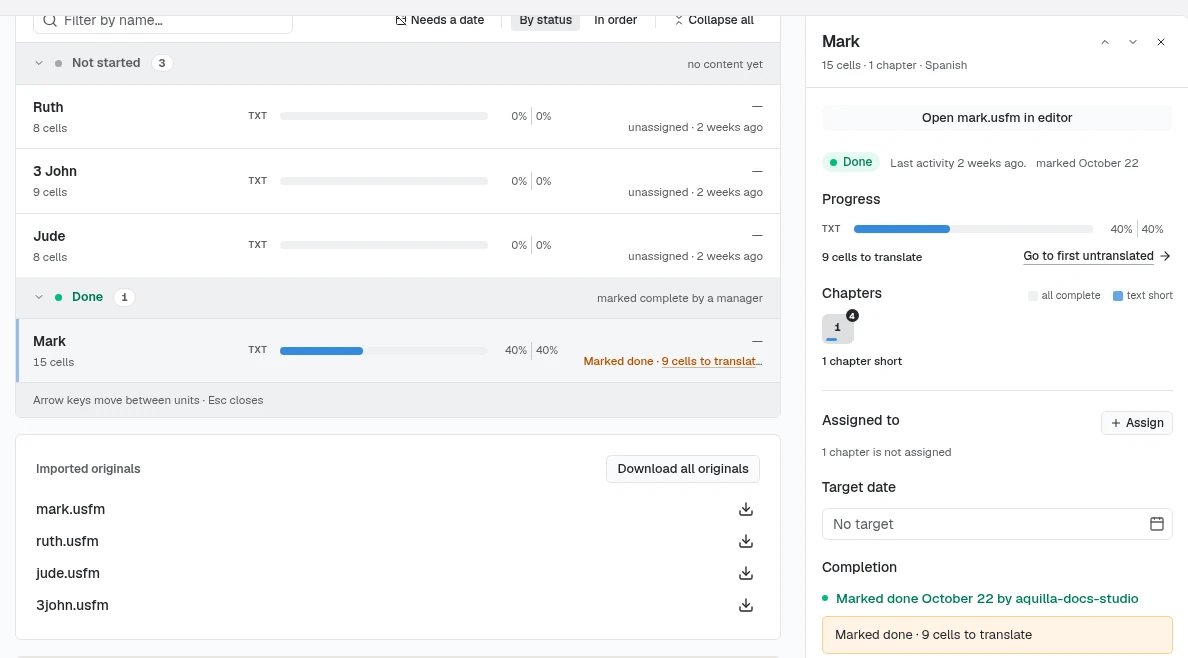
A unit marked done that still has work left says so in amber, for example “Marked done · 3 cells to validate · chapters 12 and 40”, and the shortfall is the same link as on any other row. Its details keep the Go to first… link (such as Go to first unvalidated) and the chapter breakdown keeps its count badges, so you can reach what’s left without unmarking the unit.
A unit’s details
Section titled “A unit’s details”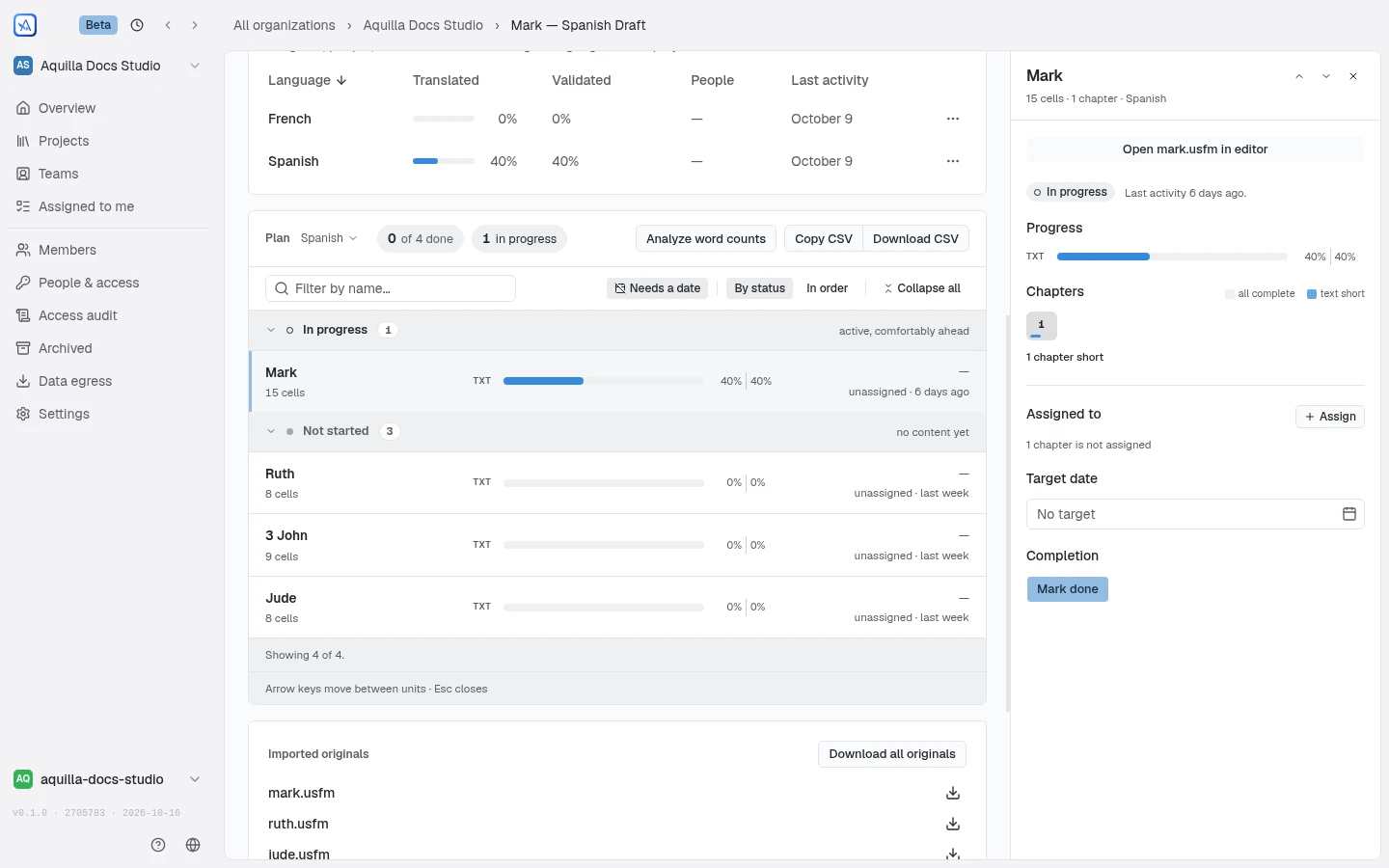
The detail panel shows:
- Target date: when the unit should be finished. Visible to everyone on the project, but only a Maintainer or above can set or change it; everyone else sees it as a read-only date (or “No target date set”).
- Completion: a Mark done button records that the unit is finished. This is a judgment call, not a number: marking a unit done while its validated percentage is under 100% asks you to confirm (“Validated is at N%. Marking done records your judgment, not the numbers — the bars stay visible beside the mark.”), and doing so is undoable with Unmark. Aquilla also names who marked it done, and when.
- Progress: a TXT bar (translated / validated) and, once the project has any recordings, an AUD bar (recorded / Audio Validated, the share of the unit’s cells whose selected recording has been approved, counted against every cell the same way Validated is), plus when the unit was last touched. Each bar reads as two percentages divided by a vertical rule rather than a slash; point at either figure to see the exact count behind it (for example “1,530 of 1,533 validated”). Progress bars use one set of colors across the app, and audio is counted per language: each language has a Records audio switch in the Languages card in Project Settings → General, and a language that doesn’t record audio shows no audio bar. Whether chapter headings and book names count toward these percentages depends on your organization’s and project’s structural-cells setting.
- Assign: the dialog offers only languages that someone on the project is staffed on. If an attached team names its target lanes, languages outside them are left out too. Its Task field hands out translating or just validating (see Teams & assignments). Under Assigned to, a person given validation gets their own row with a Validating chip and how many lines they have left, beside the translators’ rows. Whoever may assign work can remove a row with its X, then Confirm.
- For scripture and other sectioned files, a chapter-by-chapter (or section-by-section) breakdown repeats the same progress bars per chapter, so you can see which part of a long book is holding it back.
- An audio-only file (a recording with no text of its own) is judged by its takes alone: a fully recorded chapter shows as complete rather than short, the unused text half of the underline stays blank, and the legend names only the swatches that can appear.
Who can do what
Section titled “Who can do what”Everyone on the project can read the plan, filter it, and open a unit’s details. Setting a target date or marking a unit done needs Maintainer access or above; below that, the same controls show as read-only.
If your organization allows export, a Copy or Download action beside the board turns the current plan into CSV.
Word-count analysis
Section titled “Word-count analysis”An Analyze word counts button on the Plan card opens a volume-analysis report, the kind translation teams use to estimate cost and effort. The dialog is titled Analysis — {file or project name}. Each row is a Match band (the category a segment falls into), with its Segments, Words, % of words, Rate (the share of a word that counts toward the total) and Weighted words (words multiplied by the rate).
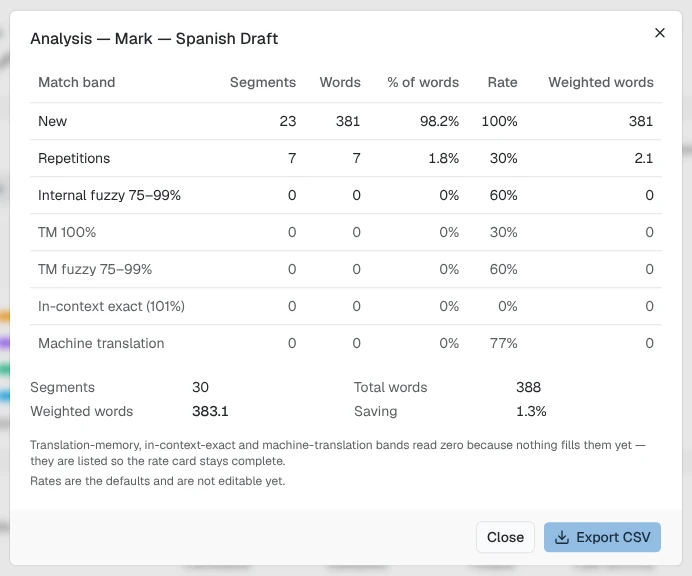
The default rates are:
- New: 100%, counted in full.
- Repetitions: 30%, segments that repeat earlier ones.
- Internal fuzzy 75–99%: 60%, similar segments from the same file.
- TM 100%: 30%, TM fuzzy 75–99%: 60%, In-context exact (101%): 0% and Machine translation: 77%. These bands read zero until translation memory and machine translation feed them. The dialog says “Rates are the defaults and are not editable yet.”
Below the table, Segments, Total words and Weighted words give the totals, and Saving shows how much lower the weighted count is than the total. A row made from a recording counts the words of its transcript, and counts none until it has one. Export CSV downloads the report. You can run the analysis for one file (from its file menu) or for the whole project (from the Plan card).
Help assistant
AI answers from the Aquilla docs — may make mistakes.