
Living Memory
Living Memory is your project’s standing context for the AI: the brief, instructions, quality rules, reference documents, and validated examples it reads before drafting anything. The app introduces it as “Your team’s encoded voice and standards — the project context the AI draws on for every new draft. It grows with each validation, correction, and instruction your team adds.”
Open it from the Living Memory row in the editor sidebar. The page lists five parts, each with its state at a glance.
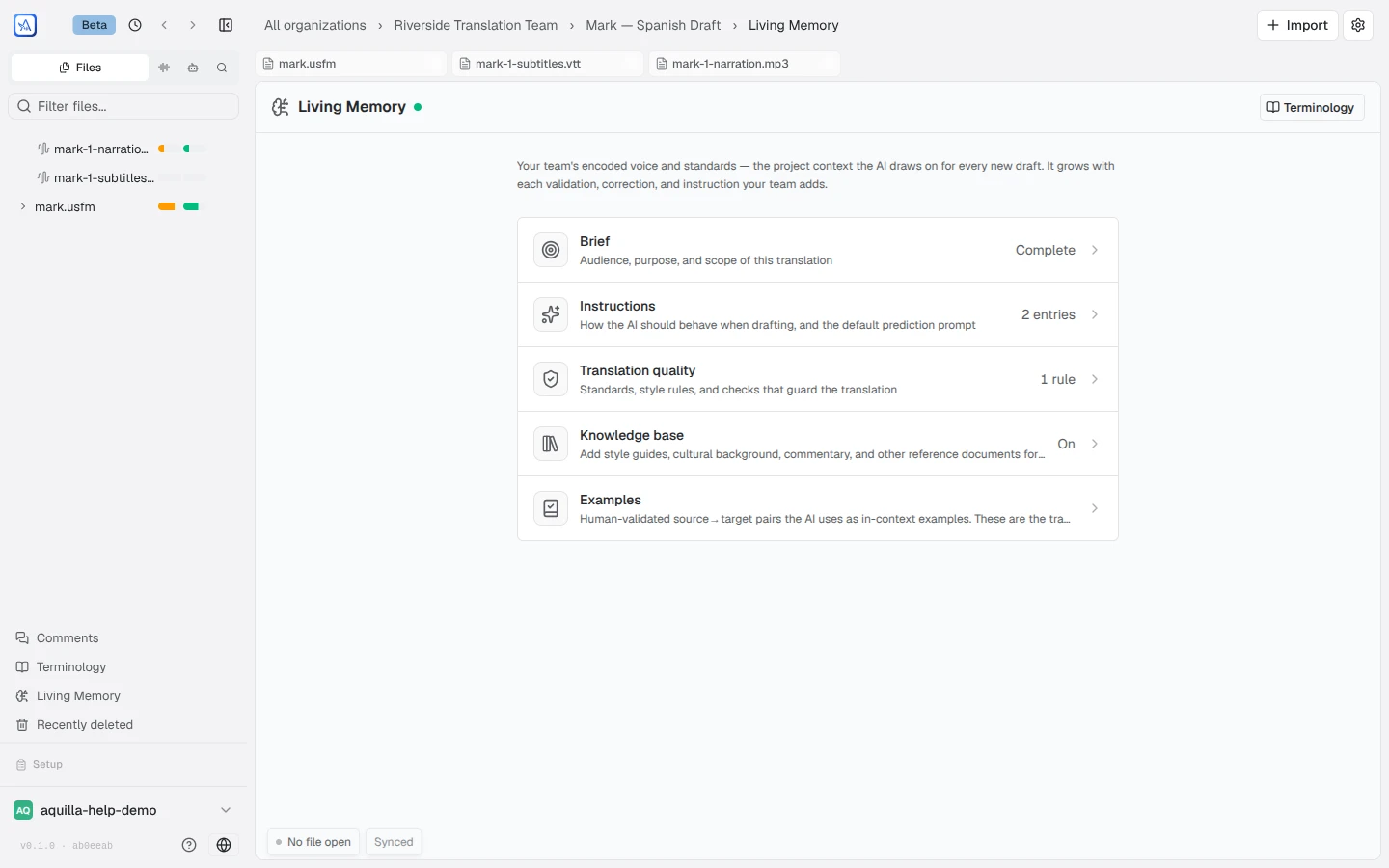
Everyone on the project can read Living Memory. Editing it needs Maintainer access or above, except the Knowledge base and style rules (see Style rules below), which Project leads can also manage.
The brief records who the translation is for, what it must accomplish, and the standards it follows. Its status shows on the card: Not started, Draft, or Complete.
- Draft means some questions are unanswered, or the summary predates your last edit. It is not a step waiting for approval: the AI already drafts from every answer saved, and a Draft brief satisfies Autopilot’s start check.
- Not started is fine for translating by hand. Autopilot will not start until at least one question is answered.
- Complete means every question is answered and the summary matches your latest edit.
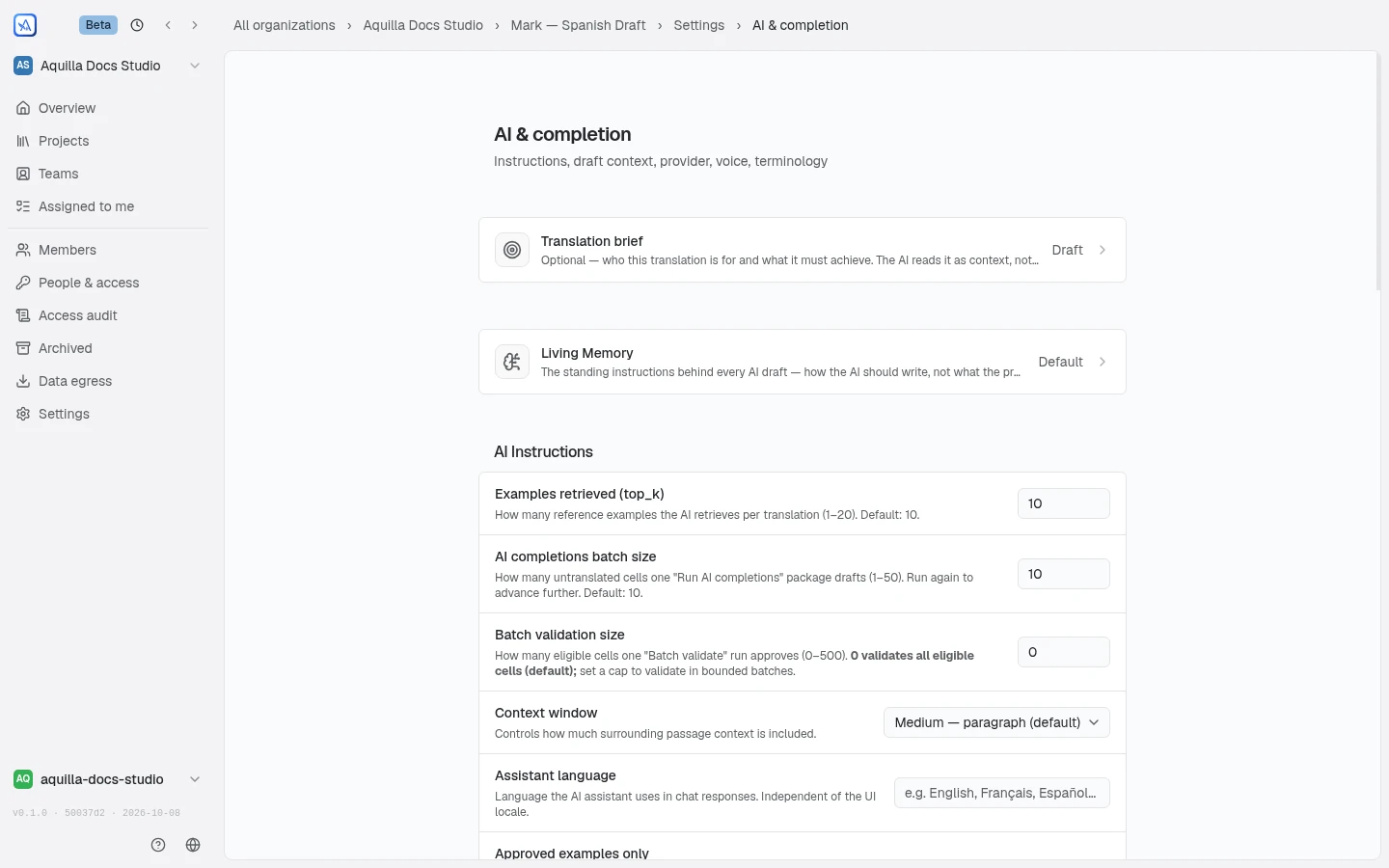
You can reach the brief without opening Living Memory first: in Project Settings, the AI & completion pane has a Translation brief row, and searching “brief” finds that row. The brief is optional: the empty card reads “Capture this project’s purpose, audience, and standards so the AI drafts to your brief — or skip it and start translating without one.” It is context the AI reads, not its instructions; the standing instructions for every draft live in Project Settings → AI Instructions.
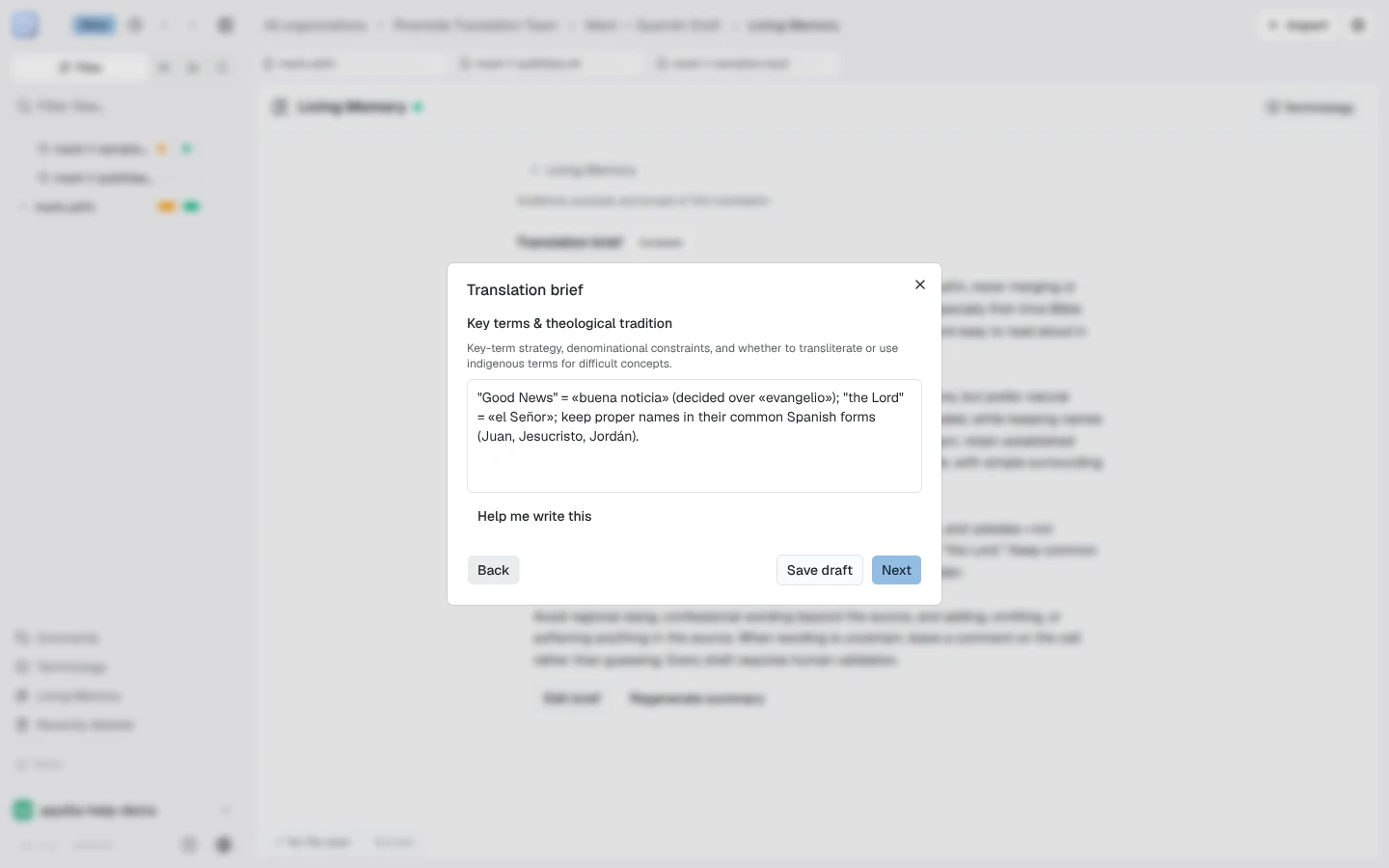
Create brief opens a step-by-step builder, one question per step: Purpose / skopos, Audience / addressees, Intended use & medium, Motive & sponsor, Source & base texts, Target language & variety, Register & naturalness, Level of literalness, Key terms & theological tradition, Constraints & sensitivities, Quality bar, and a closing “Anything else the AI should know?”. Skip any step that does not apply; the builder reopens at the first unanswered question. Help me write this drafts a step for you from what you have already answered, and the builder can also pre-fill every field from an existing document you paste in.
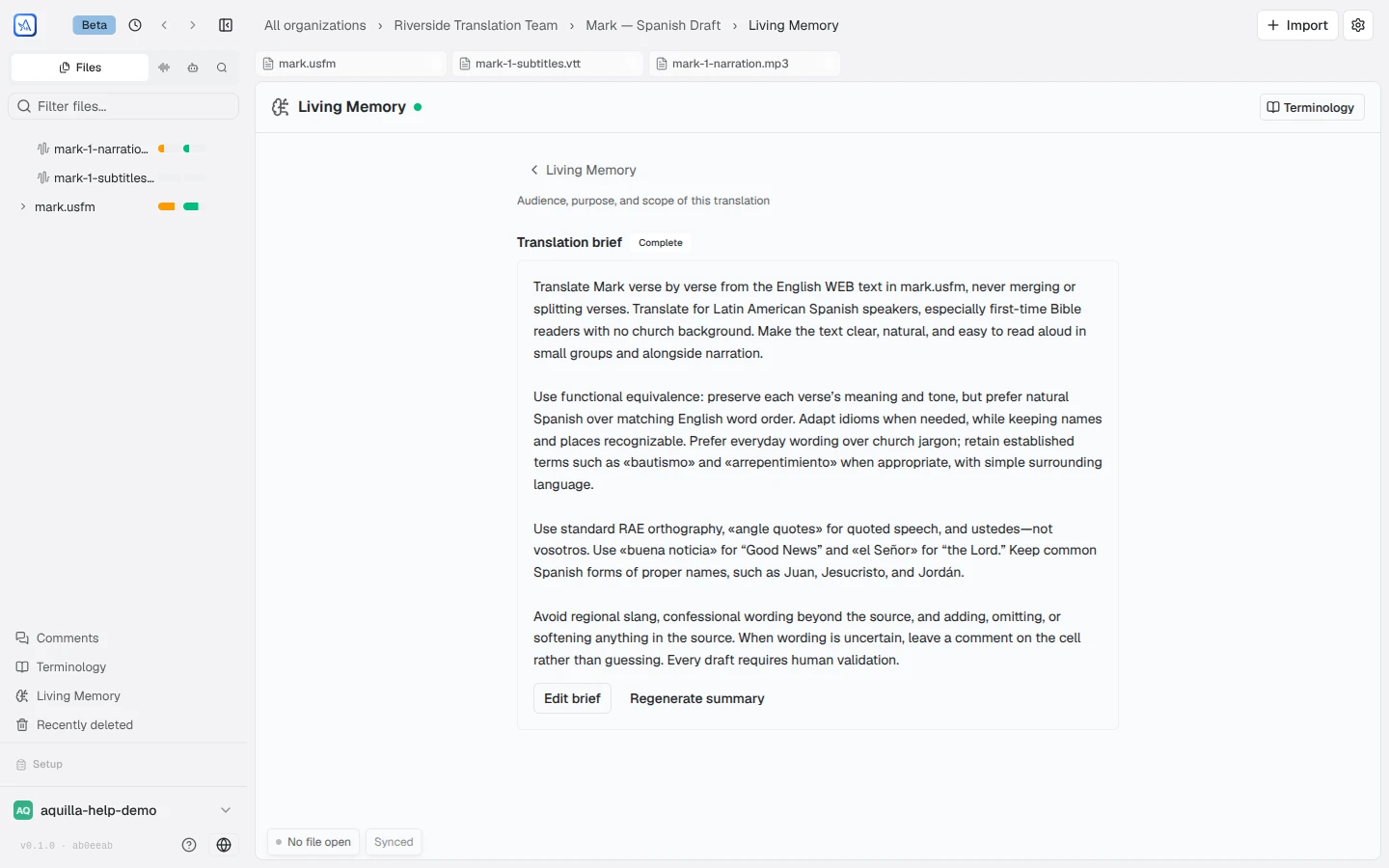
Finish with Save & generate summary: the full brief is condensed into a short summary that is injected into every AI draft. After edits, the page marks the summary Summary out of date and offers Regenerate summary.
Instructions
Section titled “Instructions”Instructions are short, durable directions included in every draft prompt. The app’s guidance: “Tell the AI what this project is about — audience, tone, formality, special handling. These appear in every draft prompt.” Use Add to write one; each entry records who added it and when.
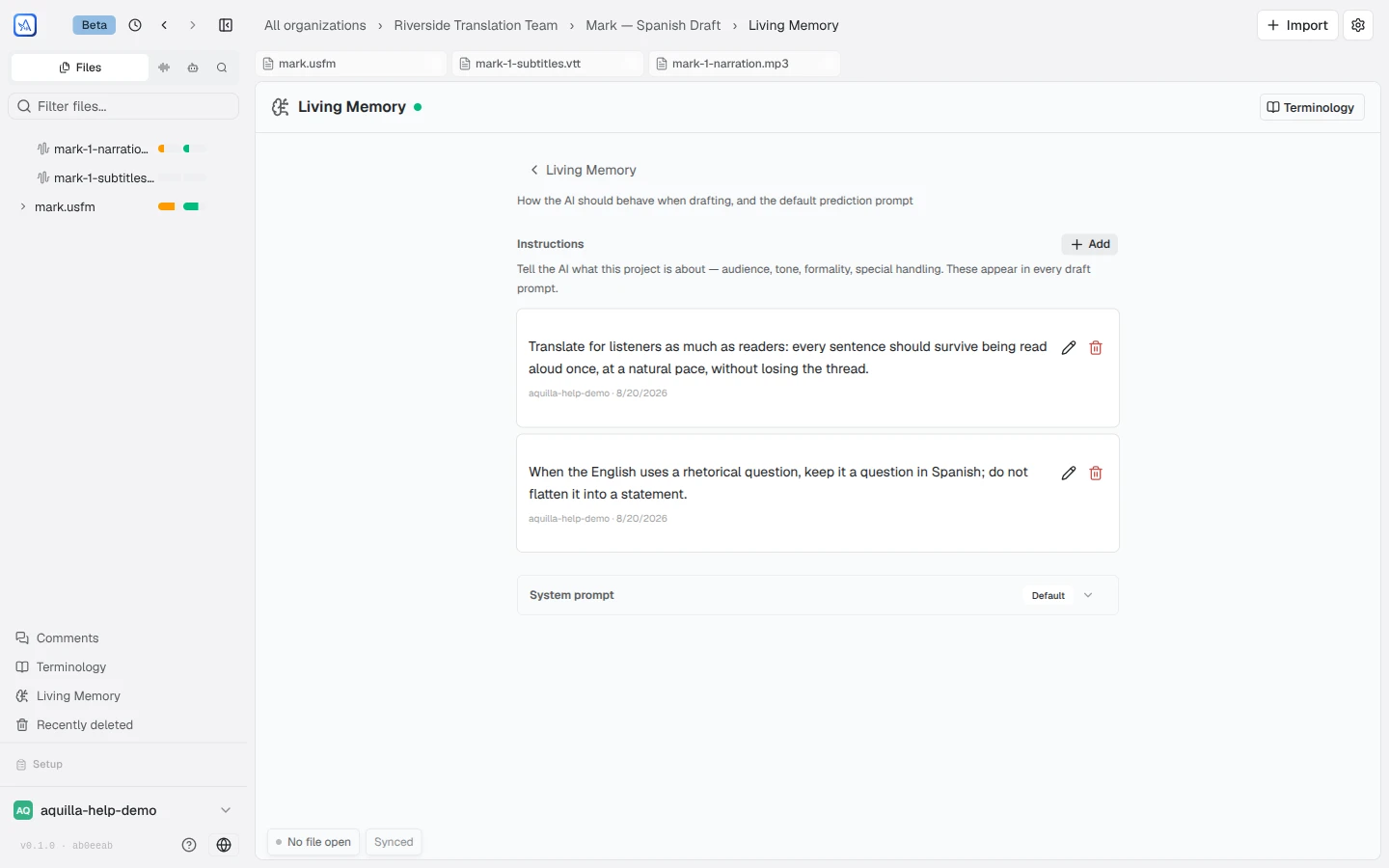
Below the entries, the System prompt row shows whether the project runs on the Default prediction prompt or a Custom one. A custom prompt replaces the default wholesale, and Reset to default brings it back.
Translation quality
Section titled “Translation quality”This section holds the standards and rules that guard the translation. It is where Rules moved: the old project Rules page now lands here.
Standards are written quality decisions, in the same spirit as Instructions but aimed at checking drafts rather than steering them: “Project-wide quality rules the AI checks its drafts against. Capture decisions your team keeps revisiting.”
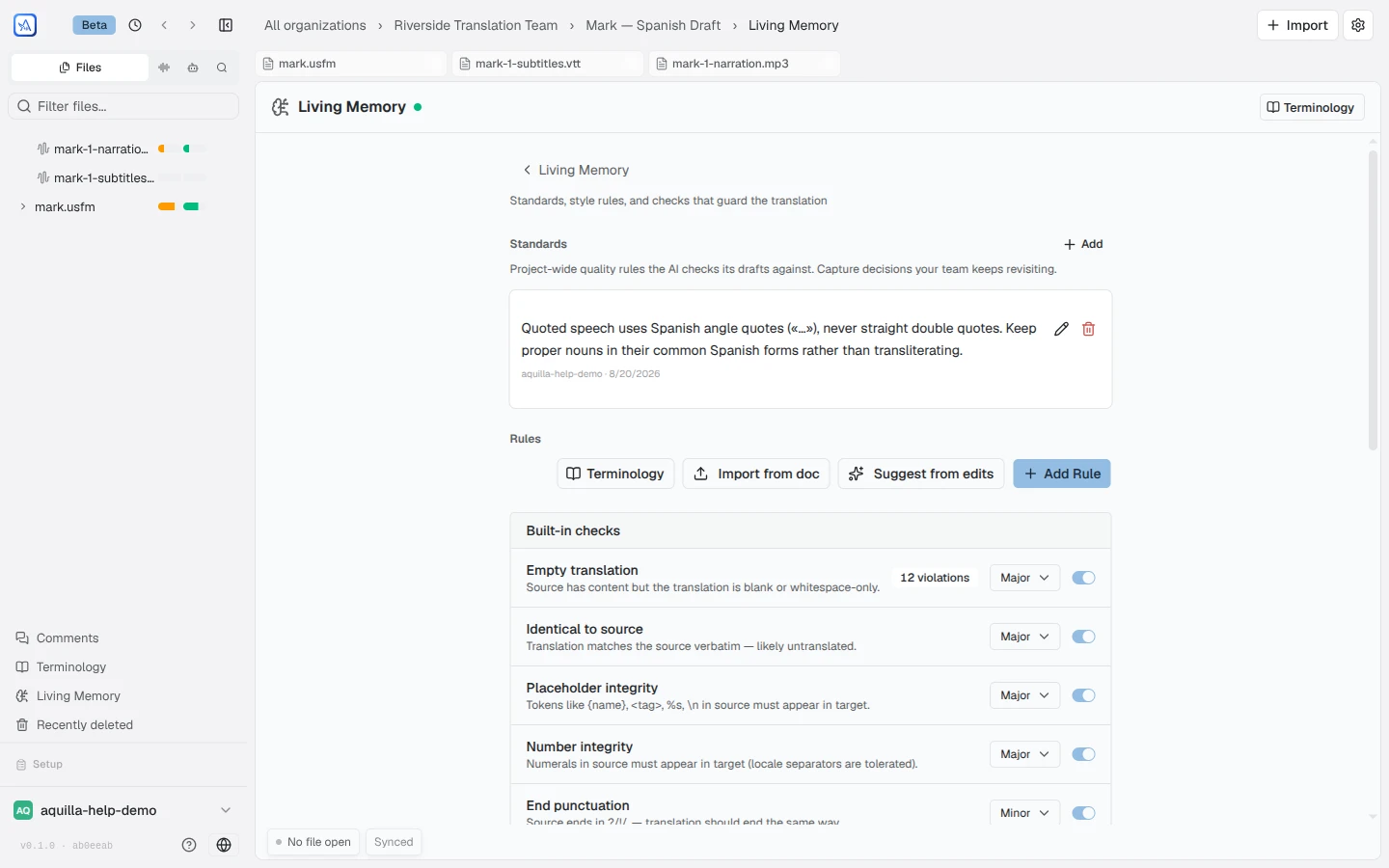
Rules run automatically against cells. Three kinds live here:
- Built-in checks: the shipped checks (empty translation, identical to source, placeholder integrity, and so on), each with a severity menu and an on/off toggle. Built-in checks covers what each one looks for.
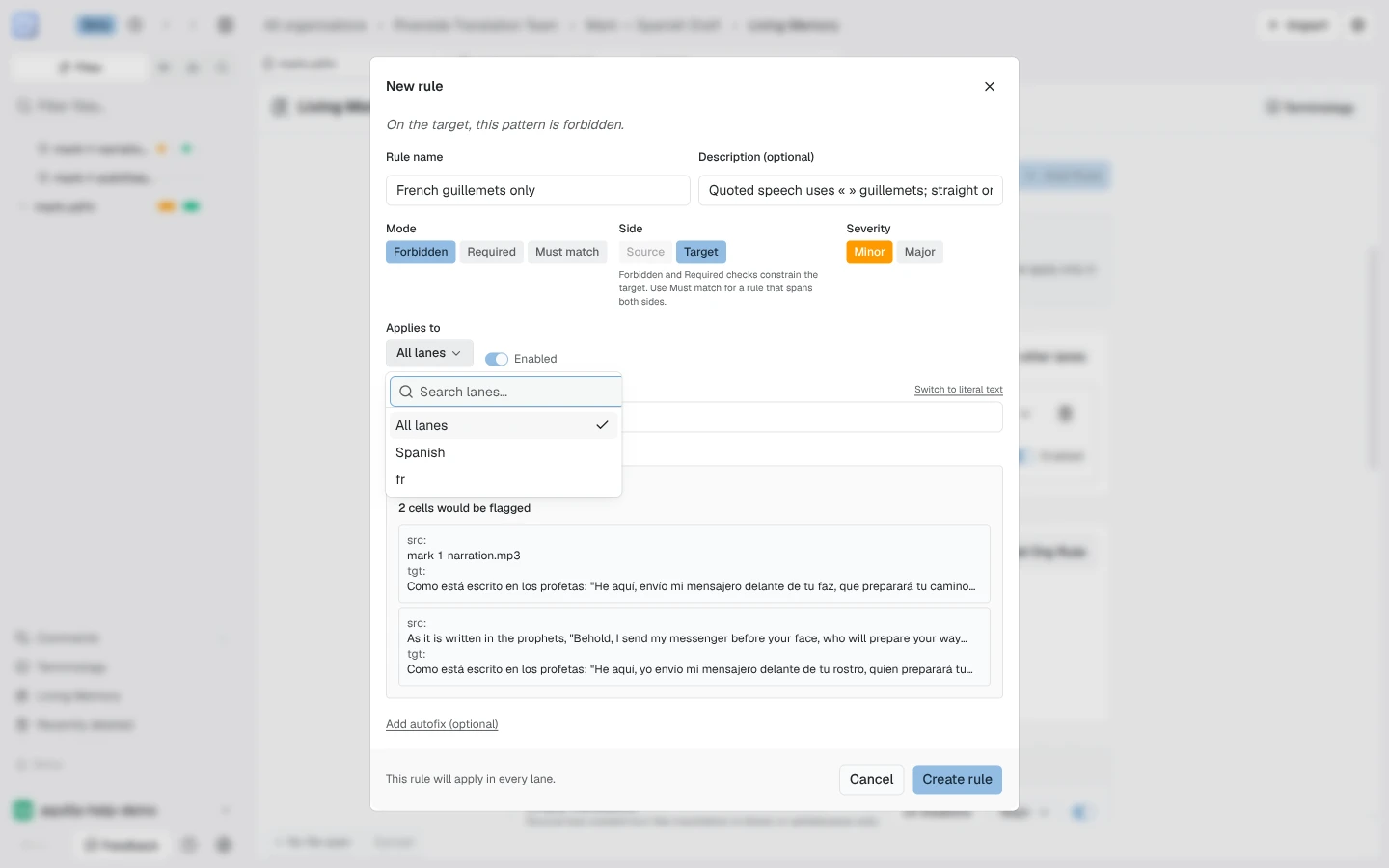
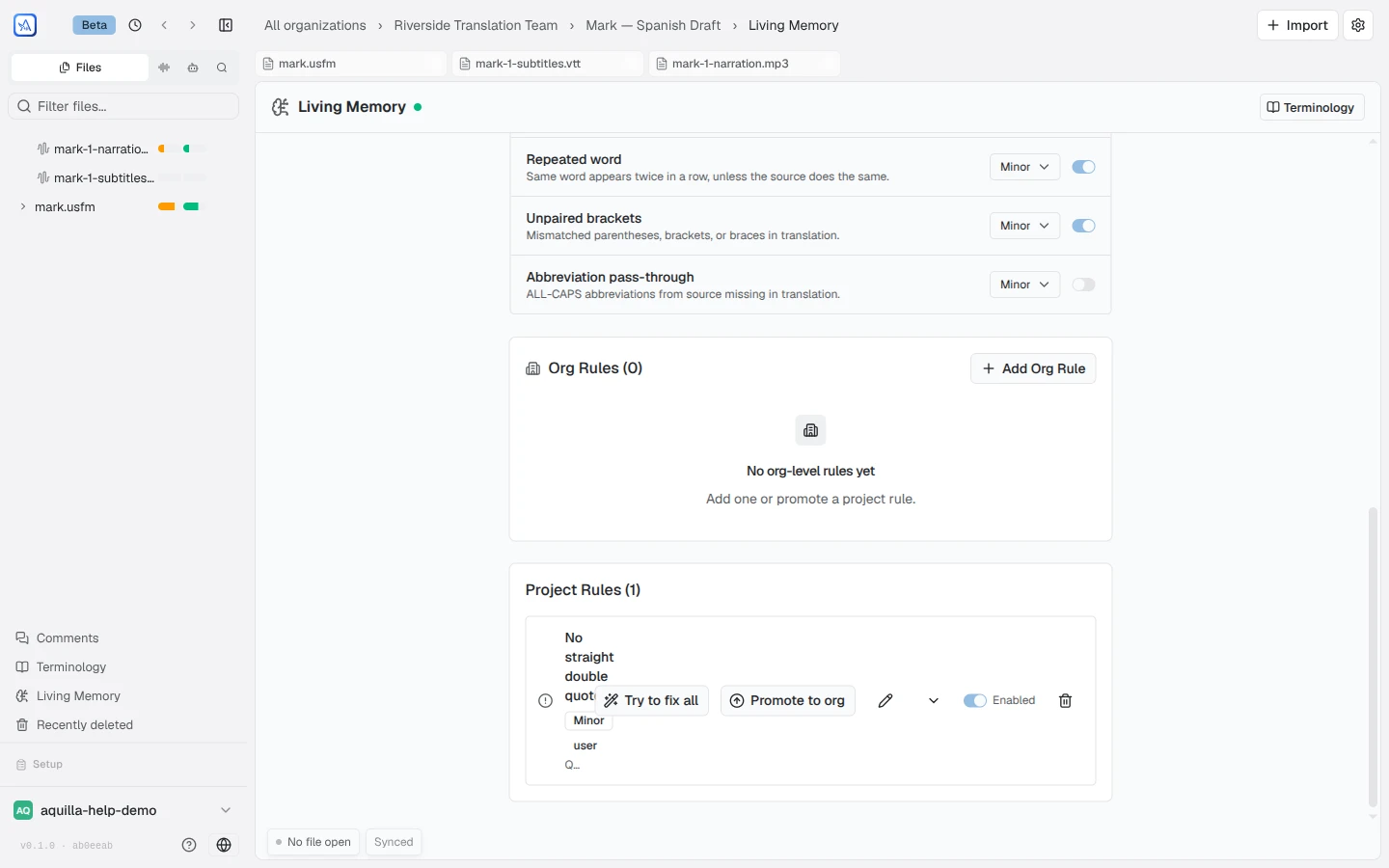
- Project rules you write with Add Rule: name, description, a pattern (regular expression or literal text), whether it is forbidden, required, or must match, which side it applies to, and its severity. A rule can carry an optional autofix. Try to fix all sweeps a rule’s violations. If you hold Maintainer access or above, Promote to org copies a good rule straight into the org library; at Project lead, the same button reads Request promotion instead, and a maintainer or owner has to approve it first, from the organization’s own Settings → Rules page.
- Org rules, inherited from the organization and listed alongside.
For how a rule then flags cells in the editor, and how to fix the cells breaking it, see Rule flags & fixes.
On a project with more than one lane, Add Rule can also show an Applies to picker. Without the picker, a new rule applies to all lanes. In the picker, All lanes applies the rule everywhere, or you can pin it to the default lane or to one named lane, so the rule only runs against that lane’s drafts and checks. A lane-scoped rule carries a badge naming its lane in the list below. Above the list, a Viewing lane selector picks the lane you’re looking at; switching it also switches the editor. Rules for that lane and rules marked All lanes show by default. Rules pinned to other lanes stay hidden until you reveal them (with one such rule, the button reads Show 1 rule from other lanes), and each carries a note that it is not applied in the lane you’re viewing.
Style rules
Section titled “Style rules”Alongside the rules you write by hand, Aquilla can pull candidate rules straight out of your project’s own reference documents: “Rules extracted from your knowledge base or written by hand. Approved rules steer future drafts.” These live in a Proposed rules queue and an Approved rules library, both under Translation quality.
A proposed rule shows its instruction text and a citation back to the knowledge-base document it came from; Edit opens its instruction, category, severity, and conditions before you decide, and Approve or Reject clears it from the queue. Nothing in this queue affects a draft until you approve it.
An approved rule sits in the Approved rules library with an enable/disable switch and a “Where it applies” button, which opens a picker for the file or files it should run on. Aquilla can also propose where a rule should apply: Refine asks it to suggest targets across a file or the whole project, and shows them grouped as Applies or Excluded with checkboxes to adjust before you confirm. Nothing about a rule’s scope changes until you click Confirm {count} targets (or Confirm {count} target for one): like the rules themselves, applicability is agent-proposed but human-decided.
A separate Document genres list lets you classify each file (Law, History, Wisdom, Poetry, Prophecy, Gospel, Epistle, Apocalyptic, Narrative, Teaching, Dialogue, or Reference), so genre-scoped rules only reach the documents they’re meant for. A file’s genre badge reads Assigned (a person picked it), Derived (Aquilla inferred it), or Unclassified. Suggest stages an AI guess for you to save or discard, and a reset button returns a file to its derived genre.
Reviewing and enabling style rules, and setting where they apply, needs Project lead access or above; Contributors can propose rules and extract them from documents.
Import from doc extracts rules from a pasted style guide. Both it and the suggestions below produce drafts for you to review, not finished rules.
At the foot of the project rules list, Suggest rules from my edits reads your team’s corrections and proposes rules in place. Each suggestion appears as a dashed row marked Suggestion, with its pattern, a “Based on:” line that names the evidence, and two buttons: Add rule saves it as a project rule at the end of the list, and Dismiss removes it. Type an optional topic, such as punctuation, in the box beside the button to steer the suggestions. After the first batch the button reads Suggest more and finds rules that are not already saved, drafted, or dismissed. When nothing new turns up, you see “No new rules found in your edits.” Suggestions you have not yet added or dismissed stay while you work in the same browser tab. Suggestions need an AI model set up for the project first.
Knowledge base
Section titled “Knowledge base”Reference documents the AI can quote from while drafting: style guides, cultural background, commentary. Upload Markdown, TXT, DOCX, or PDF files up to 25 MB each; DOCX and PDF files are limited to 2 MB, because Aquilla unpacks them to read the text. The upload box says so: “Markdown, TXT, DOCX, or PDF · up to 25 MB (DOCX and PDF up to 2 MB)”. A fresh upload shows Indexing… and switches to Indexed on its own when it is searchable, with no reload needed. A document that was indexed but could not be summarized shows Indexed without summaries, with the reason beneath it (for example, “This document is too large for the summarizing model to read in one pass.”). It is still searchable, and Try indexing again retries it. A failed document offers the same button. A document whose indexing never reports back shows Indexing stalled and offers it too.
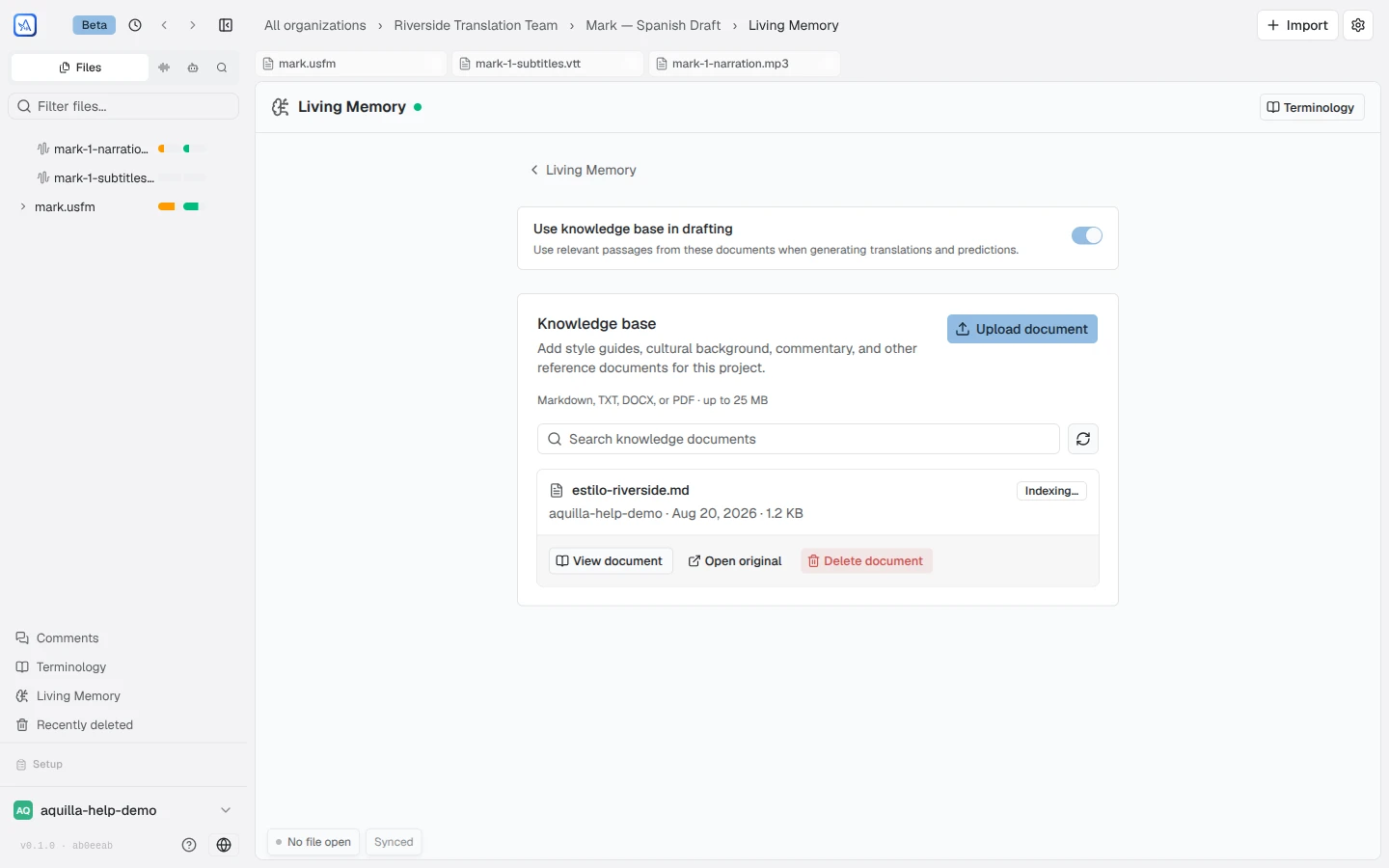
The Use knowledge base in drafting switch controls whether drafts pull relevant passages from these documents; the hub card reads On or Off to match. Documents shared from the organization’s own knowledge base appear here too, read-only.
Examples
Section titled “Examples”Examples are your project’s human-validated source and target pairs, shown newest first per file. The AI uses them as in-context examples, so every validation your team performs quietly teaches it what approved work looks like. There is nothing to configure here: the list grows through validation, and only validated pairs ever enter it.
The list shows the pairs for the target language you have open in the editor.
The Recent Examples section starts collapsed. Click it to open the list.
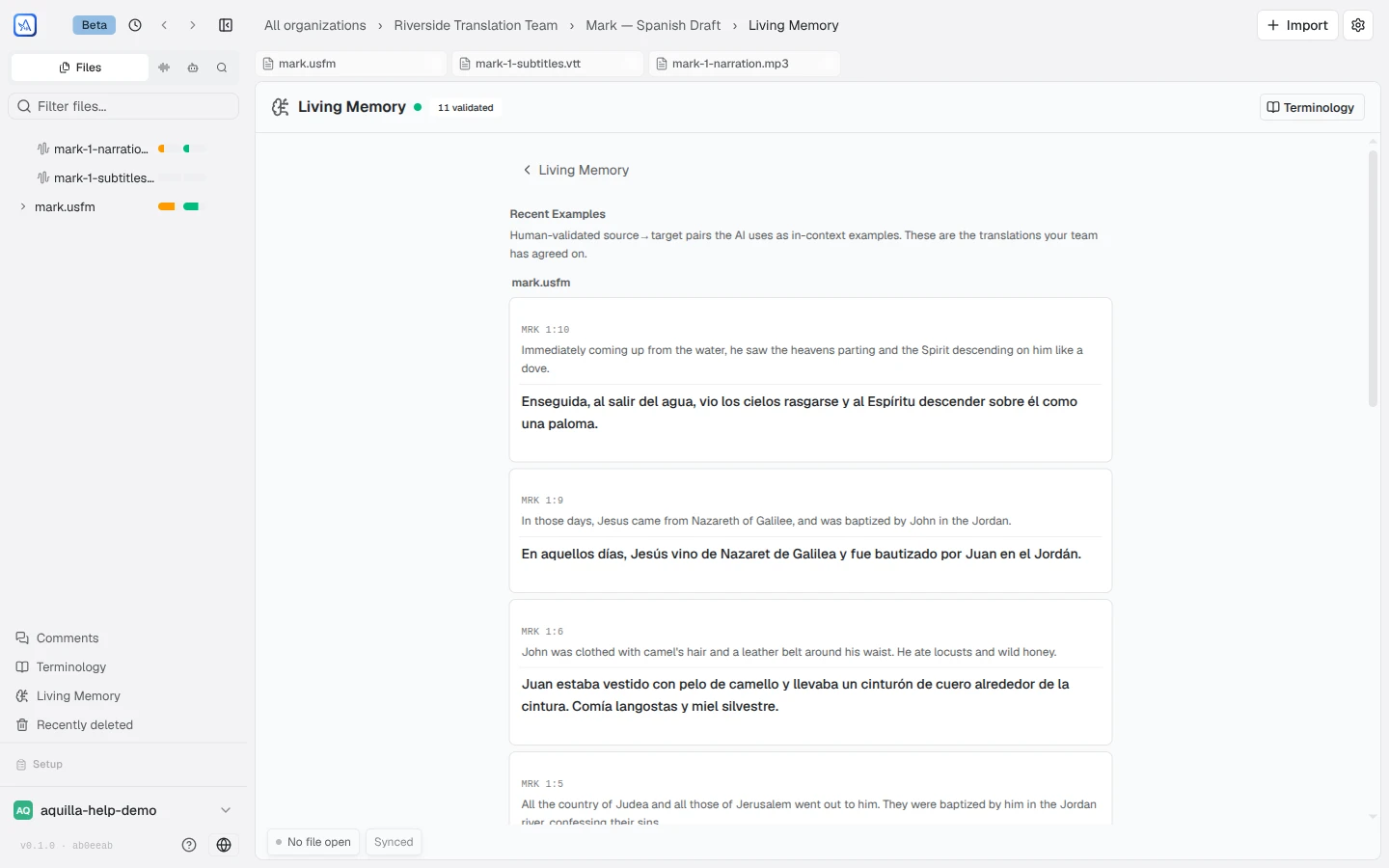
The screenshot shows the section already open.
Examples in the editor
Section titled “Examples in the editor”The editor’s Examples panel lists pairs that resemble the cell you are working on. Each row carries a badge: “{percent}% match” for a close match, “100% match” for an exact one, and “Example” for a looser one. Words that differ between the match and your cell are marked. Each row also names where it came from: “TM · {fileName}” when it comes from a translation memory, otherwise “{fileName}”. An imported TMX file is recognised as a translation memory.
Exact matches get an Insert button (“Insert this translation into the target cell”). The inserted text lands unvalidated, so it still goes through validation like any other edit.
Living Memory and the agent’s memory
Section titled “Living Memory and the agent’s memory”These are neighbours, not the same thing. Living Memory is context your team writes and curates. The AI agent also keeps its own notes about the project, proposed during chat sessions and approved by a person in the workbench’s Project knowledge tab. Agent memory & the project brief covers that side.
Help assistant
AI answers from the Aquilla docs — may make mistakes.