
Approving agent changes
Some teams connect AI agents or automated scripts to a project through Aquilla’s API, for example, a translation pipeline that drafts cells in bulk. When an agent is set up to run in ask mode, it can prepare changes, but committing them needs a human to review and approve first.
Approving a changeset
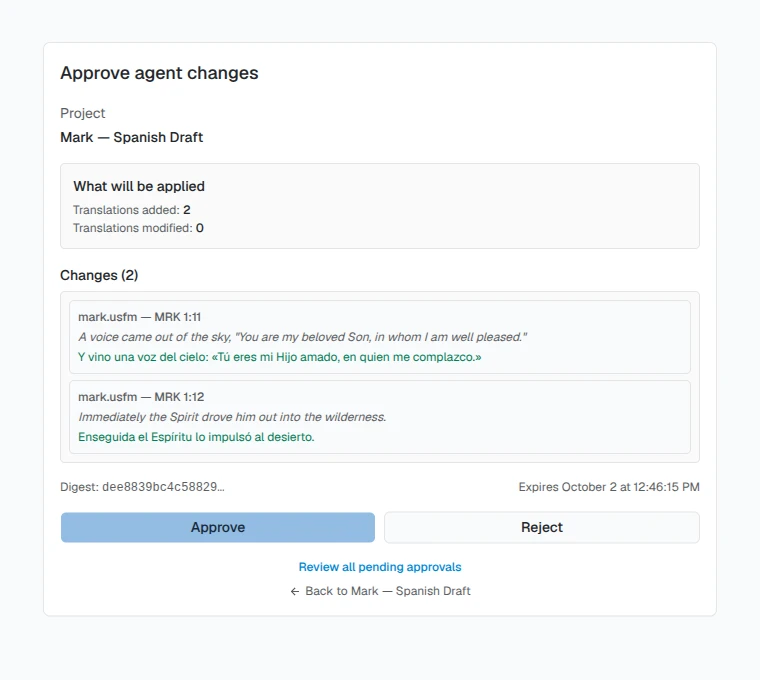
Section titled “Approving a changeset”If an agent is waiting on you, it will hand you an approval link. Opening it brings you to the Approve agent changes page, which shows:
- the project the changes belong to,
- a summary of what will be applied (for example, how many translations will be added or updated),
- any warnings worth a second look, and
- when the approval expires.
From there you can Approve or Reject. Approving lets the agent commit: the changes appear in the project and go to validation just like any edit from a human translator. Rejecting discards the proposed changes; nothing is written to the project.
A proposal that came from a translation import carries a line under it that reads “Imported from” and the name of the file. It tells you a person translated the text elsewhere, so it is not an AI draft.
A plan you staged yourself in the app with Stage as proposals for review (see Importing) has no agent waiting to commit it. For that kind of plan, Approve also applies the changes, and the page says “Approved and applied — the changes are now in the file.” The same holds when you approve it from Pending agent approvals.
Reviewing everything waiting on you
Section titled “Reviewing everything waiting on you”Instead of opening one approval link at a time, open Pending agent approvals for the project (a link from any approval page). It lists every change an agent has staged in the project, each with its status, a short summary, and any warnings, and lets you Approve or Reject it right there, or Open full review for the same detail as the single-link page.
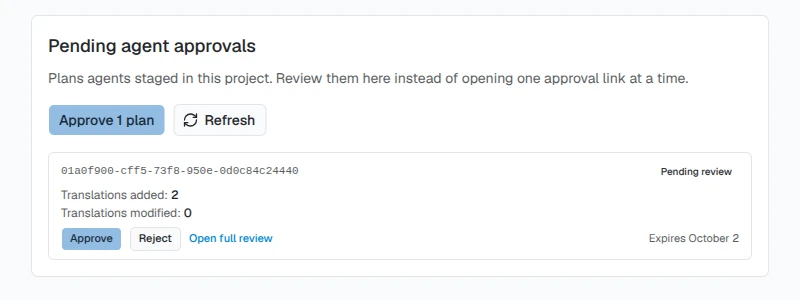
A change that asserts quality, such as validating or endorsing a translation, is never approved in bulk: it’s badged Needs per-item review and left out of Approve N plans, so you still confirm it one at a time.
Setting up a whole project in one approval
Section titled “Setting up a whole project in one approval”A connected AI agent can send a whole project setup through the Agent API as one changeset: project settings, the translation brief, members, and file imports. It can also read a project’s settings, rules, and terminology, and update some of those settings. You get one approval link instead of one per step. The Approve agent changes page lists each part under What will be applied, with its own heading for Settings changes, Membership changes, and Living Memory changes (the brief), and one Approve button applies them all in order.
A connected AI agent can also upload reference documents to a project’s knowledge base and list the ones already there, for example a published Bible or a style guide. Unlike the changes above, an upload takes effect at once, with no approval link: it needs Project lead access on the project (listing needs Viewer), the same as uploading in the app, and it adds context for the AI without changing anyone’s translation. The upload follows the same file types and size limits as the app, and the document is indexed in the same way. See Knowledge base.
Who can approve
Section titled “Who can approve”You need to be signed in and hold a role on the project at or above what the specific change requires, the same role a person would need to make that change by hand. Whoever staged the change can also approve it themselves; Aquilla doesn’t require a second person to sign off.
Connecting an agent
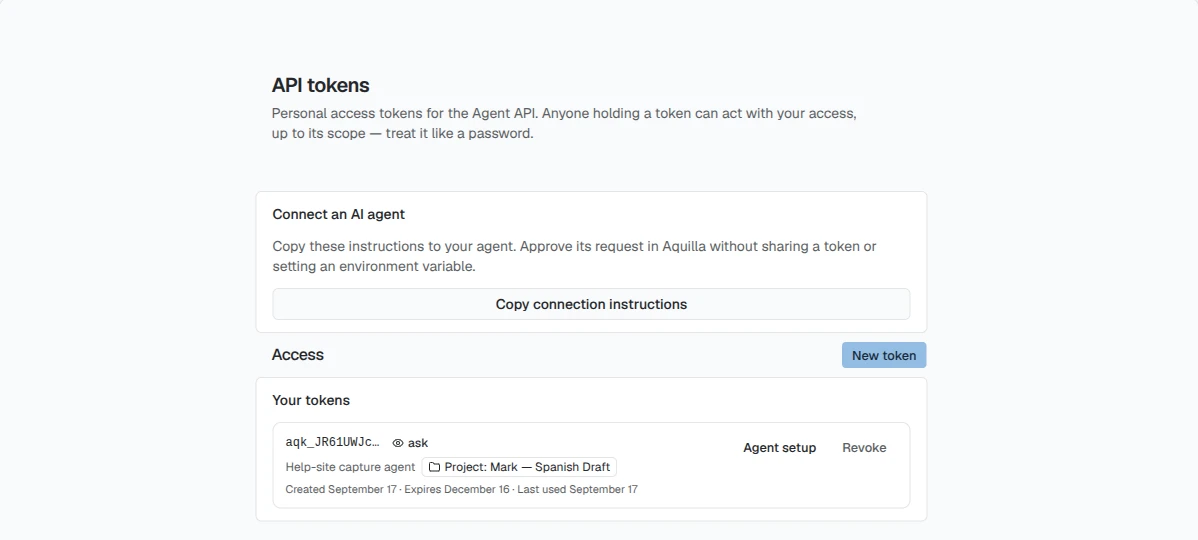
Section titled “Connecting an agent”Mint personal API tokens for connecting an agent or script to the Agent API right in the app, from Preferences → Account → API tokens (the rest of that page is covered in Your preferences):
Personal access tokens for the Agent API. Anyone holding a token can act with your access, up to its scope — treat it like a password.
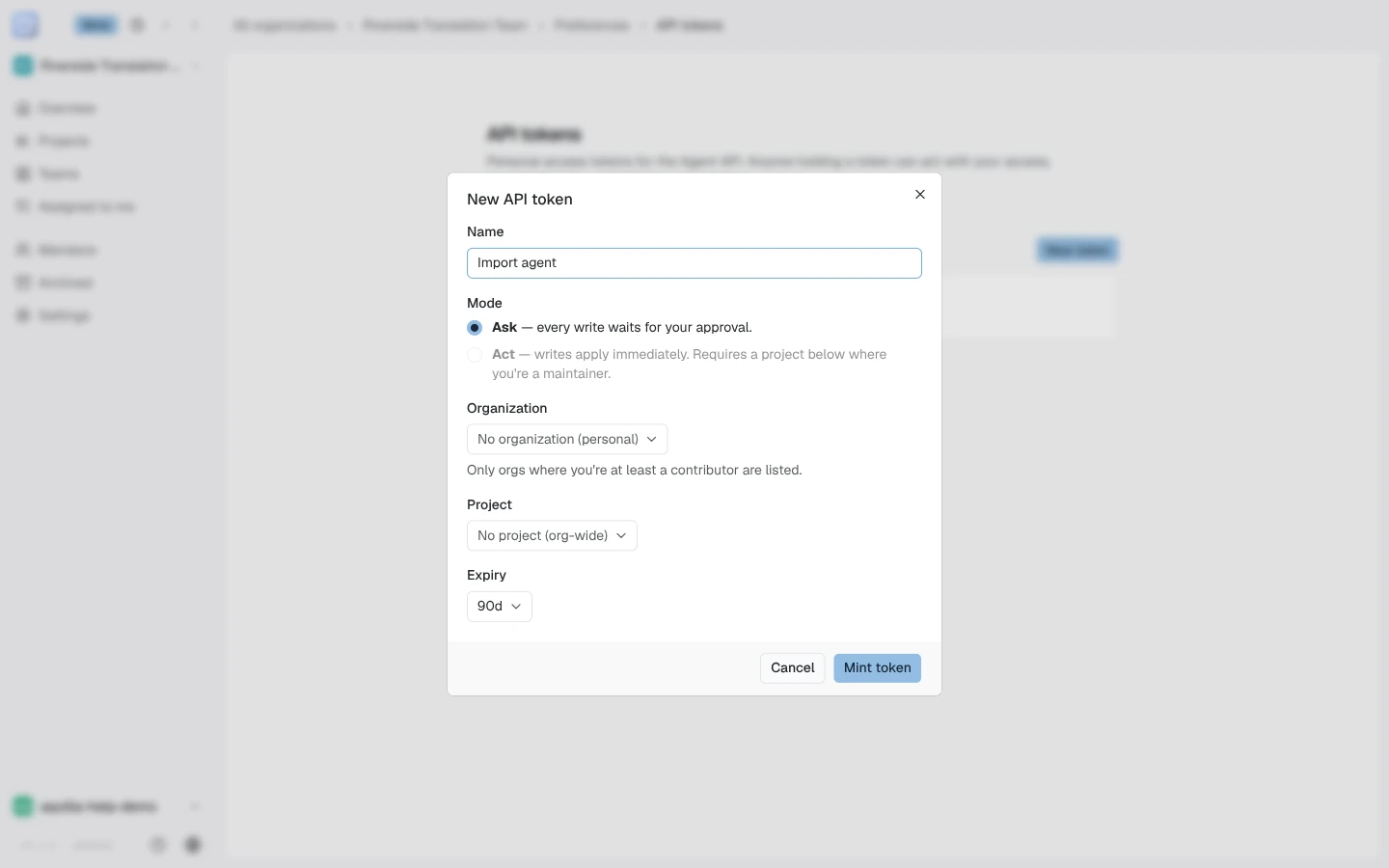
When you mint a token you choose:
- A name for the token, so you can tell your tokens apart later.
- Access: Read-only (“the agent can read, search and export, but cannot change anything.”) or Read and write (“the agent can also propose and apply changes, subject to the mode below.”). Read and write is the default.
- A Mode: Ask (“every write waits for your approval”) or Act (“writes apply immediately. Requires a project below where you’re a maintainer.”).
- An Organization or Project to scope it to.
- An Expiry: 30 days, 90 days, or No expiry.
The token’s plaintext is shown once, with a clear warning: “Copy this now — you will not see it again.” So save it somewhere safe immediately; Aquilla can’t show it to you again.
A read-only token never reaches an approval, so choosing Read-only greys out Mode with the note “Mode only applies to a token that can write. A read-only token has nothing to approve.” and Act is unavailable. A read-only token’s row shows a read-only badge in place of the mode badge, and the connection instructions Aquilla generates for it say the token cannot write.
Each token’s row lists its prefix, mode badge (or the read-only badge), scope, expiry, and when it was last used, plus a Revoke action. Revoking is immediate and irreversible: a revoked token stays revoked. Replace it with a new one instead.
Ask-mode tokens work exactly as described above: writes from that agent land
on this same approval page (/approve/:id) for a human to approve or reject.
Aquilla’s in-app assistant works differently: it acts under your own
session and role rather than a token. See
Using the AI agent.
Connecting an agent without minting a token yourself
Section titled “Connecting an agent without minting a token yourself”Agents that sign in with your Aquilla account, such as ChatGPT, connect a third way: see Connect ChatGPT or another AI assistant. Those connections show up in the API tokens list under the app’s name, and they have no Ask or Act choice.
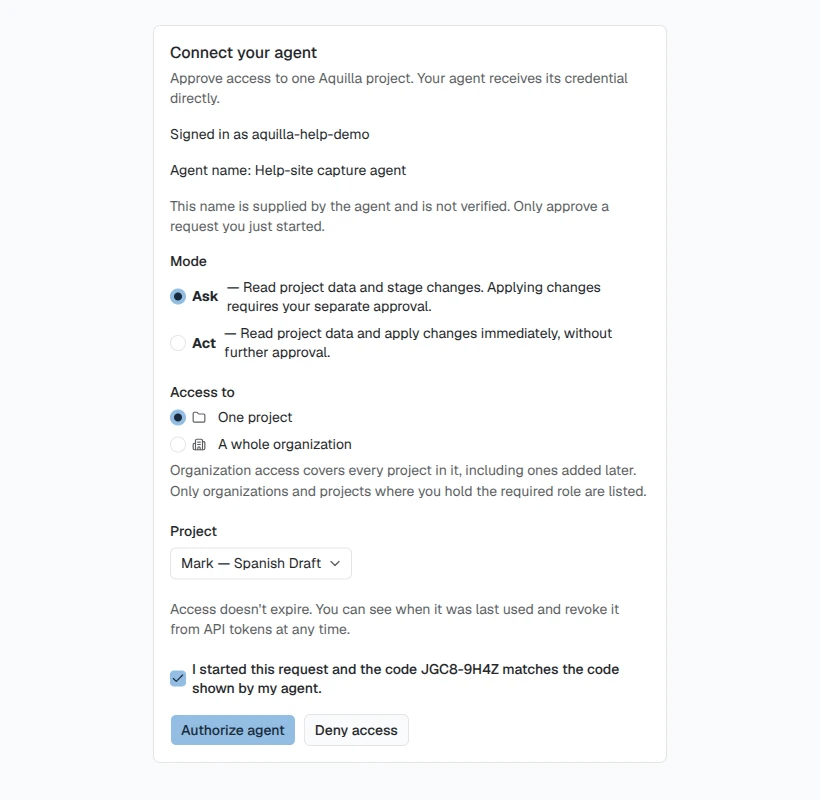
Some agents can ask for access on their own instead of you copying a token into them. At the top of Preferences → Account → API tokens, click Copy connection instructions and paste them into the agent’s chat. The agent replies with a short code; it also opens (or tells you to open) a page where you confirm that code matches, choose Ask or Act mode, and choose whether to grant access to one project or a whole organization (when only one organization qualifies, it is already selected for you), then Authorize agent. The page notes: “Access doesn’t expire. You can see when it was last used and revoke it from API tokens at any time.”
After you approve, the page says “Access approved. Return to your agent to finish connecting.” and shows a box: “Agent still waiting? Paste this message into its chat. It contains no secrets.” An agent that stopped polling before you approved needs it. Click Copy message (it changes to Copied) and paste it into the agent’s chat so it can collect its access.
Help assistant
AI answers from the Aquilla docs — may make mistakes.