
Autopilot
Autopilot is a separate assistant from the AI copilot: instead of drafting one cell or paragraph on request, it reads a whole passage at a time and stages drafts in every empty cell ahead of you, so a suggested translation is often already waiting when you get there.
What autopilot does
Section titled “What autopilot does”Autopilot reads a passage in context (the surrounding source text, your project’s terminology, and its project brief or validated cells where available) and drafts every empty target cell in that passage. Nothing saves automatically: each draft sits in its cell until a person accepts or dismisses it, the same review step as any other AI suggestion.
On a project with more than one target language, autopilot follows whichever
lane you have open in the editor, not just the
project’s default language: switch to another target-language file and a
run there drafts that language. If a passage finishes with some cells drafted
and others still needing attention, its pill reads
“{done}/{total} complete · {failed} need attention” rather than
treating the whole passage as failed.
Where you’ll find it
Section titled “Where you’ll find it”In the editor
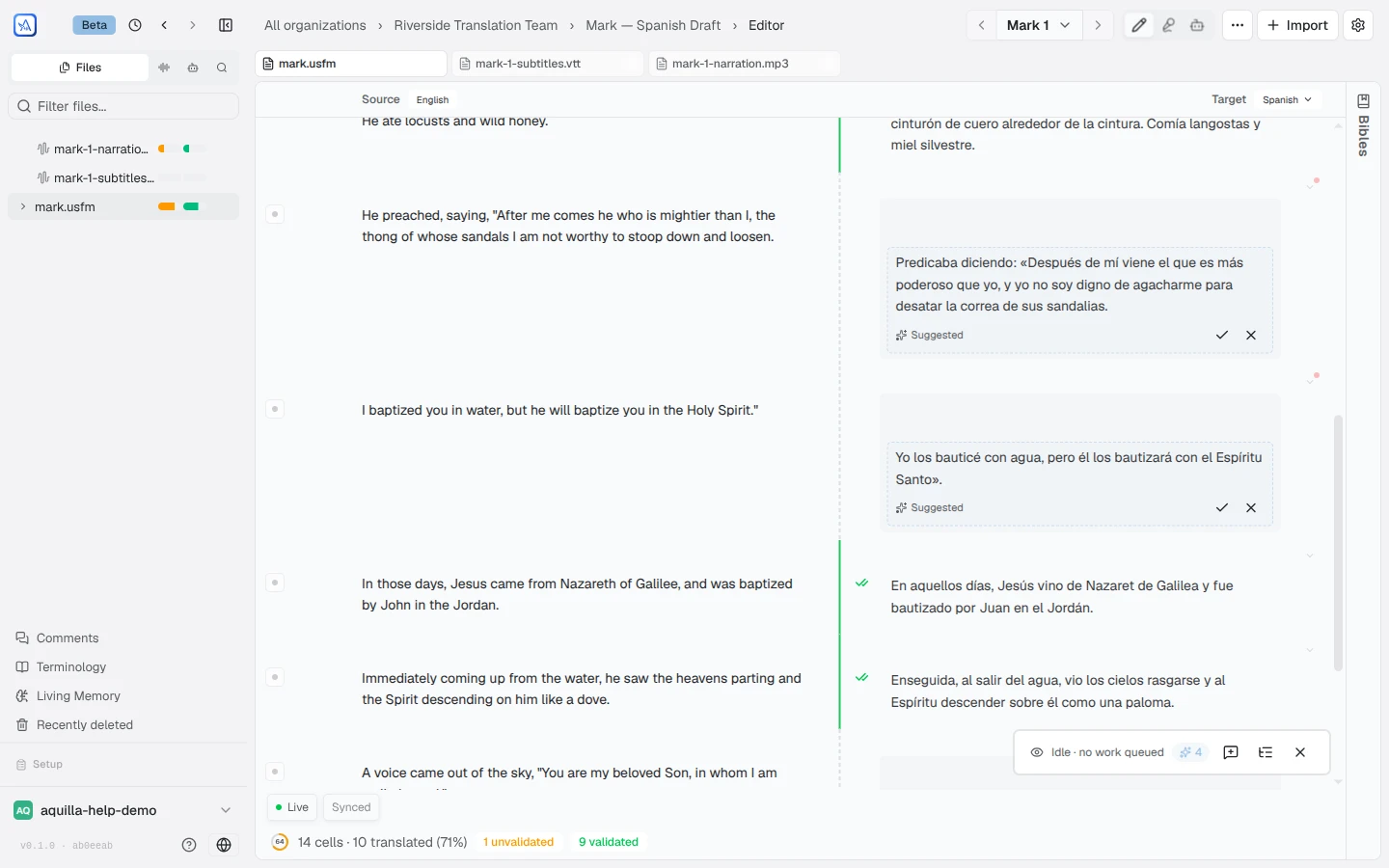
Section titled “In the editor”A floating Contextual draft control starts and tracks a run on the file you have open. While it runs, it shows progress and states like “Starting…,” “Finishing this passage…,” “Paused,” and “Idle · no work queued.” It’s available on files with running prose or dialogue (USFM, Open Bible Stories, subtitles, Markdown/DOCX, plain text, HTML): most Bible-translation content. It doesn’t appear on structured data files like spreadsheets.
In the cells themselves
Section titled “In the cells themselves”A staged draft shows as a card in the empty target cell, with Use this translation to accept it or Dismiss this suggestion to discard it. Accepting one commits it exactly like typing a translation yourself, so it goes through the same role and sync checks as any other edit.

On a project’s Overview page
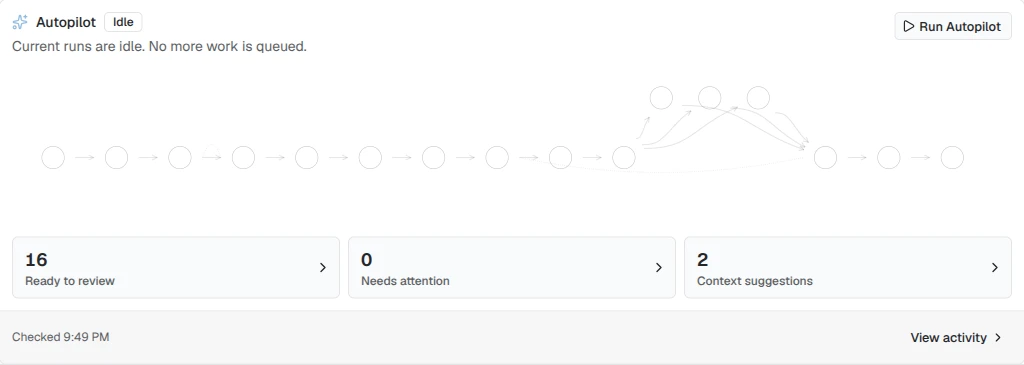
Section titled “On a project’s Overview page”An Autopilot panel shows where autopilot stands: a status line (for example “Current runs are idle. No more work is queued.”), and three counts, Ready to review, Needs attention, and Context suggestions, each opening the matching list. It’s visible to everyone who can see the project. Starting a run across the whole project at once with Run Autopilot needs Contributor access or above. The panel’s footer shows when autopilot last checked the project, next to a View activity link.
Reviewing autopilot’s activity
Section titled “Reviewing autopilot’s activity”Open View activity on the Overview panel (or click any of its counts, or the running pill’s activity link in the editor) for a full record of what autopilot has done, is doing, and why.
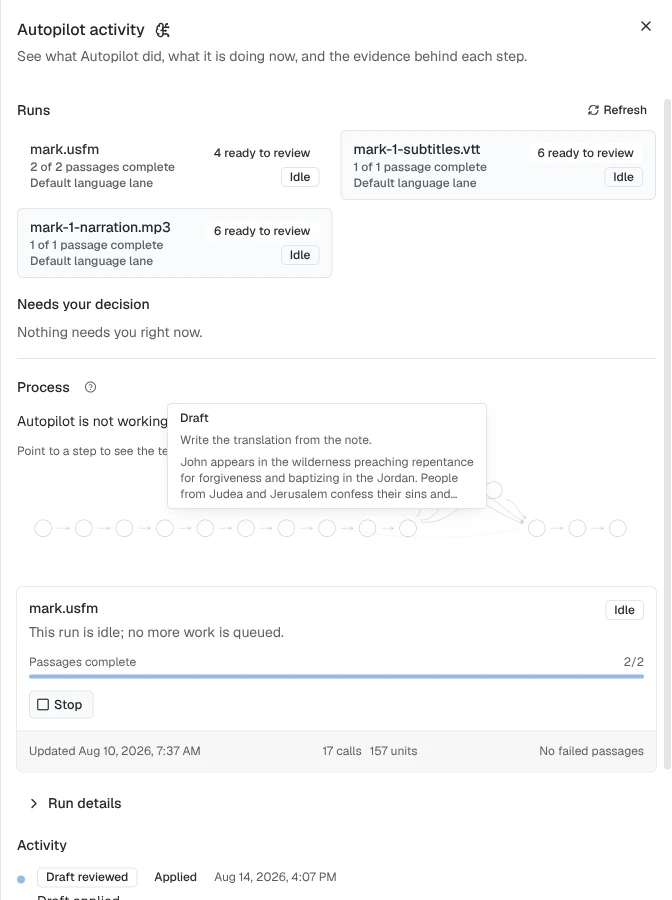
- A Runs list shows every run: which file, its progress (“N of M passages complete”), the target language, how many drafts are ready to review, and a status (Working, Paused, Queued, Ready for review, Complete, Stopped, Needs attention, and so on).
- Selecting a run opens its details (when it started, last update, started by, target language) alongside an activity timeline of what happened step by step, for example “Passage started” or “3 reviewable drafts staged.” Older runs without a recorded step history still show their overall status and totals.
- Ready for review and Draft history show each staged draft’s actual text with a link to open it in the editor, so you can judge a run’s quality before accepting anything. A Context section shows what autopilot based a passage on: a short summary, its read on the passage’s meaning, and any ambiguities it flagged.
Selecting a run also shows its Process: a step-by-step diagram of what autopilot is doing right now, from finding work and cutting the next piece of text, through writing a situation note, drafting, running checks, and review, down to reporting what happened. A “Now: …” line marks the passage it’s actively on; point at any step to see its text, or click for more detail.
Above the runs list, a “Needs your decision” section holds anything autopilot got stuck on and can’t resolve alone: a card explains why and what it affects, with Answer to give it what it needs, Not needed to dismiss the question, or Ask someone else to hand it to a teammate. Extra decisions queue behind a “N more held” note and surface once the ones above are cleared.
Anyone who can see the project can browse this activity. Starting, pausing, resuming, or stopping a run needs Contributor access or above: a running run can be paused or stopped, a paused one resumed, and a run that failed (a dropped connection, an unreachable model) can be started again from the same panel; anything it had already drafted is kept for review rather than lost.
Steering a run
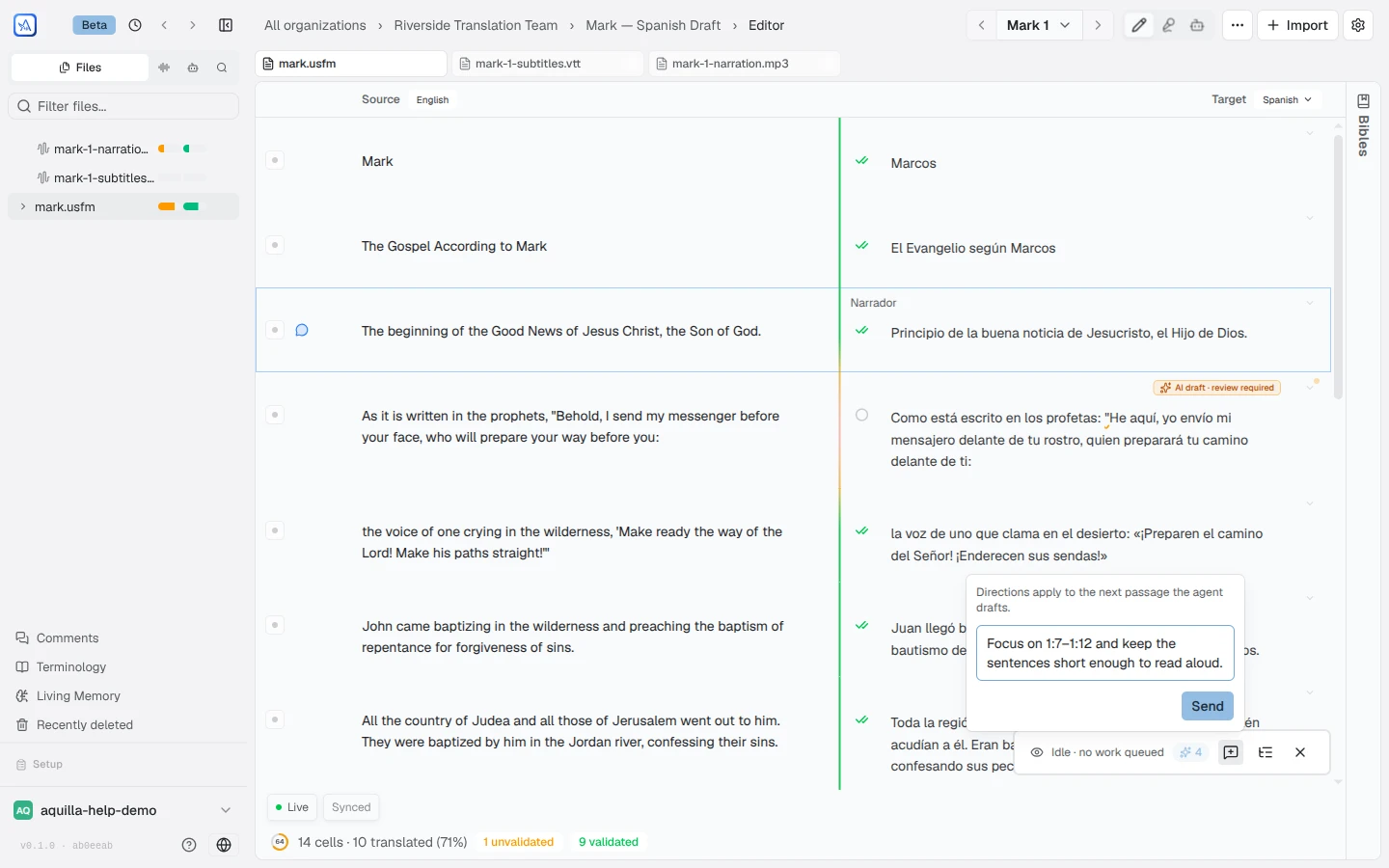
Section titled “Steering a run”You don’t have to stop a run to change its course. Direct the run on the editor’s autopilot control opens a small Direction for the agent box: type an instruction (“focus on chapter 3”, “shorter sentences”) and Send, and the run folds it into its next passages.
Before starting, autopilot also checks how much context it has to work with: a readiness list covering Key terms, Translation brief, Approved examples, Project checks, and Project languages, each Ready, Partly set up, or Missing. A run works with whatever is there, but the more of Living Memory is filled in, the better its drafts start out.
Turning it on or off
Section titled “Turning it on or off”Autopilot’s in-editor pill is controlled by a toggle in Project Settings → Experimental, labeled Contextual drafting: “An assistant that reads whole passages, drafts translations from the surrounding context, and stages them for your review. Early preview — stays on this device.” It’s on by default. The setting lives only in your browser: switching it off doesn’t turn autopilot off for your teammates, and the project-wide Run Autopilot button on the Overview page works either way.
Help assistant
AI answers from the Aquilla docs — may make mistakes.